
Q2 2026: Features, Features, Features
1) Controlled Formatting Changes in Legito Documents
Until now, users could set character-level formatting such as bold, italic, underline, strike, and colors in the Template Editor, and the formatting was mandatory for drafting documents in the Document Editor.
Now users can change formatting for Text Elements, Text Input Elements, and User-Added Clauses in the Document Editor. A standard set of Element formatting options is available:
- Bold
- Italic
- Underline
- Strike
- Text color
- Highlight color
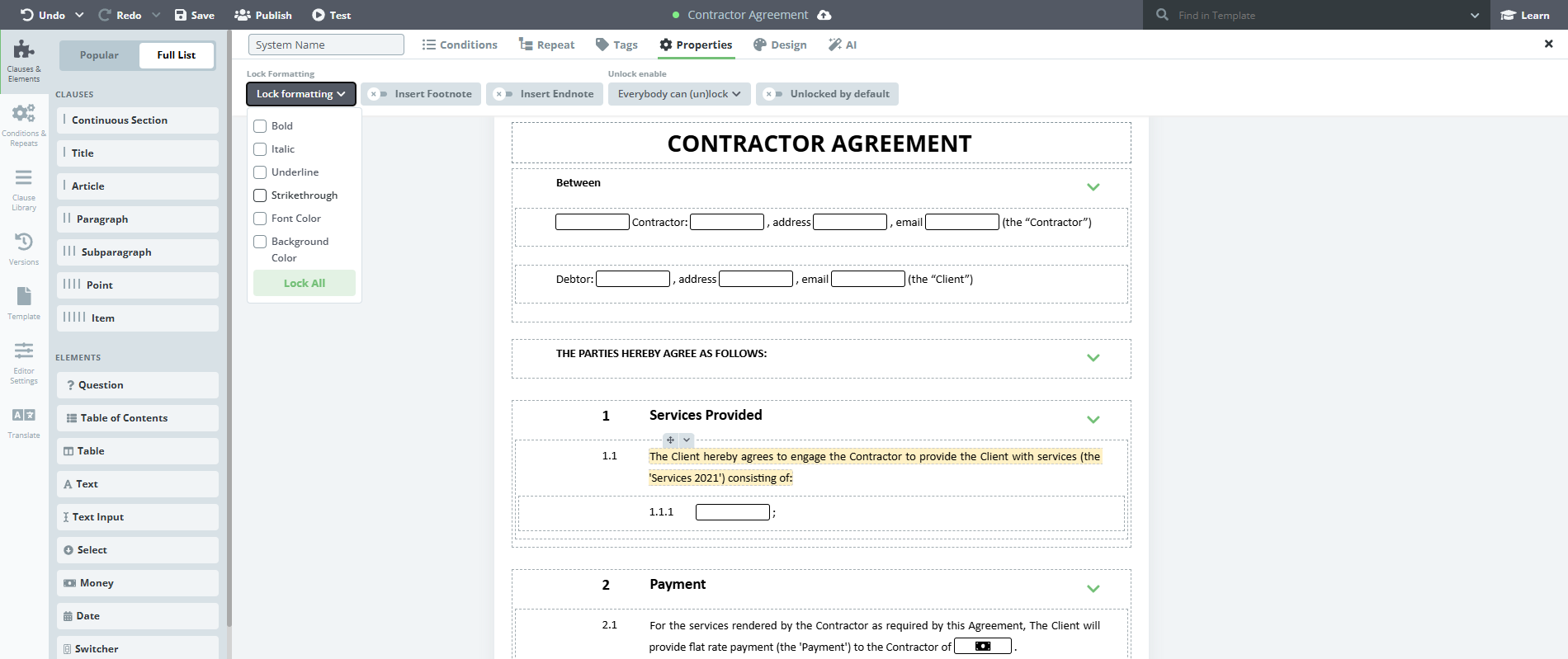
Formatting changes in the Document Editor can be individually restricted or even deactivated in the Template Editor for each Element or User-added Clause.
This setting can be found in Template Editor > Properties > Lock Formatting, or Template Editor > Properties > User-Added Clauses.
Formatting of Text Elements in the Document Editor is available only after the Element is unlocked for editing.
In the Document Editor, formatting changes are deactivated by default.
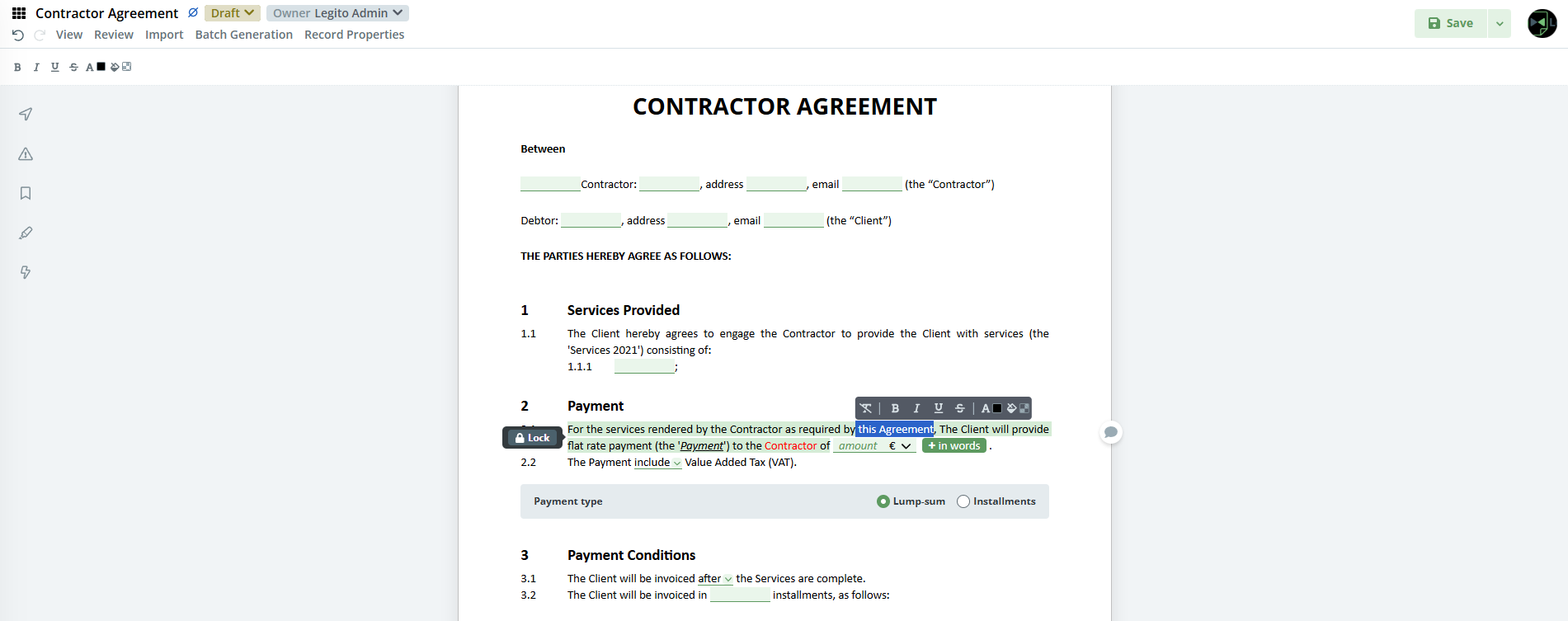
To change the formatting in a Legito Document, click the Element or User-Added Clause. A formatting submenu will appear at the bottom of the Document Menu in the Document Editor. Please note that the “Document Menu” is active for the Template Suite.
Alternatively, text can be marked and a context menu used.
It is also possible to “restart” formatting to the original Template formatting.
2) Update Translations of older Template Versions
We added an option to Update Translation text for outdated Template versions.
If a user opens the Translation mode of an outdated Template version in the Template Editor, the Save and Publish Translation buttons will be replaced by the “Update Translation” button.
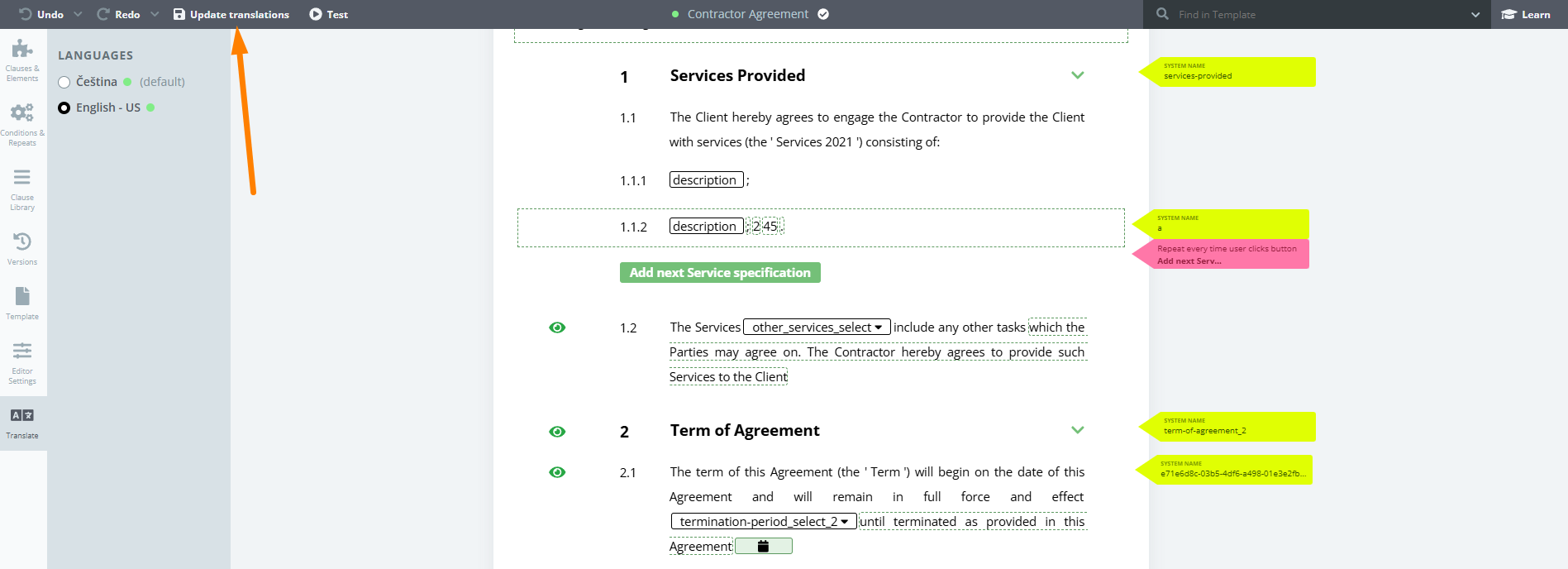
Unlike the “Save Translation” and “Publish Translation” buttons, the “Update Translation” button does not create a new Template Suite version but updates the translation text of that version.
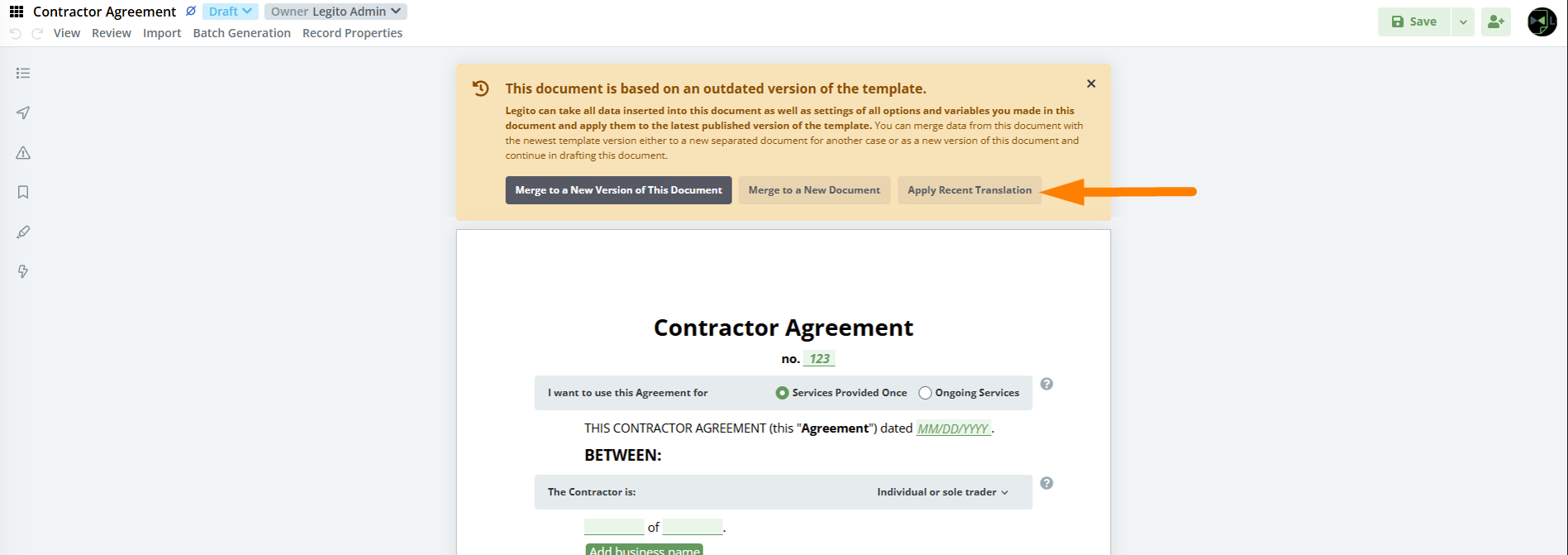
In this case, the Legito Document based on the outdated Template Suite version containing an updated Translation will display the “Apply Recent Translation” button in an orange box above the Template Suite. This button creates a new version of the Legito Document containing the updated Translation text.
3) New Out-Of-Office and User Delegation Settings
Users can now mark themselves as Out-Of-Office in the Personal settings of the user account. Such Out-Of-Office User has an icon next to the User name in the Owner dropdown, Sharing and Approval.
In an addition to that, an Out-Of-Office User may delegate another User a temporary stand-in. Delegated users will have all the privileges of the original user in the following area:
- Owner of a Document Record,
- Sharing of a Document Record,
- Approver in Approval of a Document Record
The delegated user is easily identified by a special icon beside delegating User name in the Owner dropdown, Sharing and Approval.
All the delegated User actions are recorded in the Timeline with the information about the delegating User. The timeline will also display which actions were performed by a delegated user.
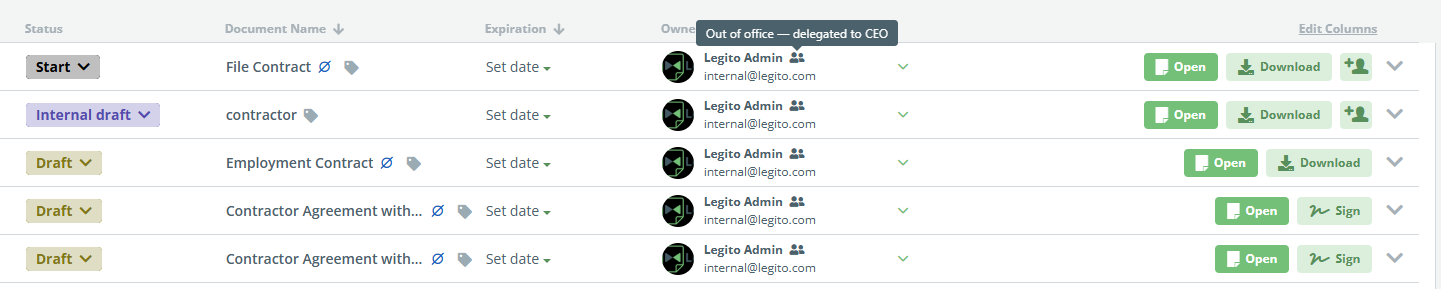
To control who can use the new delegation feature, there is a new “Can Delegate” permission. This can be found in People > User > Workspace Settings > Can Delegate.
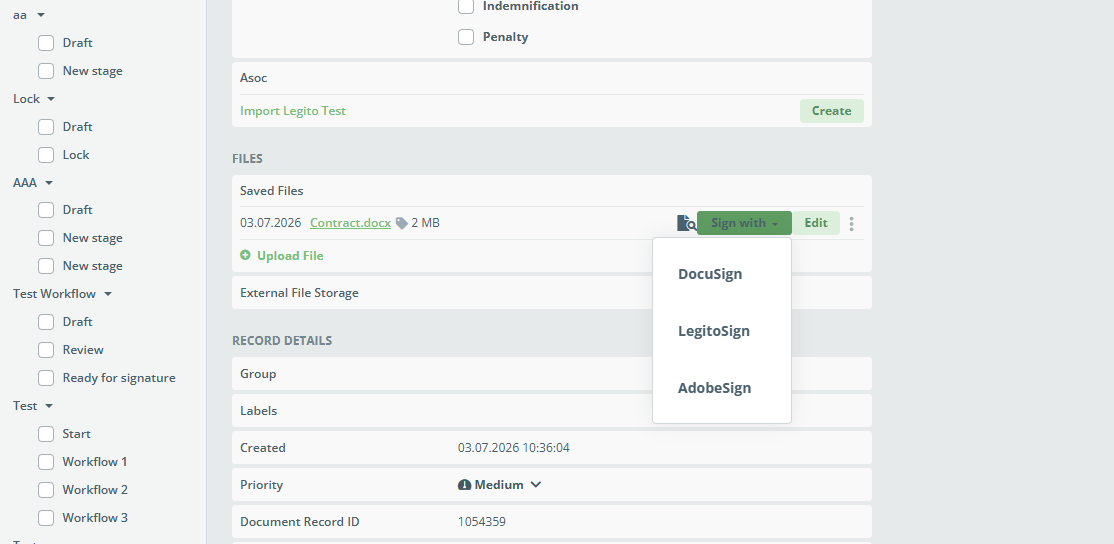
4) Option to Sign Files Other Than PDF
The signing process can now be started for file types other than PDF. Legito converts these files to PDF in the background first, which means any uploaded attachment that can be converted to PDF can be sent for signature just like a document generated in Legito.
List of currently supported file types:
- docx
- doc
- rtf
- txt
- odt
- ods
- xlsx
- xls
5) New API Version – API v8
We have release a massively improved version of our REST API – version 8. It is the largest update to our API to date: 30 brand-new endpoints, 14 reworked endpoints, and 9 endpoints returning richer responses — 96 operations in total, up from 66 in v7. It also introduces two completely new feature areas — AI Agents and Legito Sign electronic signatures. Many of these changes were created thanks to great suggestions from our customers.
Base URL change. Point your integration at the /api/v8 path on your region’s host (for example https://emea.legito.com/api/v8). Authentication (JWT bearer token) is unchanged from v7.
New feature area: AI Agents
A completely new resource group lets you list, create, manage, and run AI Agents directly through the API. This is the same capability exposed by the MCP run_agent tool, now available over REST.
| Method & Endpoint | Description |
|---|---|
GET /ai-agent | List the AI Agents available to the authenticated user. Supports limit, offset, and a search filter by name. |
POST /ai-agent | Create a new AI Agent. |
PUT /ai-agent/{agentId} | Update an existing AI Agent. |
DELETE /ai-agent/{agentId} | Delete an AI Agent. |
POST /ai-agent/{agentId}/run | Trigger an immediate run of an AI Agent and receive the run result. |
New feature area: LegitoSign electronic signatures
API v8 introduces full programmatic control over LegitoSign signature packages — create a package, attach documents and signers, send it for signing, track its status, and download signed documents.
Creating and managing packages
| Method & Endpoint | Description |
|---|---|
POST /legito-sign/package | Create a signature package. The document source is one of three mutually exclusive options: an existing Document Record (documentRecordId), an existing File (fileId), or raw PDF(s) supplied inline (documents). Signers and metadata can be supplied in the same call or added later. |
GET /legito-sign/package | List signature packages with free-text search, a structured filter (Gridify syntax), orderBy, pagination, and an optional showDeleted flag. |
GET /legito-sign/package/{packageId} | Retrieve a single package. |
PUT /legito-sign/package/{packageId} | Update package metadata (name, expiration). |
DELETE /legito-sign/package/{packageId} | Soft-delete a package (only draft or expired packages can be deleted). |
POST /legito-sign/package/{packageId}/send | Move a package from draft to sent; emails the first signer(s). |
POST /legito-sign/package/{packageId}/void | Cancel an in-progress package and notify signers with a reason. |
Managing signers
| Method & Endpoint | Description |
|---|---|
POST /legito-sign/package/{packageId}/signer | Add one or more signers, including their sign-fields and text-fields. |
PUT /legito-sign/package/{packageId}/signer/{signerId} | Update a signer (all editable fields are replaced). |
DELETE /legito-sign/package/{packageId}/signer/{signerId} | Remove a signer. |
Managing documents
| Method & Endpoint | Description |
|---|---|
POST /legito-sign/package/{packageId}/document | Add one or more documents to a package. |
GET /legito-sign/package/{packageId}/document/{documentId} | Download a document of the package (PDF, base64-encoded). |
DELETE /legito-sign/package/{packageId}/document/{documentId} | Remove a document from a package. |
Full-text search on records
Both Document Records and Object Records now support full-text search.
Document Records — GET /document-record
Three new query parameters:
search— the full-text query (e.g.contract).searchType— the match strategy:match,match_phrase,match_bool_prefix(default),match_phrase_prefix, orwildcard.searchIn— which fields to search in (pipe-separated). When omitted, it defaults to all built-in fields (name,parties,document) and every searchable property.
To discover which values are valid for searchIn, call the new endpoint:
GET /document-record/search-field— returns the list of searchable fields.
Object Records — GET /object-record/{objectId}
The same search, searchType, and searchIn parameters are available. When searchIn is omitted, it defaults to id and every searchable property of the object. A companion discovery endpoint is provided:
GET /object-record/{objectId}/search-field— returns the searchable fields for the given object.
deleted filter renamed to archived
Breaking change. On GET /document-record, the v7 deleted query parameter has been replaced by archived. Object Records (GET /object-record/{objectId}) also gain the new archived filter. (The user list endpoint gets its own new deleted filter — see User out-of-office delegation.)
Reworked Document Version data model
The way document data is read and written has been modernised and unified. This is the most important area to review when migrating an integration.
New, unified element model
In v7, reading data returned TemplateElementResponse objects and writing data used TemplateElementValue objects. In v8 both directions use a single, consistent DocumentDataElement model, and responses are wrapped in DocumentSuiteVersionWithElements. A new listType parameter (flat list — the default — or hierarchical tree) is available on every data endpoint.
Reading data
| v7 | v8 |
|---|---|
GET /document-version/data/{code} (keyed by document version code) | GET /document-version/data/{documentSuiteVersionId} (keyed by Document Suite Version UUID) |
| — | GET /document-version/data/{documentRecordCode}/latest — returns the element data of the latest saved Document Version of a Document Record, without needing to know the version id. |
Writing data
PUT /document-version/data/{documentRecordCode}— updates a Document Record by creating a new Document Version from the supplied element data. It now returns201 Createdwith the fullDocumentSuiteVersionWithElements, and supports thelistTyperesponse option.POST /document-version/data/{templateSuiteId}— creates a new Document Record and Version from a Template Suite. New in v8: you can pass aworkflowStatusIdto set the initial workflow status, and thelistTyperesponse option. The existingfavoriteSettingId,authorId,ownerId, andlanguageIdparameters are unchanged.
New: merge to the latest template version
POST /document-version/data/{documentRecordCode}/merge— merges a Document Record’s latest saved version onto the latest published Template Suite Version. UsecreateNewDocumentRecord=trueto produce a new Document Record instead of a new version on the existing one. Returns409if the record is already on the latest template version.
Downloading the latest version directly
GET /document-version/download/{documentRecordCode}/latest/{format}— download the most recent Document Version of a Document Record without having to look up the version code first. It accepts the same export options as the existingGET /document-version/download/{code}/{format}endpoint (templateId,advancedStyleId,disableConditions,comments,helps,forHandwriting,lowResolutionImages,mergePdf).
JSON integration enhancements — POST /document-version/json-integration
- New
documentRecordIdparameter: when set, the JSON data is mapped onto a new Document Version of an existing Document Record instead of creating a brand-new record (templateSuiteIdandjsonIntegrationIdare ignored in that case). - New
listTyperesponse option. - The success response is now the unified
DocumentSuiteVersionWithElements.
New Template Suite capabilities
| Method & Endpoint | Description |
|---|---|
POST /template-suite/from-docx | Create a Template Suite by importing a DOCX file (base64-encoded in the request body). |
GET /template-suite/{templateSuiteId}/elements | List all fillable elements of a Template Suite’s latest published version — i.e. every element that accepts a value on the data endpoints. Read-only elements (text, titles, links, calculations, sections, tables, images, etc.) are excluded. Each element includes a valueShape describing the expected request-body shape. |
The list endpoint GET /template-suite also gains filtering:
id— filter to specific Template Suite IDs (pipe-separated).published—truereturns only published suites,falseonly unpublished.
New file management endpoints
| Method & Endpoint | Description |
|---|---|
PUT /file/{fileId} | Update external file metadata — fileName, the attachment flag, and the set of labels (label IDs replace the current set; each label must have fileEnabled = true). |
POST /file/version/{fileId} | Upload a new version of an existing file. |
The File object returned by the file endpoints now also includes a labels array, so you can read a file’s assigned labels (not just set them). The existing GET, POST, DELETE, and download endpoints are otherwise unchanged.
Labels can now be updated
PUT /label/{labelId}— update an existing label. In v7 labels could only be created and deleted; v8 adds full update support.
The Label object also carries new fields: color, and the two scope flags documentRecordEnabled and fileEnabled that control whether a label can be applied to Document Records and to files respectively (a label must have fileEnabled = true to be assignable via PUT /file/{fileId}).
Workflow improvements
| Method & Endpoint | Description |
|---|---|
GET /workflow/stage | New. Returns the Workflow Stages from the last published revision of every Workflow. Filterable by stage id, workflowId, and workflow types. |
The list endpoint GET /workflow also gains filtering:
id— filter to specific Workflow IDs (pipe-separated).types— filter by workflow type:any,documentRecord,documentRecordTemplate,documentRecordExternal,objectRecord.published—truereturns only Workflows that have a published revision.
The WorkflowStage object also exposes new fields describing what a stage does: internalName, and the action flags anonymize, archive, purge, and externalStorageSend.
Much richer Event filtering
The GET /event endpoint gains a large set of new query parameters, giving you fine-grained control over which events are returned. The v7 parameters (documentRecordId, documentRecordCode, userId, authorId, timestampFrom, timestampTo, limit, offset) are all still supported. New in v8:
types— include only the given event types (pipe-separated).exceptTypes— exclude the given event types (pipe-separated).typeGroup— filter by a high-level event group:process,document,user, orautomation.exceptAuthorId— exclude events authored by the given user IDs (pipe-separated).system— whentrue, return only system-generated events (events with no author).withIncognito— whentrue, include incognito events in the result (defaultfalse).templateSuiteId/exceptTemplateSuiteId— include / exclude events by Template Suite ID (pipe-separated).templateCategoryId/exceptTemplateCategoryId— include / exclude events by Template Category ID (pipe-separated).
The response also covers more event sources. In v7 each item was a DocumentRecordEvent or UserEvent; v8 adds ObjectRecordEvent and TemplateSuiteEvent to the set of returned event shapes.
User out-of-office delegation
The User object now carries an outOfOffice block, readable and writable through the existing user endpoints (GET /user, POST /user, PUT /user/{userIdOrEmail}):
delegateUserId— the user who receives delegated work while this user is away (must be another user in the same workspace;nullclears the delegate).enabled— whether out-of-office delegation is currently active.
In addition, GET /user gains a deleted query parameter to filter deleted users (matching the behaviour already available on other list endpoints).
The Permission object (used by GET / PUT /user/permission/{userIdOrEmail}) has also been extended with a number of new permission keys — including filesView, the favoriteSettings* family (favoriteSettingsImportLegito, favoriteSettingsImportSheet, favoriteSettingsBatchGeneration, favoriteSettingsTemplate), and a broad set of settings* permissions (e.g. settingsDesign, settingsDocumentRecords, settingsManageDocuments, settingsNavigation, settingsFooter, settingsOnboarding, settingsWorkspaceLocalization, and more).
Object Records now expose their workflow stage
The ObjectRecord object gains a workflowStage field, so Object Records now report their current Workflow Stage just like Document Records do. This pairs with the new objectRecord workflow type available on GET /workflow and GET /workflow/stage.
Migration checklist
When upgrading from v7 to v8, pay particular attention to:
- Base path — switch to
/api/v8. - Document data model — migrate from
TemplateElementValue/TemplateElementResponseto the unifiedDocumentDataElement/DocumentSuiteVersionWithElementsmodel; the read endpoint is now keyed by the Document Suite Version UUID. - Renamed parameters —
deleted→archivedonGET /document-record. - Changed response codes —
PUTandPOSTdocument-version data endpoints now return201 Createdwith the full version-with-elements payload. - New event shapes —
GET /eventcan now returnObjectRecordEventandTemplateSuiteEventitems in addition toDocumentRecordEventandUserEvent; make sure your deserializer tolerates the new types. - New opportunities — consider adopting full-text search, the
/latestdata and download shortcuts, DOCX template import, richer event filtering, AI Agents, and LegitoSign where they simplify your integration.
6) Better Labels
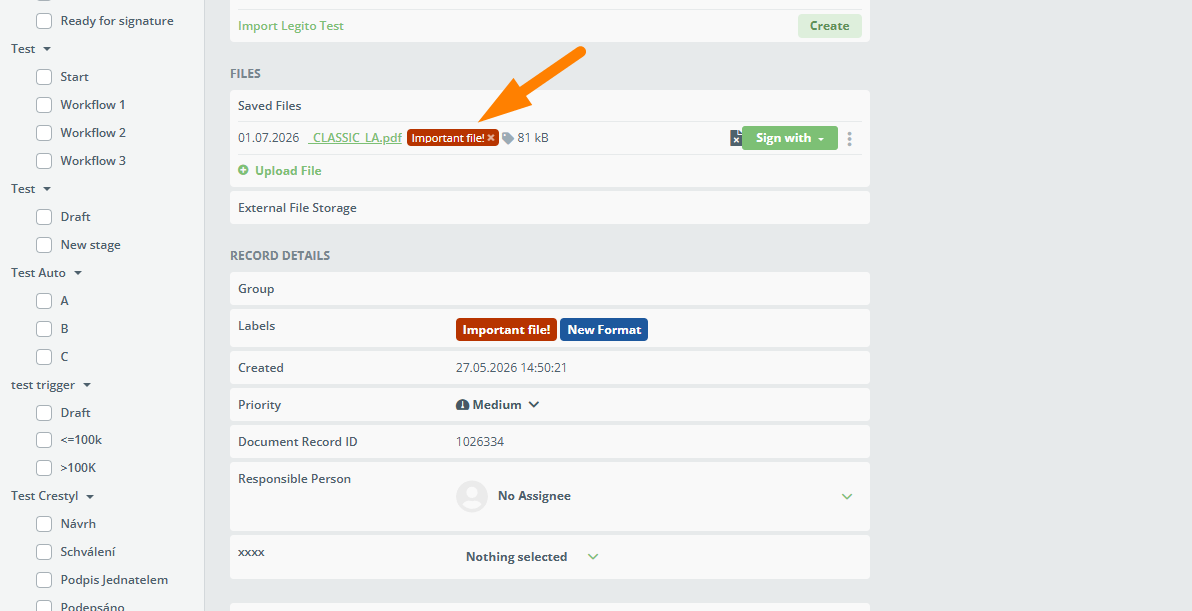
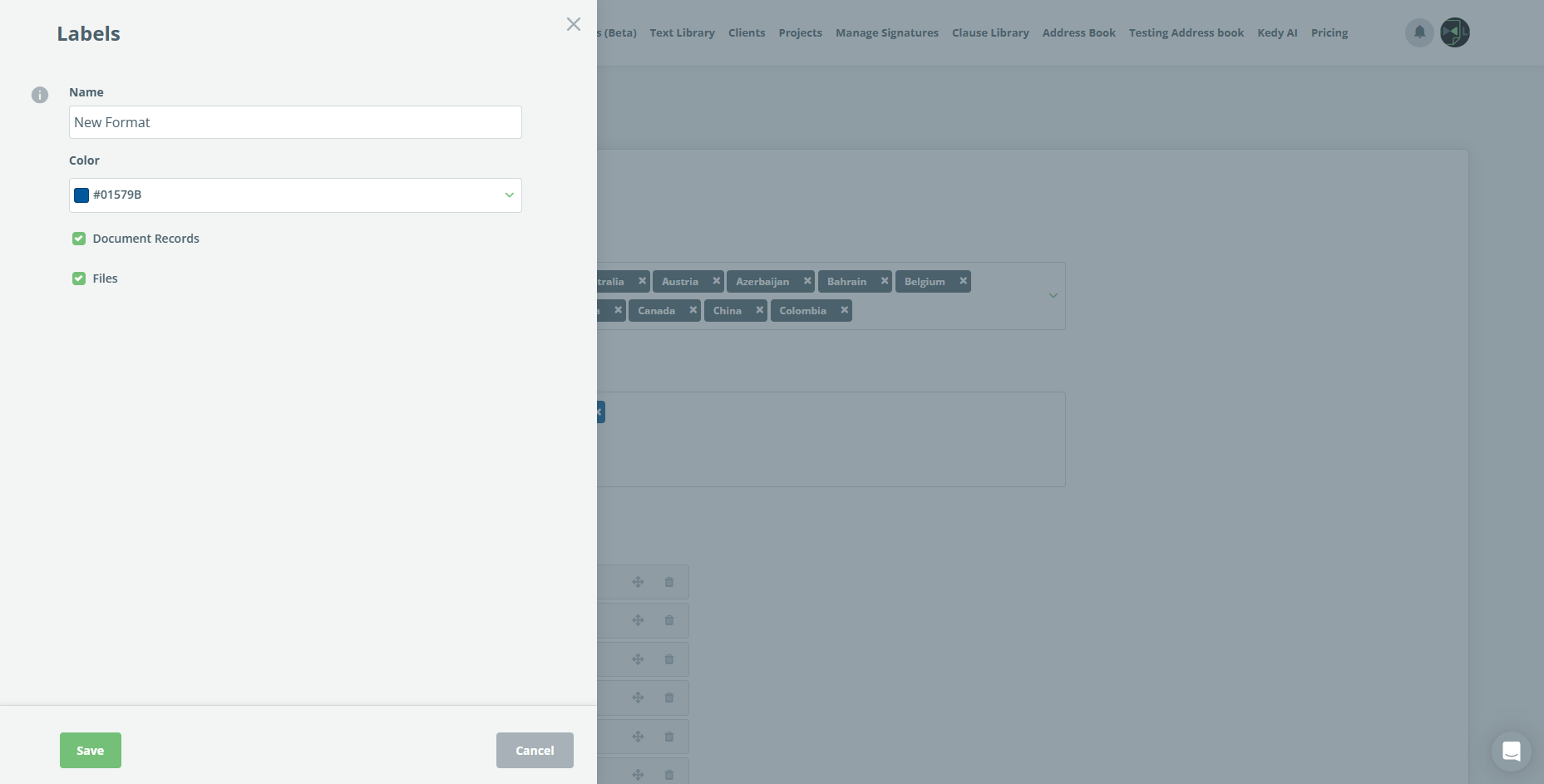
Labels have been improved. A label can now be assigned to a Document Record, to an uploaded file, or to both. It is important to remember that removal works in one direction only: if the same label is attached to both a Document Record and its uploaded file, removing it from the Document Record also removes it from the file but removing it from the file leaves the label on the Document Record.
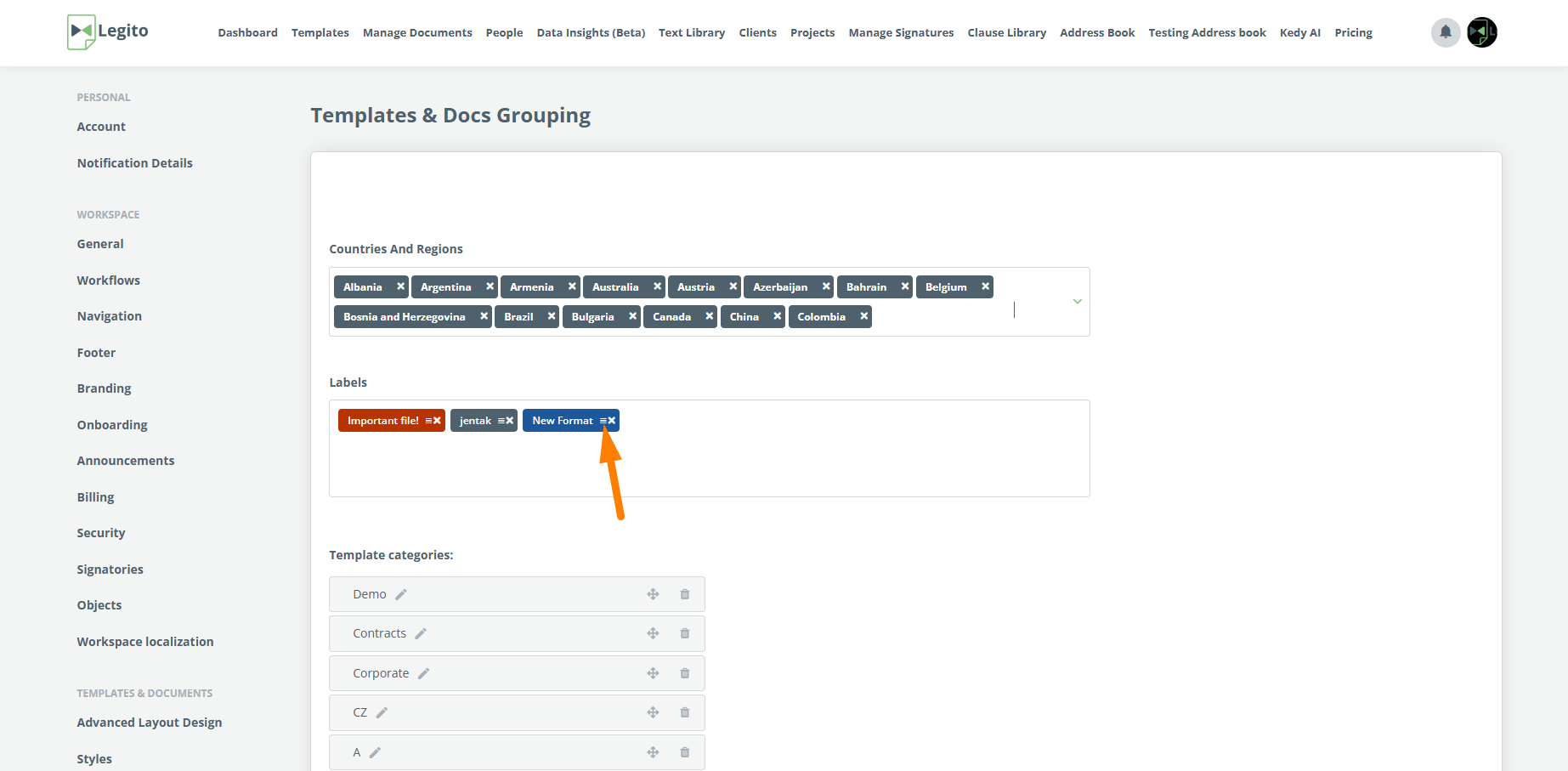
Labels are customized in Settings > Template & Docs Grouping, by clicking the hamburger menu on any label. The customization window also opens automatically when a new label is created.
7) Deeper Integration with Adobe Sign
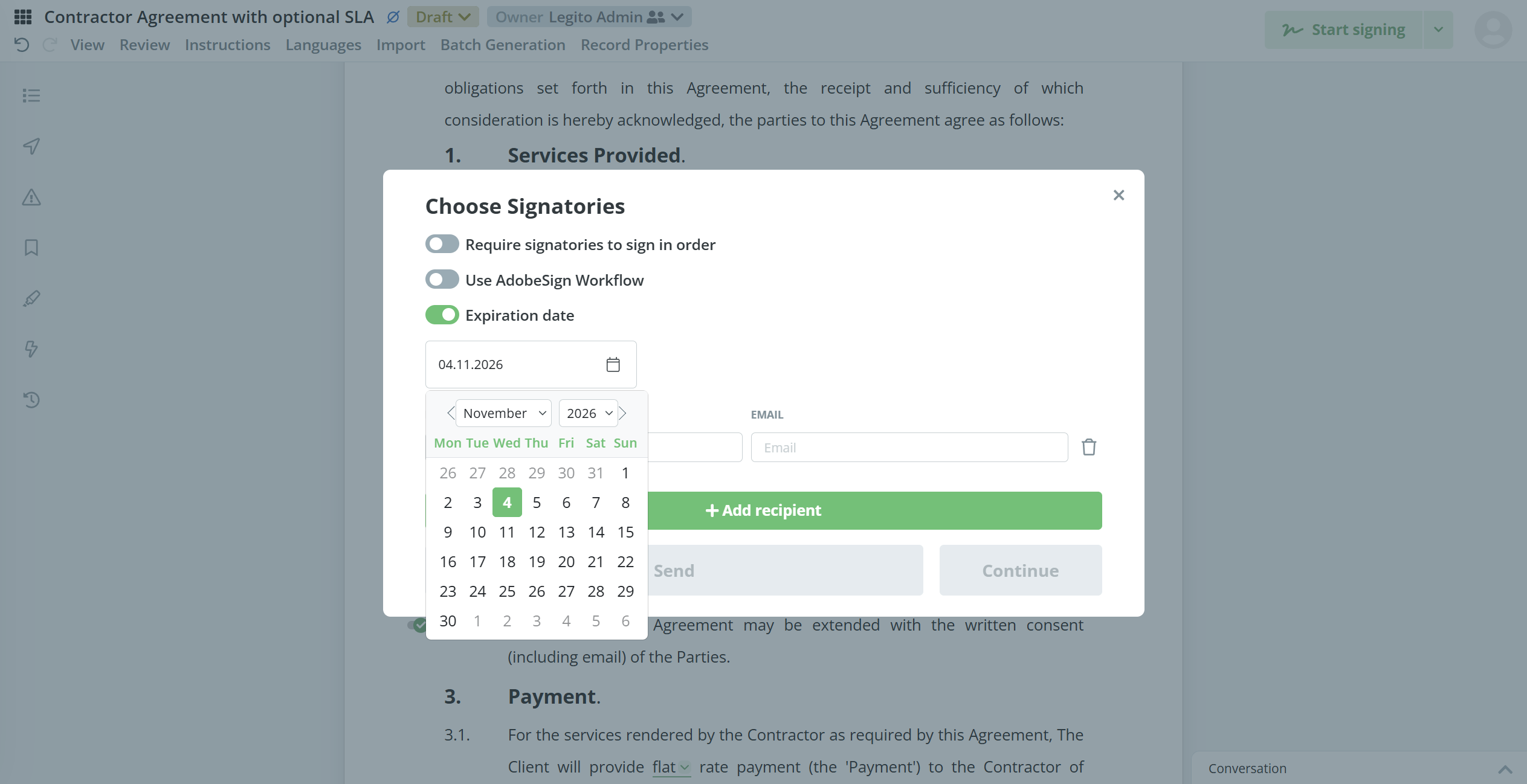
Legito’s Adobe Sign integration has been enhanced by introducing support for expiration date and Adobe approvers.
Firstly – an option has been added to insert the expiration date for the eSignature process. The expiration date field is optional, and can be enabled in the same signing modal where recipients are added. If the field is enabled but a date is not specified, the system automatically sets the expiration date to 120 days from that date. There is also an option to have the date filled out automatically based on the document. Where there is a Date Element with a “Signing Date” tag applied to it, the system will automatically take this value and set it as the expiration date.
Secondly – Legito now supports Adobe approvers, so the system can see participants in the selected Adobe workflows and forward them to Adobe when the signing process has started.
8) Document Record Actions Triggered by Workflow Stage Change
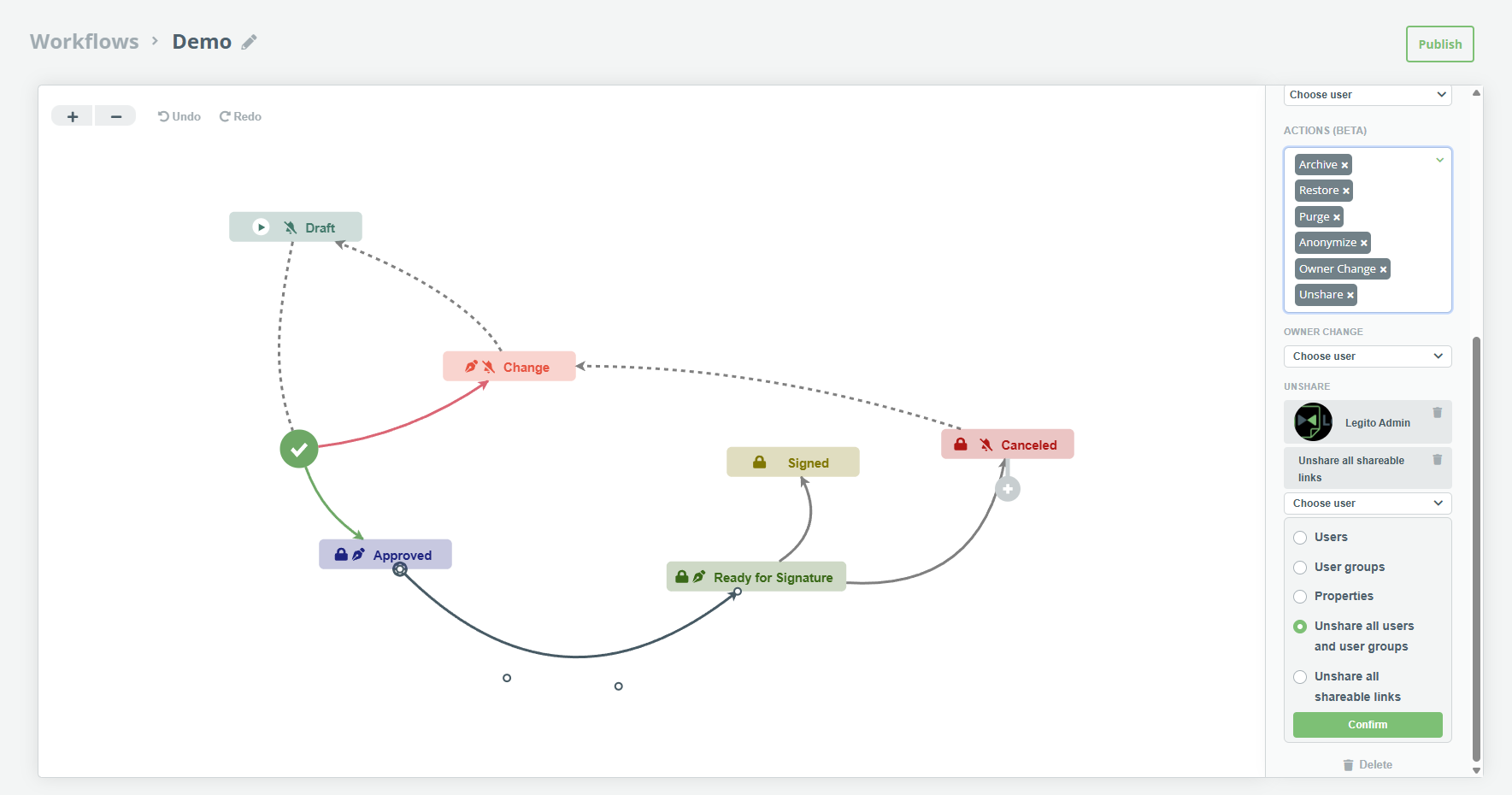
Document record actions can now be tied to Workflow stage changes. This means that a predetermined action (or actions) automatically triggers whenever a Workflow stage changes. Actions can be set up in the Workflow Editor by clicking on the arrow between stages (stage change).
The following actions are supported in this feature’s current beta version:
- archivation – archives the document record
- restoration – restores of the document record from the archive
- purge – permanently deletes the document record
- anonymize – anonymizes the document record
- Owner change – changes the owner of the document record (it is possible to pick a specific user)
- unshare – unshares the document record.
More actions can now be selected for a single stage change. If the user chooses the option to unshare the document record, these additional options are available:
- Users – unshares specific user/users
- User groups – unshares specific user group/groups
- Properties – unshare users from specific sharable properties
- Unshare all users and user groups – broad unshare option that unshares the document record from all users and user groups
- Unshare all shareable links – deactivates all external share links
- Users can select and combine multiple unshare options.
- Finally, all document record actions will trigger for both manual and automatic stage changes.
9) MCP Server
A range of new AI features have been implemented. All of these AI features are powered by the industry standard Model Context Protocol (MCP). MCP works by connecting a large language model to Legito’s internal API so it can understand and act on requests across documents, templates, and workflows.
10) Kedy AI
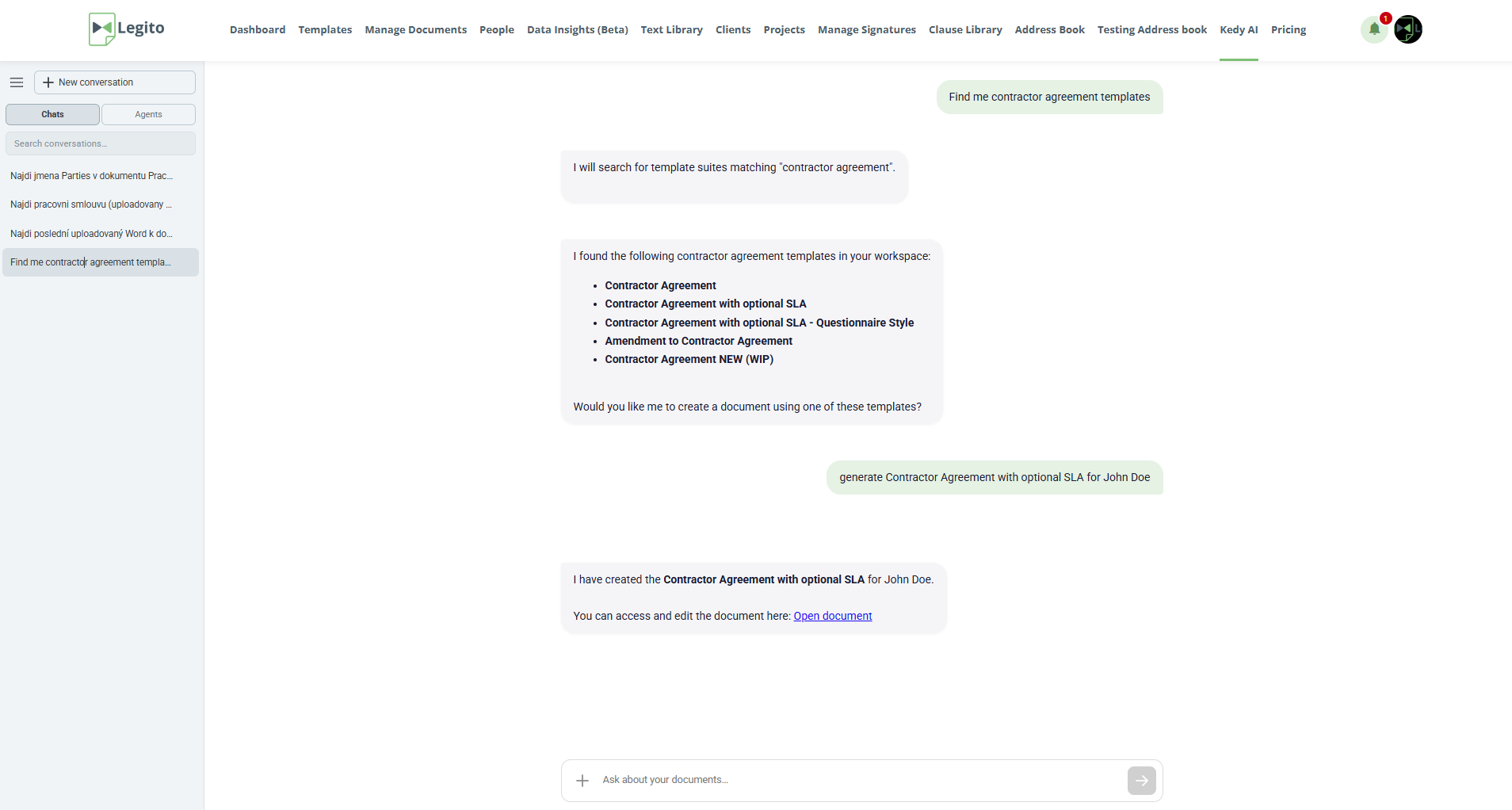
Introducing Legito’s new AI Assistant, Kedy AI. By simply chatting with Kedy, users can control most of the functionality that Legito offers using natural language. Kedy AI can be found in the main menu at the top of the page.
Kedy AI can now perform these actions:
- Document creation from templates
- Perform search in Documents and use filters
- Creation of a new template from uploaded files
- Document management actions such as sharing, archivation, deletion or owner change
- Change workflow stages or show available workflow stages for given document
- Offer download links for requested documents
- Fill out documents based on the template instructions (elements have a special AI field for exactly this purpose)
- Offer more guidance by providing links to our knowledge base
- Provide data insights
- Fill out metadata such as document record properties
- Manipulate with Object records – create, delete, change owner, change wf stage etc.
In the case of unclear requests, KedyAI will ask for clarification or confirmation, in the same way as other mainstream AI agents.
11) AI Agents
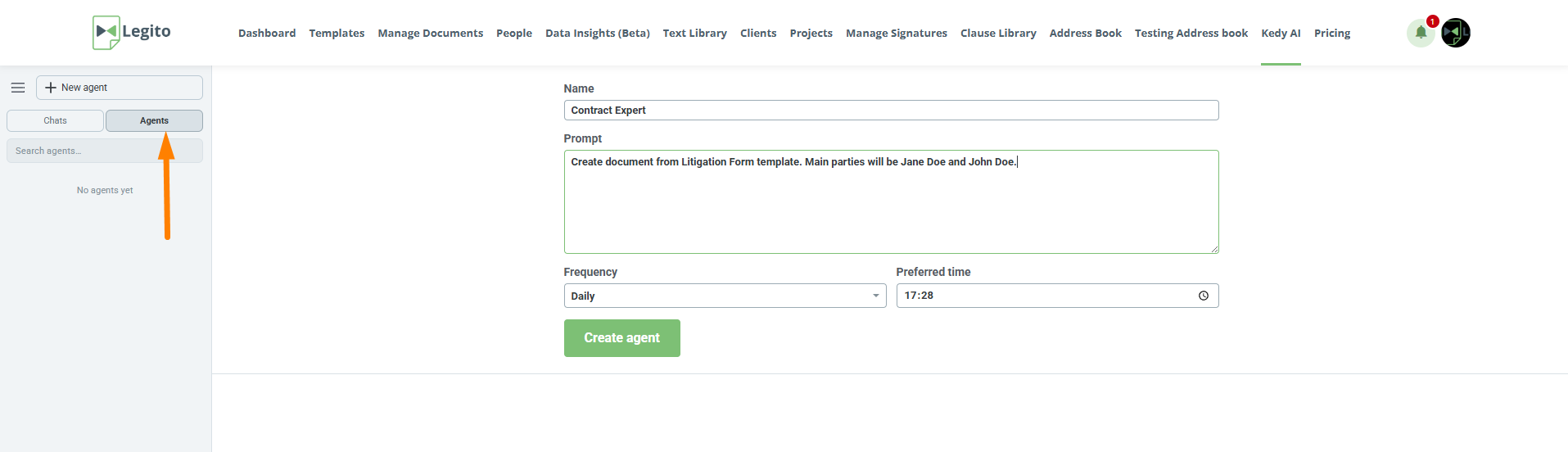
Kedy AI already supports agentic workflows, meaning users can create agents to perform assigned tasks at predetermined times. Tasks can also be run manually. Agents can be accessed via Kedy AI and switching to the Agents tab in the left panel.
12) Kedy AI Dashboard Widget
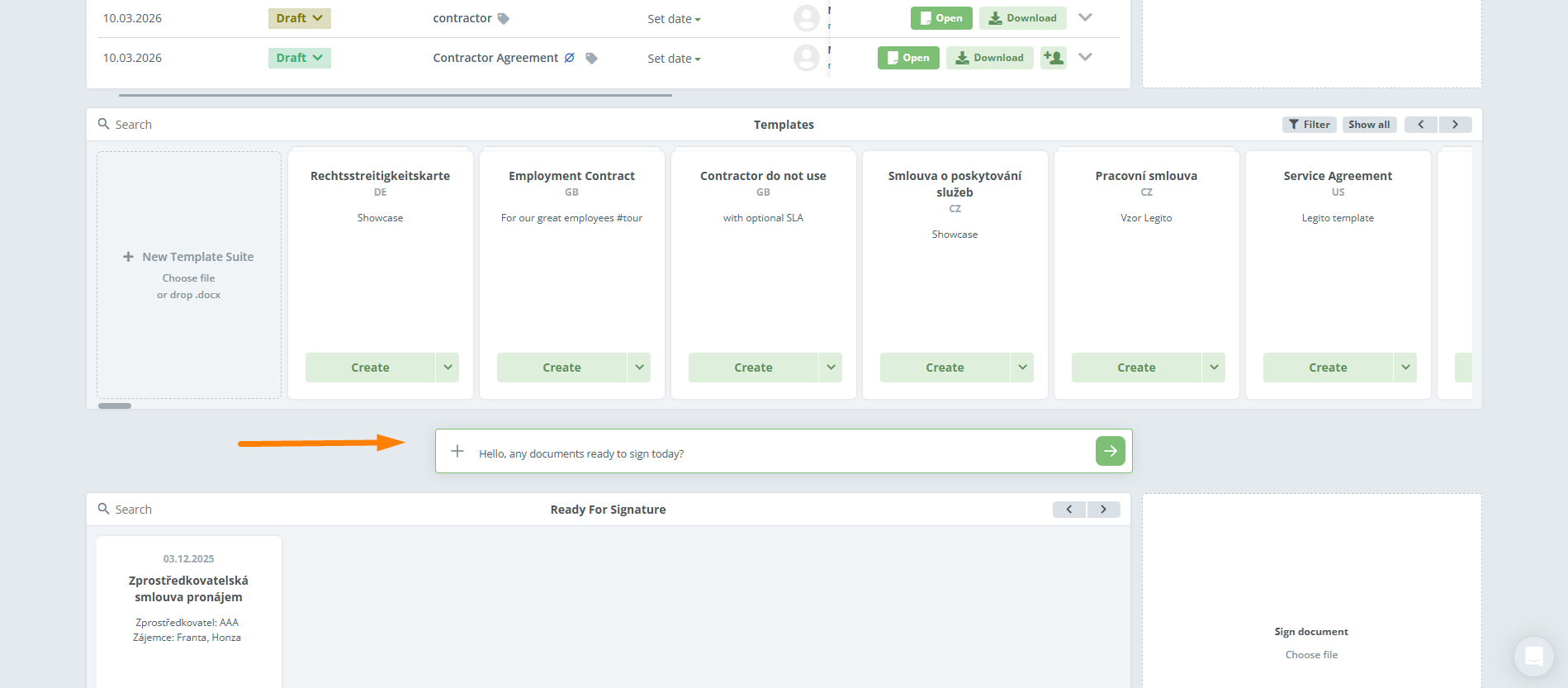
Kedy AI can be accessed from a newly added widget. The widget can be added to the dashboard the standard way by clicking “Customize Dashboard” and selecting the “Kedy AI” widget. The widget functions as a chat box where you can task Kedy AI directly. After entering the request, the user is redirected to the standard Kedy AI interface.
13) Kedy AI Token Allocation and Quotas
Introducing the new Kedy AI Token System. Each Workspace is allocated a dedicated volume of AI tokens for a specific period. Tokens power all native AI-driven tasks within your environment.
Tokens are managed at Workspace level and will automatically reset on a monthly basis.
Tokens are deducted when a request utilizes Legito’s dedicated Kedy AI servers. If you use advanced setups like MCP (Model Context Protocol) where the AI engine runs outside Legito’s server infrastructure, no tokens are spent,with one important exception noted below.
| Feature / Tool | Consumes Tokens? | Details |
| Kedy AI Chat | Yes | Standard chat queries, interactive prompting, and contextual discussions run through our core AI server. |
| AI Agents | Yes | Automated background agents performing multi-step actions require server processing power. |
| Word-to-Template Conversion | Yes (Always) | Converting regular Word documents into reusable templates inherently relies on our custom backend parser and AI servers. Note: This tool always consumes tokens, even if initiated via MCP. |
| MCP Integration (General) | No | If you trigger custom tool actions via MCP that bypass our central AI processing server, no tokens are consumed. |
If your allocated AI tokens are used up before the end of the month, any active AI requests are temporarily paused. During this time, the chat will stop responding, agents will not execute, and the Word-to-Template converter will be unavailable.
To keep you clearly informed, a prominent red notification banner will appear at the top of your Kedy AI section, displaying the following message:
⚠️ AI token limit reached. Kedy AI is temporarily paused and will resume once AI tokens are renewed next month.
When the new monthly period begins, Workspace tokens will automatically renew to full capacity, and all features will instantly resume operation.
14) Kedy AI User Permissions
To give you granular control, we have added a new AI Permissions Section inside the People module.
- What it does: Toggling the checkbox delegates whether a specific user can view/use the Kedy AI section and see the Kedy AI dashboard widget.
- Default behavior: To ensure a smooth transition, whenever Kedy AI is enabled in a workspace, the user checkbox default setting is ON for everyone. This can be turned OFF manually for specific users when required.
- API Support: The Kedy AI user permission is fully integrated into API v8 for automated user provisioning.
15) New Permissions for MCP Integration
A dedicated permission to control MCP Integrations to the aforementioned AI section has been added. By default, a user’s MCP Integration permission is automatically enabled upon activation of the MCP Integration in the Workspace in Manage Workspaces. If the MCP Integration is not enabled in the Workspace, permissions will be unavailable to users and will remain off. Once user permission is enabled, the user can integrate their account with third-party applications via the Workspace MCP.
16) Enhanced AI Conversion from Word to Template
Word to Template AI conversion has been enhanced. Conversion is executed by our in-house model which is continuously trained on more data. As such, this feature will evolve to become more powerful and robust.
17) New Files View for Manage Documents
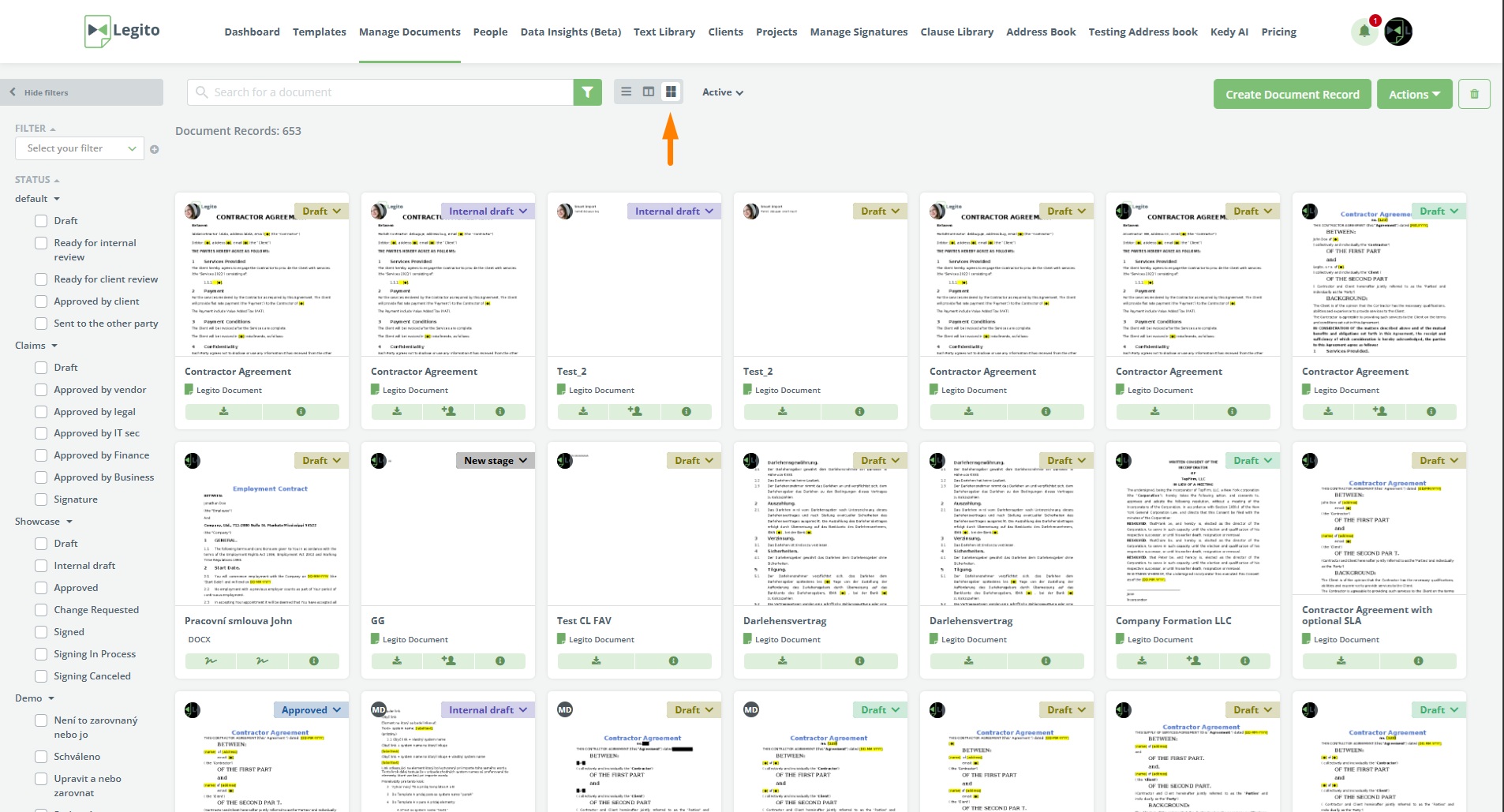
Introducing a completely new layout option for visualizing document records in the Manage Documents section. The new layout displays each document record as a small tile,and a thumbnail generated from the first exportable document in the Template Suite. It can be selected by clicking on the new icon next to the grid and kanban options.
18) Files View Dashboard Widget
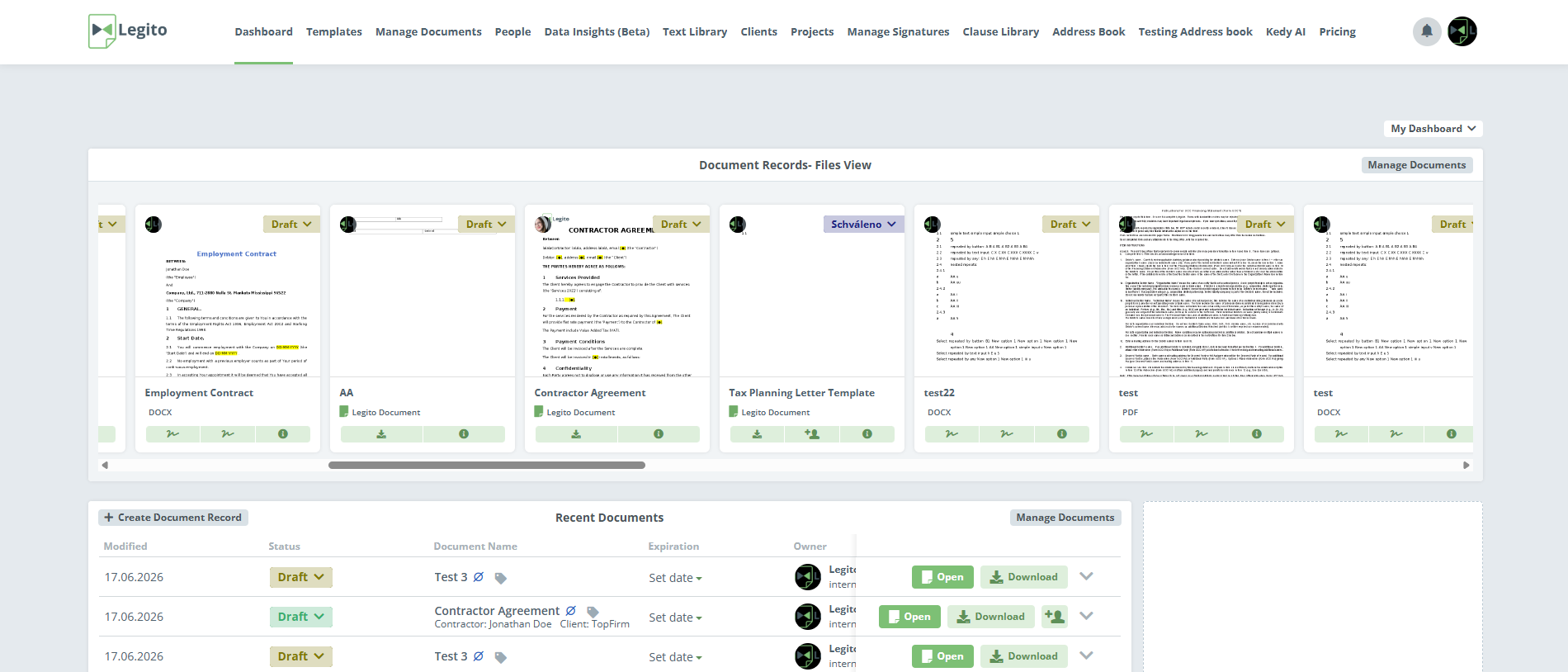
The aforementioned Files View is also available for the new Document records dashboard widget.
19) Customizable Document Name Column
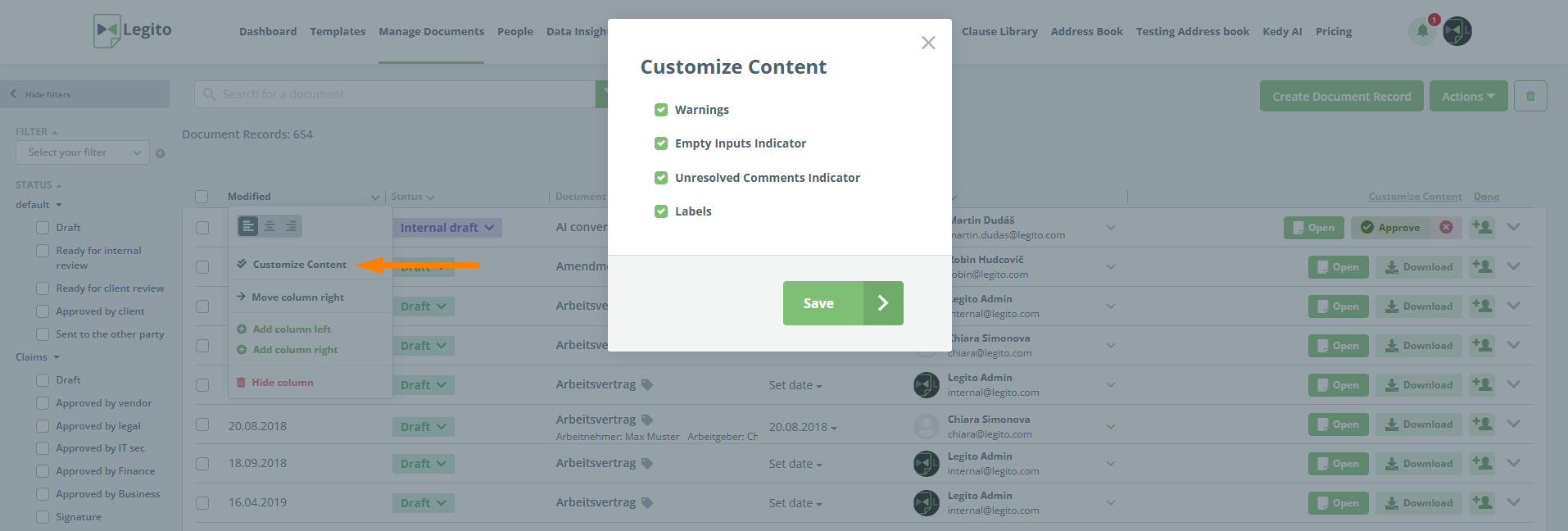
There are several new options on how to customize layout in the Manage Document section. Firstly, new customizations are available for the Document Name Column. Clicking on “Customize Content” for this column allows the user to select what information is included.
The following options are available:
- Warnings
- Empty indicators
- Unresolved comments
- Labels
20) Customizable Actions in Manage Documents
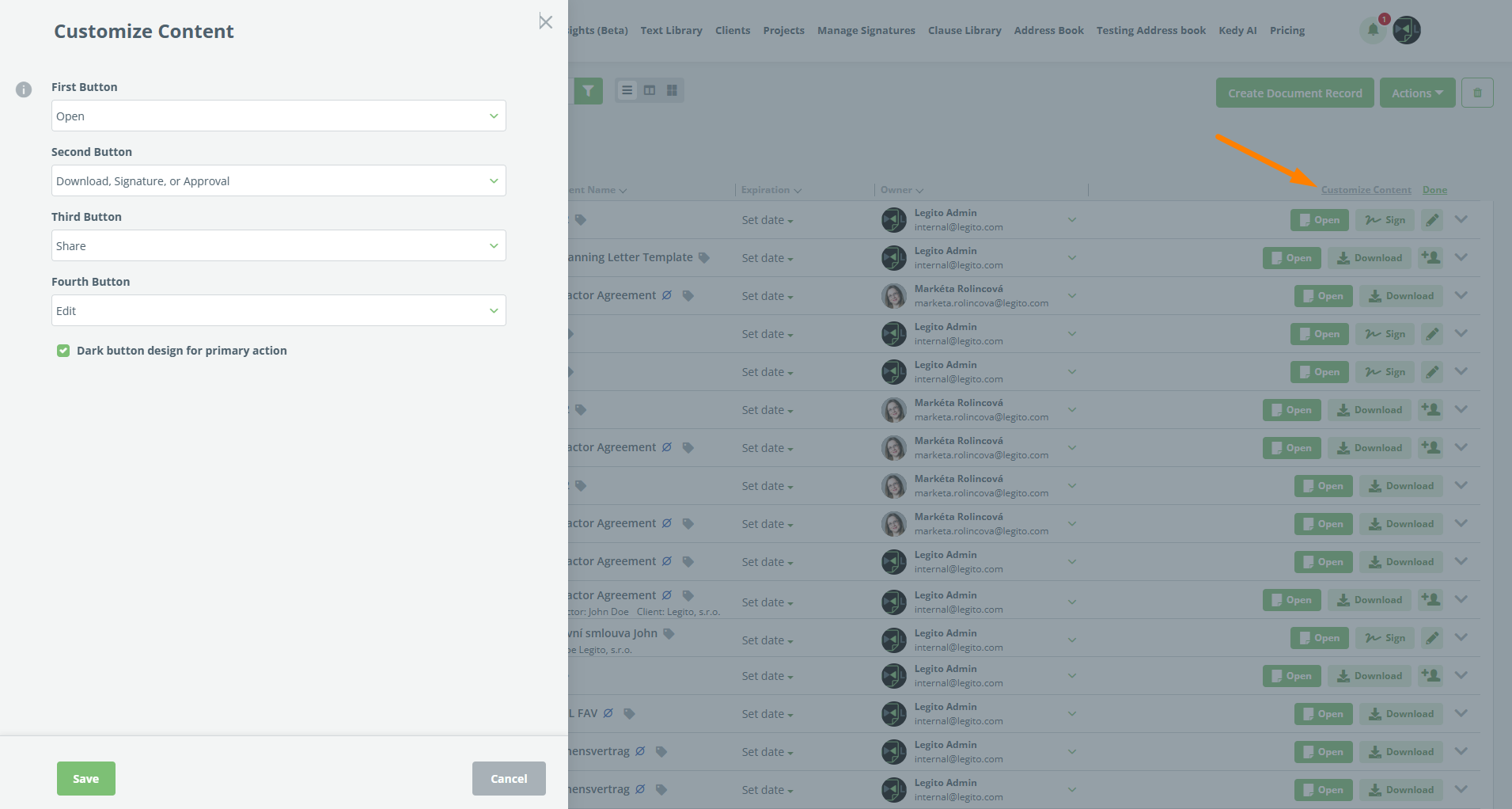
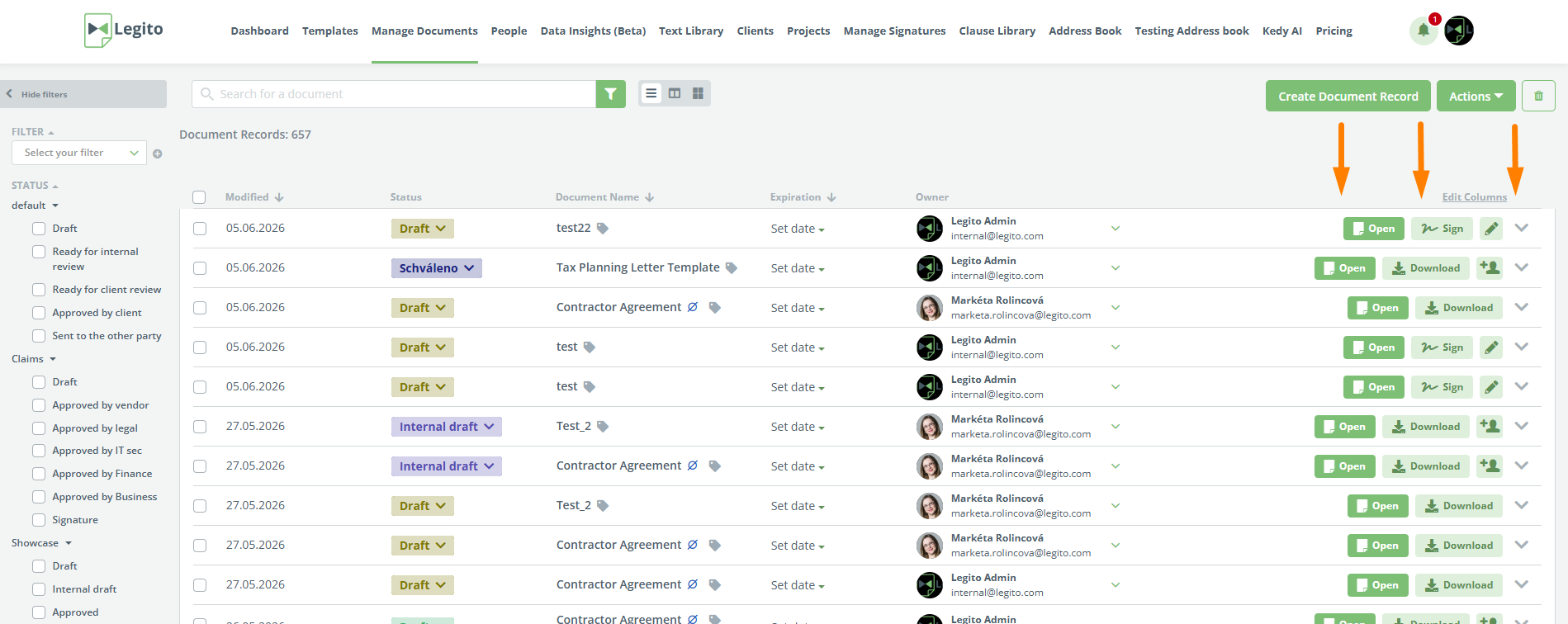
Editing the farthest right column with the buttons is now possible. One change that users will immediately notice is there are now up to 4 available buttons – 3 of which are optional. Each button can be individually customized with the following available options:
- Open
- Download, Signature or Approval
- Email, Signature or Approval
- Approval or Signature
- Edit
- Download
- Approval
- Sign
- Share
- Detail
Another notable change is the new “Open” button that effectively replaces the View and Edit buttons. The Edit button is still available, but only to edit document records for uploaded files.
New approval button.
Buttons have two variants – large with text, and small with icons only.
All buttons are dynamic – reflecting available options for a given Document Record.
This also works for other layouts.
21) Configurable Anonymize, Archive and Delete Buttons
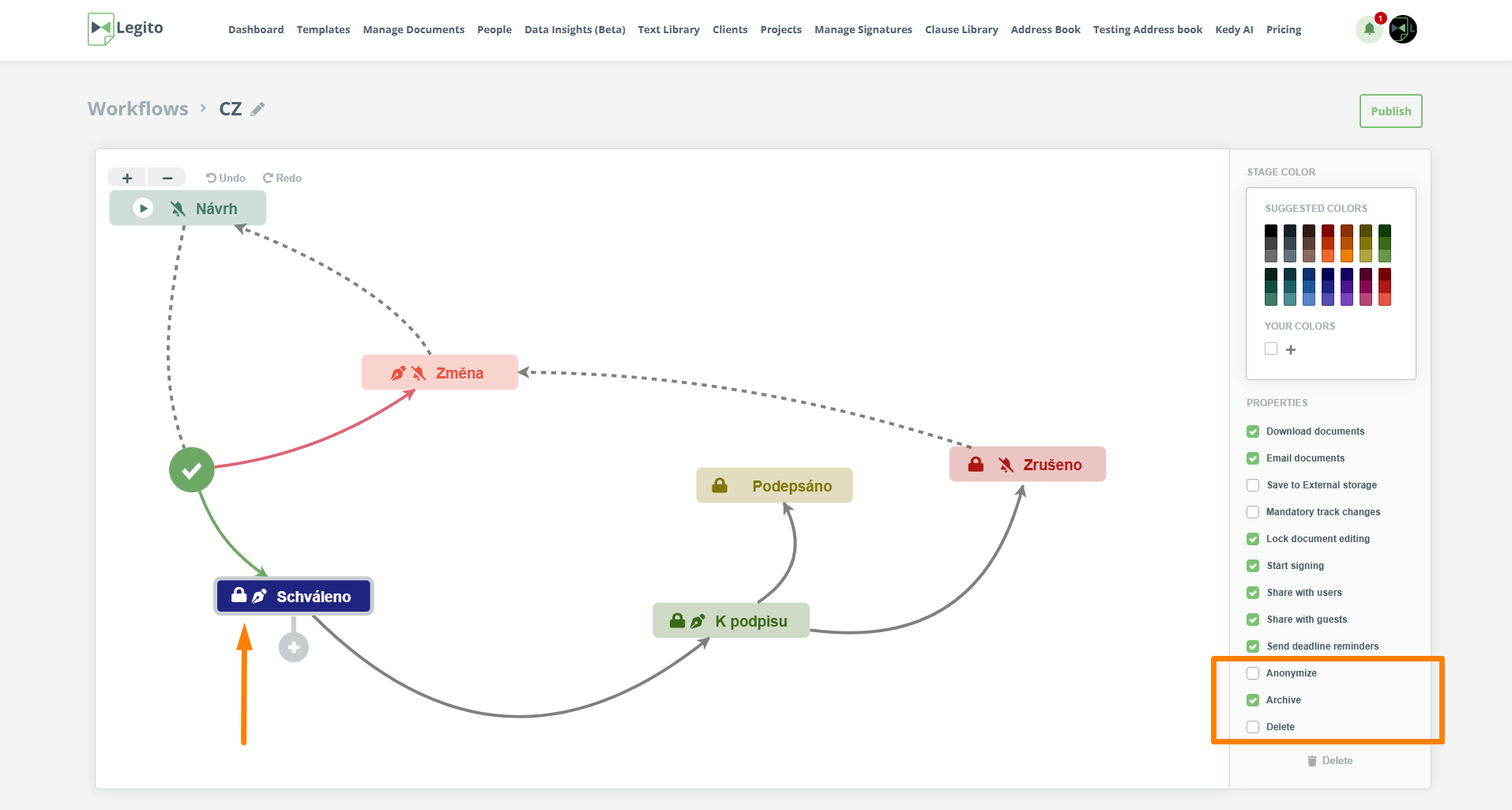
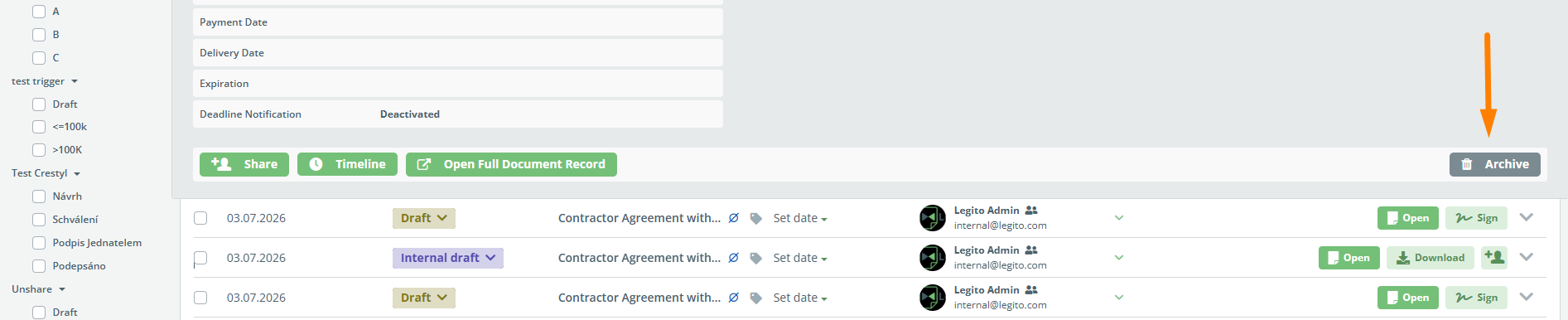
The action buttons to anonymize, archive, and delete document records in the Manage Documents section are now optional and are individually configurable for each stage. There are 3 new dedicated checkboxes for each button that can be found by clicking on a workflow stage in the Workflow Editor.
22) Changing the Level of User-added Clauses
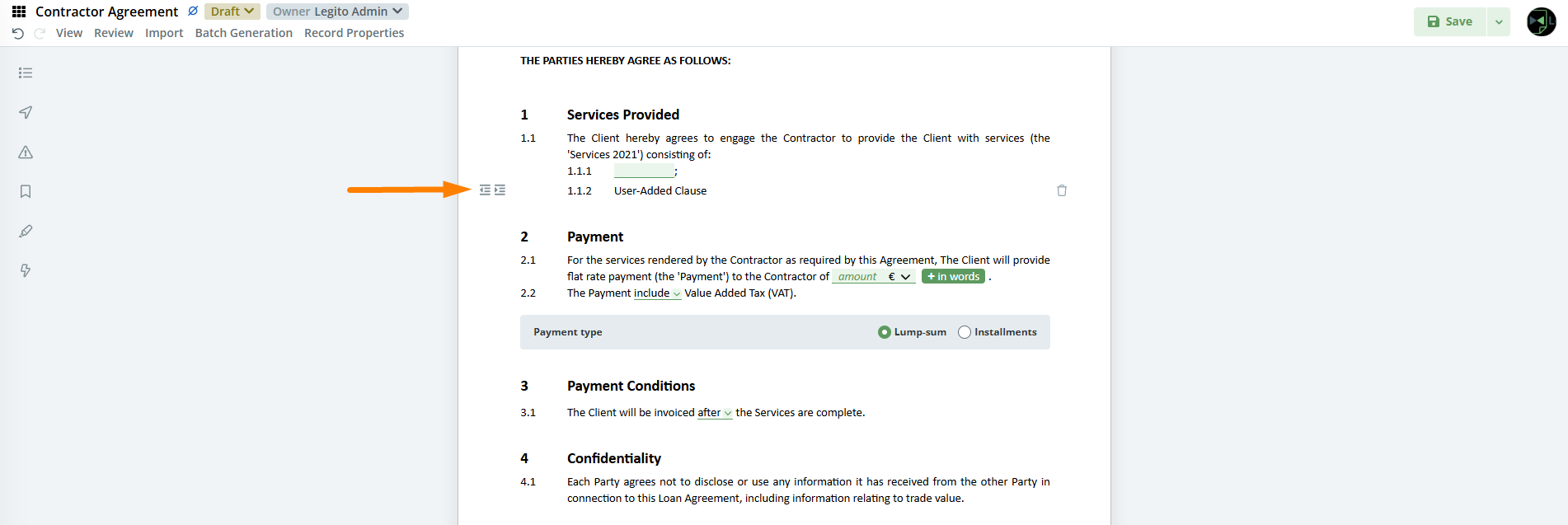
Changing the level of a User-added clause in Document Editor is now possible by clicking on the new icon found to the left of the User-added clause.
23) Automatic Money in Words Transcription
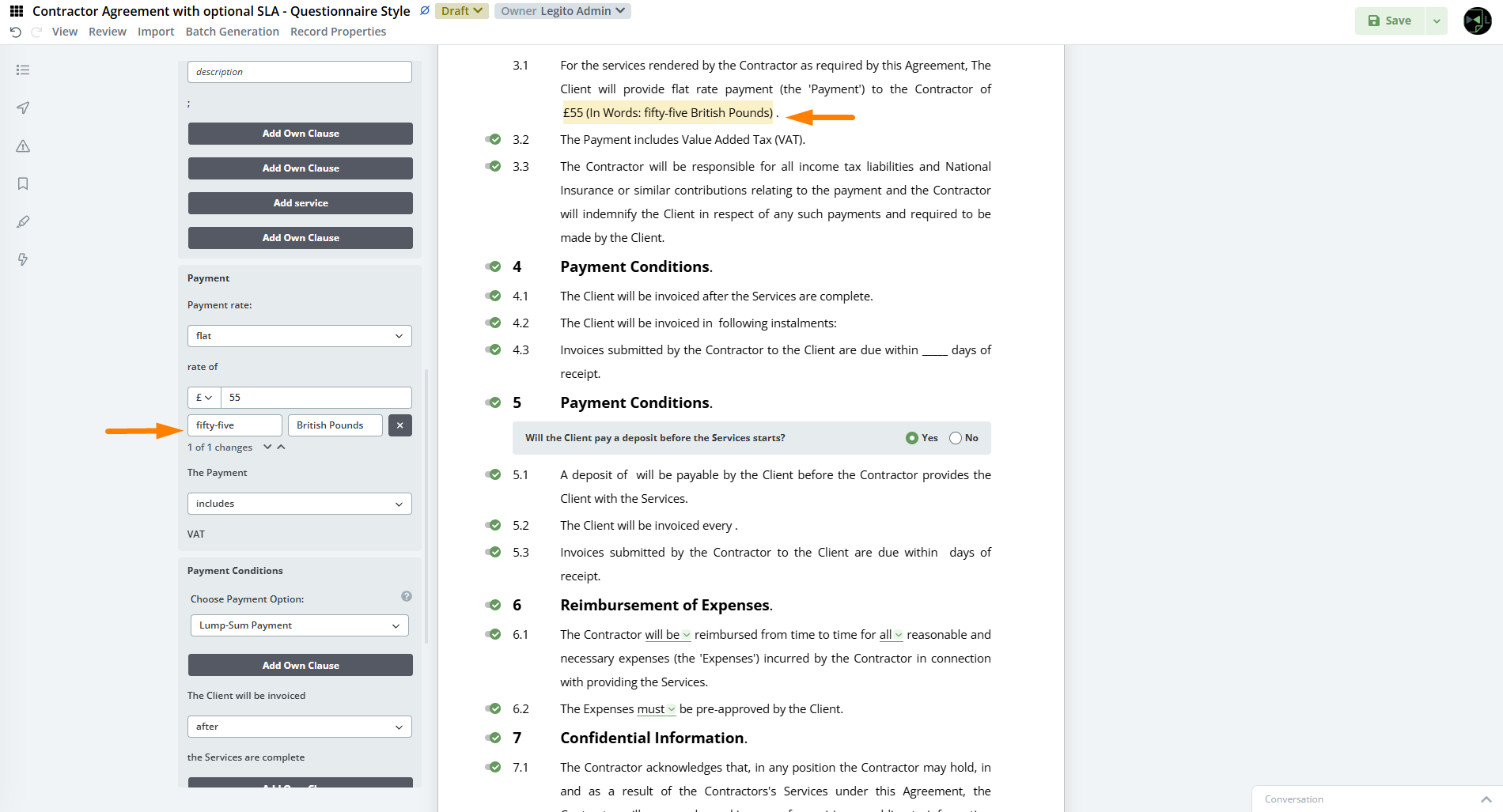
The number value in the money element is now automatically transcribed into words after entering a value and clicking the money in words option. Transcription will take the selected language of the template into account.
24) Template Editor UX Enhancements
Several performance improvements have been made to the Template Editor. Scrolling through templates with smart loading enabled should feel much smoother. There shouldn’t be any more interrupts or template jumping. Larger templates in particular will benefit from this update.
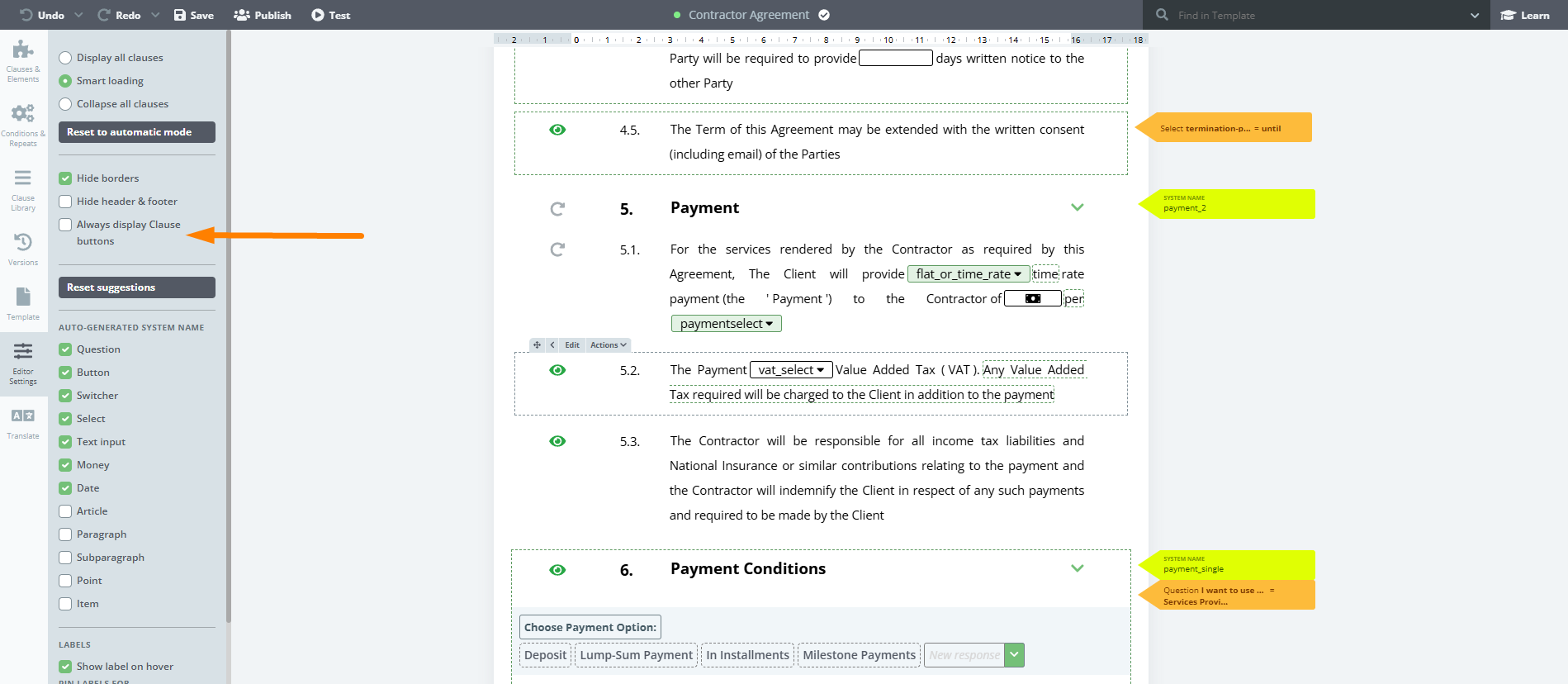
A new option to show or hide clause control buttons has been added. This can be found in Template Editor > Editor Settings > checkbox: “Always display Clause buttons”. When turned off, clause buttons will only appear above the clause where the cursor is hovering. Checkbox: “Hide borders” have been reworked to function in a similar manner.
25) Document Editor UX Enhancements
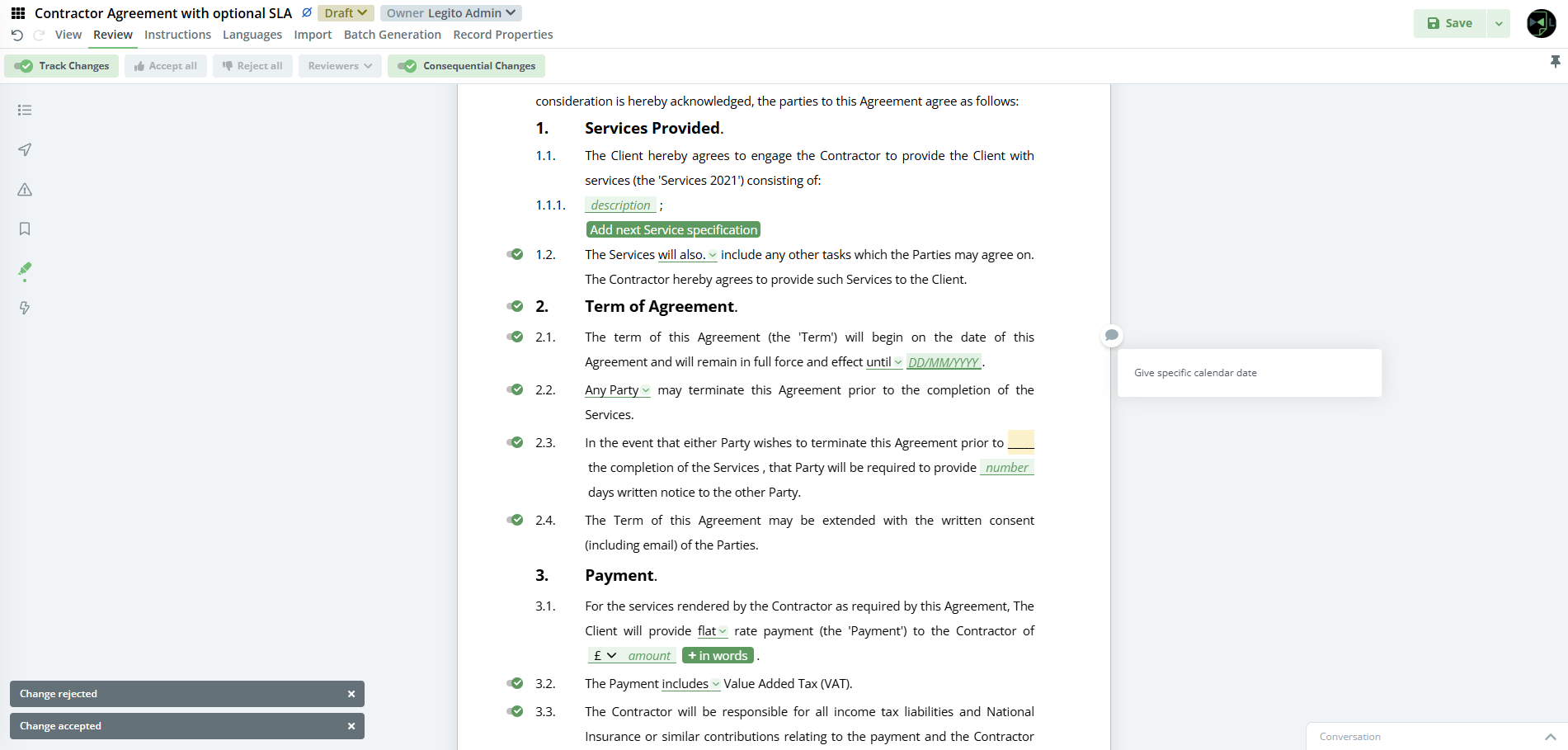
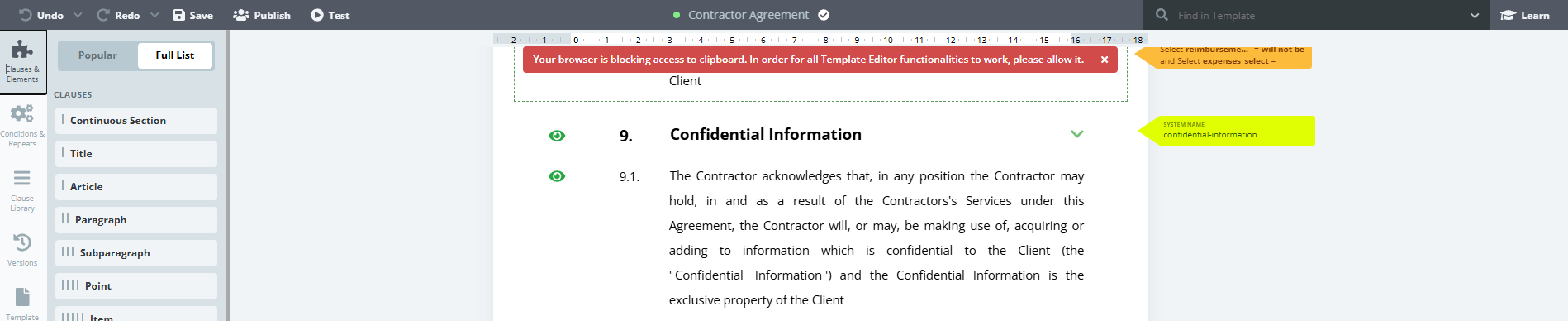
Design language has been enhanced and unified for notifications inside the Template Editor and Document Editor.
26) Number of Changes in the Latest Template Version
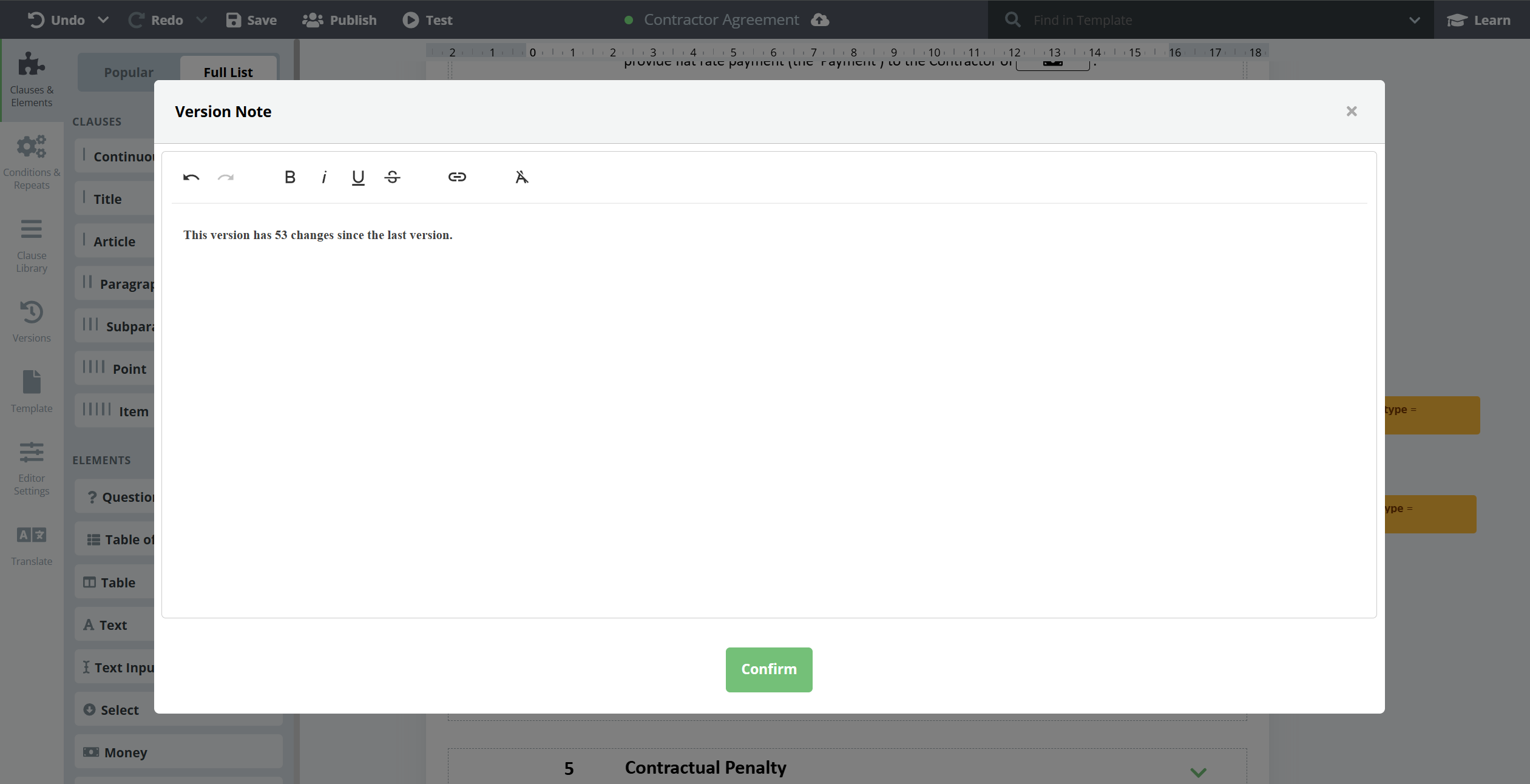
Recently introduced version notes in the Template Editor have been enhanced and expanded. This feature already allowed users to attach a custom note to each template version. This update automatically populates template version notes and the number of changes performed by the template author since the last saved/published version. It is the template author’s responsiblity to either keep this number in the note, or replace it with a custom message.
27) Number of Elements in Template Versions
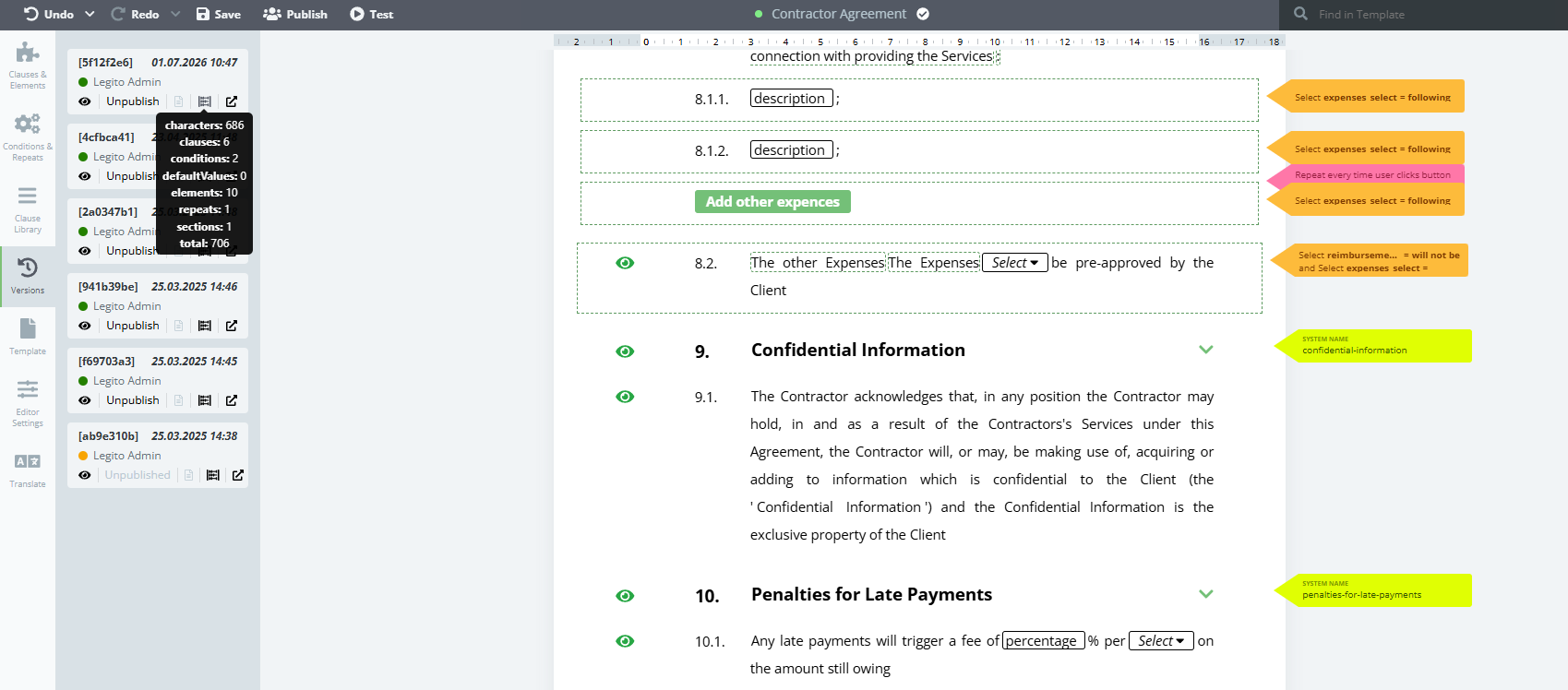
Now there is an option to see the number of elements and other measurable template entities for each template version. Users can access this information by clicking on the new icon that can be found in Template Editor > Versions > eye icon on any template version. After clicking the icon, users are presented with a detailed count of the following data:
- Characters
- Elements
- Clauses
- Sections
- Conditions
- Repeats
- Default Values
- Total – sum of the things above
28) Calculating with Dates
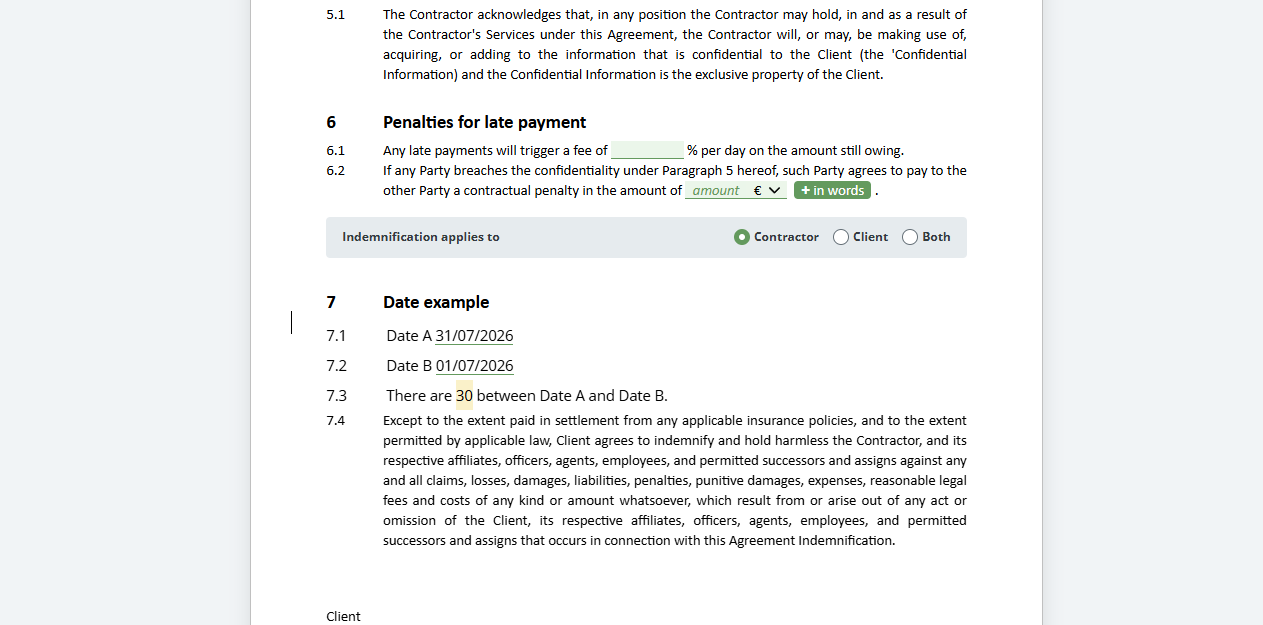
The calculation element has been improved to allow working with dates. There are two ways this can be used. Firstly, inserting an equation where the result is a number of days, for example:
@date_element_A + @date_element_B = this will result in a number
Secondly, users can insert an equation where the result is a date, for example:
@date_element_C + 30 = this will result in a date
It is important to remember that calculations work with calendar days, not working days.
29) Optional Sharing When Owner is Changed
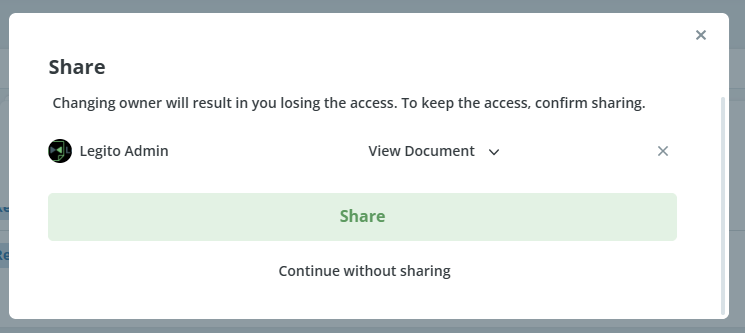
Previously, changing the owner of the document could result in the loss of access to the document for the original owner if the document had not been shared with themself beforehand. To remedy this, the share modal appears automatically if there is a risk of access loss to the original owner. In the share modal, the original owner is pre-filled and notified about potential loss of access.
30) Multi-Workspace Management & Advanced Template Copying
We are excited to introduce our new Multi-Workspace Management framework, designed to give you greater flexibility, centralized control, and seamless content distribution across your entire organization and partner network.
1. Multi-Workspace Structure
Managing complex organizational structures or partner networks is now easier than ever. The platform now supports advanced multi-workspace hierarchies, introducing two primary workspace configurations:
- Management Workspaces: Any standard workspace can now be designated as a Master Workspace, allowing you to oversee and manage multiple subordinate workspaces from a centralized location.
- Sales Workspaces: Specifically designed for our partners, these workspaces not only manage subordinate environments but also come equipped with the ability to create new environments on demand.
2. Cross-Workspace Template Copying
The core advantage of this multi-workspace architecture is the ability to instantly share and deploy content. You can now replicate entire Template Suites and Clause Library Templates across different workspaces in just a few clicks, eliminating manual setup and ensuring consistency.
What Gets Copied?
When the template replication process is initiated, the system migrates the entire Template Suite along with all of its internal configurations:
- Logic & Structure: All underlying conditions, repeat rules, system names, and default values remain completely intact.
- User Guidance: Essential user-facing elements, including Help text, Warnings, and multi-language translations (Translates), are fully transferred.
- Design & Organization: Visual properties, layout designs, and tags are seamlessly preserved.
Bonus Smart Features
- Automated Legito Alignment: The copying mechanism automatically matches tags and styles within Legito, ensuring complete visual and structural consistency in the target workspace.
- Clause Library Support: This feature is fully compatible with Clause Library Templates, allowing you to replicate them using the exact same effortless workflow.
What is Safe-Guarded (Not Copied)?
To maintain system integrity and prevent broken links, references pointing to data outside the specific Template Suite are not automatically migrated. These include:
- External Clause Library clauses referenced within the templates.
- JSON integration templates.
- References to specific Object Records.
3. How to Use it
The replication process is straightforward and can be managed directly from your workspace management dashboard:
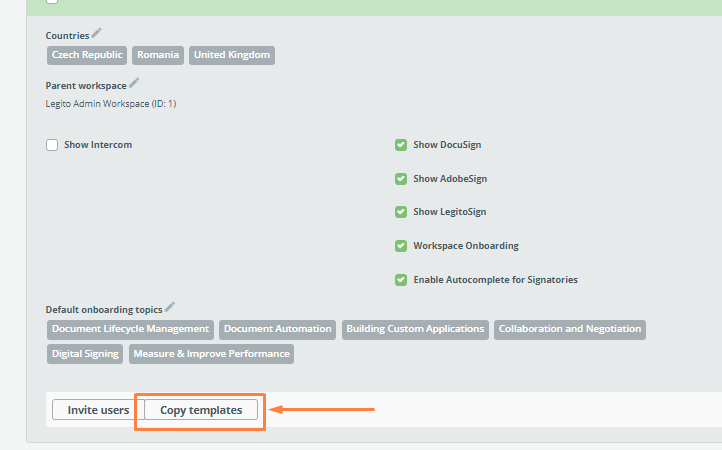
- Navigate to Manage WS and open the details page of your target Workspace.
- Locate and click the Copy Templates button.
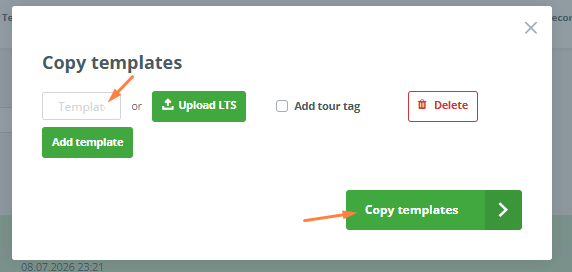
- Enter the ID of the Template Suite you wish to copy.
- (Optional) To copy multiple suites at the same time, click Add Template to insert additional rows.
- Click Copy Templates to finalize the process, and your templates are ready to use in the new workspace!

31) REST API Credits and Request Limits
Each workspace is now allocated a set number of REST API tokens for a given period. Once these tokens are used up, the REST API will return a message indicating that the token limit has been reached.
Token consumption is set individually for each REST API endpoint based on how resource-intensive it is to process. For example, exporting as a PDF consumes significantly more tokens than exporting as a docx, while other, lighter endpoints consume comparatively few. The number of REST API tokens available per period can be adjusted for each workspace directly in the workspace card in Manage Workspaces (available only through the master workspace of a given server).
Tokens are renewed on a per-minute basis.
Once a workspace runs out of tokens, a red flash message will appear at the top of the REST API Key section in Settings, informing the user that the REST API token limit has been reached and that the API is temporarily paused until the renewal date.
We have also added a new Logs tab to the REST API Key section, similar to the one already available for the Push API. This tab logs REST API requests and allows them to be exported to csv.
Q2 2026: Features, Features, Features
1) Controlled Formatting Changes in Legito Documents
Until now, users could set character-level formatting such as bold, italic, underline, strike, and colors in the Template Editor, and the formatting was mandatory for drafting documents in the Document Editor.
Now users can change formatting for Text Elements, Text Input Elements, and User-Added Clauses in the Document Editor. A standard set of Element formatting options is available:
- Bold
- Italic
- Underline
- Strike
- Text color
- Highlight color
Formatting changes in the Document Editor can be individually restricted or even deactivated in the Template Editor for each Element or User-added Clause.
This setting can be found in Template Editor > Properties > Lock Formatting, or Template Editor > Properties > User-Added Clauses.
Formatting of Text Elements in the Document Editor is available only after the Element is unlocked for editing.
In the Document Editor, formatting changes are deactivated by default.
To change the formatting in a Legito Document, click the Element or User-Added Clause. A formatting submenu will appear at the bottom of the Document Menu in the Document Editor. Please note that the “Document Menu” is active for the Template Suite.
Alternatively, text can be marked and a context menu used.
It is also possible to “restart” formatting to the original Template formatting.
2) Update Translations of older Template Versions
We added an option to Update Translation text for outdated Template versions.
If a user opens the Translation mode of an outdated Template version in the Template Editor, the Save and Publish Translation buttons will be replaced by the “Update Translation” button.
Unlike the “Save Translation” and “Publish Translation” buttons, the “Update Translation” button does not create a new Template Suite version but updates the translation text of that version.
In this case, the Legito Document based on the outdated Template Suite version containing an updated Translation will display the “Apply Recent Translation” button in an orange box above the Template Suite. This button creates a new version of the Legito Document containing the updated Translation text.
3) New Out-Of-Office and User Delegation Settings
Users can now mark themselves as Out-Of-Office in the Personal settings of the user account. Such Out-Of-Office User has an icon next to the User name in the Owner dropdown, Sharing and Approval.
In an addition to that, an Out-Of-Office User may delegate another User a temporary stand-in. Delegated users will have all the privileges of the original user in the following area:
- Owner of a Document Record,
- Sharing of a Document Record,
- Approver in Approval of a Document Record
The delegated user is easily identified by a special icon beside delegating User name in the Owner dropdown, Sharing and Approval.
All the delegated User actions are recorded in the Timeline with the information about the delegating User. The timeline will also display which actions were performed by a delegated user.
To control who can use the new delegation feature, there is a new “Can Delegate” permission. This can be found in People > User > Workspace Settings > Can Delegate.
4) Option to Sign Files Other Than PDF
The signing process can now be started for file types other than PDF. Legito converts these files to PDF in the background first, which means any uploaded attachment that can be converted to PDF can be sent for signature just like a document generated in Legito.
List of currently supported file types:
- docx
- doc
- rtf
- txt
- odt
- ods
- xlsx
- xls
5) New API Version – API v8
We have release a massively improved version of our REST API – version 8. It is the largest update to our API to date: 30 brand-new endpoints, 14 reworked endpoints, and 9 endpoints returning richer responses — 96 operations in total, up from 66 in v7. It also introduces two completely new feature areas — AI Agents and Legito Sign electronic signatures. Many of these changes were created thanks to great suggestions from our customers.
Base URL change. Point your integration at the /api/v8 path on your region’s host (for example https://emea.legito.com/api/v8). Authentication (JWT bearer token) is unchanged from v7.
New feature area: AI Agents
A completely new resource group lets you list, create, manage, and run AI Agents directly through the API. This is the same capability exposed by the MCP run_agent tool, now available over REST.
| Method & Endpoint | Description |
|---|---|
GET /ai-agent | List the AI Agents available to the authenticated user. Supports limit, offset, and a search filter by name. |
POST /ai-agent | Create a new AI Agent. |
PUT /ai-agent/{agentId} | Update an existing AI Agent. |
DELETE /ai-agent/{agentId} | Delete an AI Agent. |
POST /ai-agent/{agentId}/run | Trigger an immediate run of an AI Agent and receive the run result. |
New feature area: LegitoSign electronic signatures
API v8 introduces full programmatic control over LegitoSign signature packages — create a package, attach documents and signers, send it for signing, track its status, and download signed documents.
Creating and managing packages
| Method & Endpoint | Description |
|---|---|
POST /legito-sign/package | Create a signature package. The document source is one of three mutually exclusive options: an existing Document Record (documentRecordId), an existing File (fileId), or raw PDF(s) supplied inline (documents). Signers and metadata can be supplied in the same call or added later. |
GET /legito-sign/package | List signature packages with free-text search, a structured filter (Gridify syntax), orderBy, pagination, and an optional showDeleted flag. |
GET /legito-sign/package/{packageId} | Retrieve a single package. |
PUT /legito-sign/package/{packageId} | Update package metadata (name, expiration). |
DELETE /legito-sign/package/{packageId} | Soft-delete a package (only draft or expired packages can be deleted). |
POST /legito-sign/package/{packageId}/send | Move a package from draft to sent; emails the first signer(s). |
POST /legito-sign/package/{packageId}/void | Cancel an in-progress package and notify signers with a reason. |
Managing signers
| Method & Endpoint | Description |
|---|---|
POST /legito-sign/package/{packageId}/signer | Add one or more signers, including their sign-fields and text-fields. |
PUT /legito-sign/package/{packageId}/signer/{signerId} | Update a signer (all editable fields are replaced). |
DELETE /legito-sign/package/{packageId}/signer/{signerId} | Remove a signer. |
Managing documents
| Method & Endpoint | Description |
|---|---|
POST /legito-sign/package/{packageId}/document | Add one or more documents to a package. |
GET /legito-sign/package/{packageId}/document/{documentId} | Download a document of the package (PDF, base64-encoded). |
DELETE /legito-sign/package/{packageId}/document/{documentId} | Remove a document from a package. |
Full-text search on records
Both Document Records and Object Records now support full-text search.
Document Records — GET /document-record
Three new query parameters:
search— the full-text query (e.g.contract).searchType— the match strategy:match,match_phrase,match_bool_prefix(default),match_phrase_prefix, orwildcard.searchIn— which fields to search in (pipe-separated). When omitted, it defaults to all built-in fields (name,parties,document) and every searchable property.
To discover which values are valid for searchIn, call the new endpoint:
GET /document-record/search-field— returns the list of searchable fields.
Object Records — GET /object-record/{objectId}
The same search, searchType, and searchIn parameters are available. When searchIn is omitted, it defaults to id and every searchable property of the object. A companion discovery endpoint is provided:
GET /object-record/{objectId}/search-field— returns the searchable fields for the given object.
deleted filter renamed to archived
Breaking change. On GET /document-record, the v7 deleted query parameter has been replaced by archived. Object Records (GET /object-record/{objectId}) also gain the new archived filter. (The user list endpoint gets its own new deleted filter — see User out-of-office delegation.)
Reworked Document Version data model
The way document data is read and written has been modernised and unified. This is the most important area to review when migrating an integration.
New, unified element model
In v7, reading data returned TemplateElementResponse objects and writing data used TemplateElementValue objects. In v8 both directions use a single, consistent DocumentDataElement model, and responses are wrapped in DocumentSuiteVersionWithElements. A new listType parameter (flat list — the default — or hierarchical tree) is available on every data endpoint.
Reading data
| v7 | v8 |
|---|---|
GET /document-version/data/{code} (keyed by document version code) | GET /document-version/data/{documentSuiteVersionId} (keyed by Document Suite Version UUID) |
| — | GET /document-version/data/{documentRecordCode}/latest — returns the element data of the latest saved Document Version of a Document Record, without needing to know the version id. |
Writing data
PUT /document-version/data/{documentRecordCode}— updates a Document Record by creating a new Document Version from the supplied element data. It now returns201 Createdwith the fullDocumentSuiteVersionWithElements, and supports thelistTyperesponse option.POST /document-version/data/{templateSuiteId}— creates a new Document Record and Version from a Template Suite. New in v8: you can pass aworkflowStatusIdto set the initial workflow status, and thelistTyperesponse option. The existingfavoriteSettingId,authorId,ownerId, andlanguageIdparameters are unchanged.
New: merge to the latest template version
POST /document-version/data/{documentRecordCode}/merge— merges a Document Record’s latest saved version onto the latest published Template Suite Version. UsecreateNewDocumentRecord=trueto produce a new Document Record instead of a new version on the existing one. Returns409if the record is already on the latest template version.
Downloading the latest version directly
GET /document-version/download/{documentRecordCode}/latest/{format}— download the most recent Document Version of a Document Record without having to look up the version code first. It accepts the same export options as the existingGET /document-version/download/{code}/{format}endpoint (templateId,advancedStyleId,disableConditions,comments,helps,forHandwriting,lowResolutionImages,mergePdf).
JSON integration enhancements — POST /document-version/json-integration
- New
documentRecordIdparameter: when set, the JSON data is mapped onto a new Document Version of an existing Document Record instead of creating a brand-new record (templateSuiteIdandjsonIntegrationIdare ignored in that case). - New
listTyperesponse option. - The success response is now the unified
DocumentSuiteVersionWithElements.
New Template Suite capabilities
| Method & Endpoint | Description |
|---|---|
POST /template-suite/from-docx | Create a Template Suite by importing a DOCX file (base64-encoded in the request body). |
GET /template-suite/{templateSuiteId}/elements | List all fillable elements of a Template Suite’s latest published version — i.e. every element that accepts a value on the data endpoints. Read-only elements (text, titles, links, calculations, sections, tables, images, etc.) are excluded. Each element includes a valueShape describing the expected request-body shape. |
The list endpoint GET /template-suite also gains filtering:
id— filter to specific Template Suite IDs (pipe-separated).published—truereturns only published suites,falseonly unpublished.
New file management endpoints
| Method & Endpoint | Description |
|---|---|
PUT /file/{fileId} | Update external file metadata — fileName, the attachment flag, and the set of labels (label IDs replace the current set; each label must have fileEnabled = true). |
POST /file/version/{fileId} | Upload a new version of an existing file. |
The File object returned by the file endpoints now also includes a labels array, so you can read a file’s assigned labels (not just set them). The existing GET, POST, DELETE, and download endpoints are otherwise unchanged.
Labels can now be updated
PUT /label/{labelId}— update an existing label. In v7 labels could only be created and deleted; v8 adds full update support.
The Label object also carries new fields: color, and the two scope flags documentRecordEnabled and fileEnabled that control whether a label can be applied to Document Records and to files respectively (a label must have fileEnabled = true to be assignable via PUT /file/{fileId}).
Workflow improvements
| Method & Endpoint | Description |
|---|---|
GET /workflow/stage | New. Returns the Workflow Stages from the last published revision of every Workflow. Filterable by stage id, workflowId, and workflow types. |
The list endpoint GET /workflow also gains filtering:
id— filter to specific Workflow IDs (pipe-separated).types— filter by workflow type:any,documentRecord,documentRecordTemplate,documentRecordExternal,objectRecord.published—truereturns only Workflows that have a published revision.
The WorkflowStage object also exposes new fields describing what a stage does: internalName, and the action flags anonymize, archive, purge, and externalStorageSend.
Much richer Event filtering
The GET /event endpoint gains a large set of new query parameters, giving you fine-grained control over which events are returned. The v7 parameters (documentRecordId, documentRecordCode, userId, authorId, timestampFrom, timestampTo, limit, offset) are all still supported. New in v8:
types— include only the given event types (pipe-separated).exceptTypes— exclude the given event types (pipe-separated).typeGroup— filter by a high-level event group:process,document,user, orautomation.exceptAuthorId— exclude events authored by the given user IDs (pipe-separated).system— whentrue, return only system-generated events (events with no author).withIncognito— whentrue, include incognito events in the result (defaultfalse).templateSuiteId/exceptTemplateSuiteId— include / exclude events by Template Suite ID (pipe-separated).templateCategoryId/exceptTemplateCategoryId— include / exclude events by Template Category ID (pipe-separated).
The response also covers more event sources. In v7 each item was a DocumentRecordEvent or UserEvent; v8 adds ObjectRecordEvent and TemplateSuiteEvent to the set of returned event shapes.
User out-of-office delegation
The User object now carries an outOfOffice block, readable and writable through the existing user endpoints (GET /user, POST /user, PUT /user/{userIdOrEmail}):
delegateUserId— the user who receives delegated work while this user is away (must be another user in the same workspace;nullclears the delegate).enabled— whether out-of-office delegation is currently active.
In addition, GET /user gains a deleted query parameter to filter deleted users (matching the behaviour already available on other list endpoints).
The Permission object (used by GET / PUT /user/permission/{userIdOrEmail}) has also been extended with a number of new permission keys — including filesView, the favoriteSettings* family (favoriteSettingsImportLegito, favoriteSettingsImportSheet, favoriteSettingsBatchGeneration, favoriteSettingsTemplate), and a broad set of settings* permissions (e.g. settingsDesign, settingsDocumentRecords, settingsManageDocuments, settingsNavigation, settingsFooter, settingsOnboarding, settingsWorkspaceLocalization, and more).
Object Records now expose their workflow stage
The ObjectRecord object gains a workflowStage field, so Object Records now report their current Workflow Stage just like Document Records do. This pairs with the new objectRecord workflow type available on GET /workflow and GET /workflow/stage.
Migration checklist
When upgrading from v7 to v8, pay particular attention to:
- Base path — switch to
/api/v8. - Document data model — migrate from
TemplateElementValue/TemplateElementResponseto the unifiedDocumentDataElement/DocumentSuiteVersionWithElementsmodel; the read endpoint is now keyed by the Document Suite Version UUID. - Renamed parameters —
deleted→archivedonGET /document-record. - Changed response codes —
PUTandPOSTdocument-version data endpoints now return201 Createdwith the full version-with-elements payload. - New event shapes —
GET /eventcan now returnObjectRecordEventandTemplateSuiteEventitems in addition toDocumentRecordEventandUserEvent; make sure your deserializer tolerates the new types. - New opportunities — consider adopting full-text search, the
/latestdata and download shortcuts, DOCX template import, richer event filtering, AI Agents, and LegitoSign where they simplify your integration.
6) Better Labels
Labels have been improved. A label can now be assigned to a Document Record, to an uploaded file, or to both. It is important to remember that removal works in one direction only: if the same label is attached to both a Document Record and its uploaded file, removing it from the Document Record also removes it from the file but removing it from the file leaves the label on the Document Record.
Labels are customized in Settings > Template & Docs Grouping, by clicking the hamburger menu on any label. The customization window also opens automatically when a new label is created.
7) Deeper Integration with Adobe Sign
Legito’s Adobe Sign integration has been enhanced by introducing support for expiration date and Adobe approvers.
Firstly – an option has been added to insert the expiration date for the eSignature process. The expiration date field is optional, and can be enabled in the same signing modal where recipients are added. If the field is enabled but a date is not specified, the system automatically sets the expiration date to 120 days from that date. There is also an option to have the date filled out automatically based on the document. Where there is a Date Element with a “Signing Date” tag applied to it, the system will automatically take this value and set it as the expiration date.
Secondly – Legito now supports Adobe approvers, so the system can see participants in the selected Adobe workflows and forward them to Adobe when the signing process has started.
8) Document Record Actions Triggered by Workflow Stage Change
Document record actions can now be tied to Workflow stage changes. This means that a predetermined action (or actions) automatically triggers whenever a Workflow stage changes. Actions can be set up in the Workflow Editor by clicking on the arrow between stages (stage change).
The following actions are supported in this feature’s current beta version:
- archivation – archives the document record
- restoration – restores of the document record from the archive
- purge – permanently deletes the document record
- anonymize – anonymizes the document record
- Owner change – changes the owner of the document record (it is possible to pick a specific user)
- unshare – unshares the document record.
More actions can now be selected for a single stage change. If the user chooses the option to unshare the document record, these additional options are available:
- Users – unshares specific user/users
- User groups – unshares specific user group/groups
- Properties – unshare users from specific sharable properties
- Unshare all users and user groups – broad unshare option that unshares the document record from all users and user groups
- Unshare all shareable links – deactivates all external share links
- Users can select and combine multiple unshare options.
- Finally, all document record actions will trigger for both manual and automatic stage changes.
9) MCP Server
A range of new AI features have been implemented. All of these AI features are powered by the industry standard Model Context Protocol (MCP). MCP works by connecting a large language model to Legito’s internal API so it can understand and act on requests across documents, templates, and workflows.
10) Kedy AI
Introducing Legito’s new AI Assistant, Kedy AI. By simply chatting with Kedy, users can control most of the functionality that Legito offers using natural language. Kedy AI can be found in the main menu at the top of the page.
Kedy AI can now perform these actions:
- Document creation from templates
- Perform search in Documents and use filters
- Creation of a new template from uploaded files
- Document management actions such as sharing, archivation, deletion or owner change
- Change workflow stages or show available workflow stages for given document
- Offer download links for requested documents
- Fill out documents based on the template instructions (elements have a special AI field for exactly this purpose)
- Offer more guidance by providing links to our knowledge base
- Provide data insights
- Fill out metadata such as document record properties
- Manipulate with Object records – create, delete, change owner, change wf stage etc.
In the case of unclear requests, KedyAI will ask for clarification or confirmation, in the same way as other mainstream AI agents.
11) AI Agents
Kedy AI already supports agentic workflows, meaning users can create agents to perform assigned tasks at predetermined times. Tasks can also be run manually. Agents can be accessed via Kedy AI and switching to the Agents tab in the left panel.
12) Kedy AI Dashboard Widget
Kedy AI can be accessed from a newly added widget. The widget can be added to the dashboard the standard way by clicking “Customize Dashboard” and selecting the “Kedy AI” widget. The widget functions as a chat box where you can task Kedy AI directly. After entering the request, the user is redirected to the standard Kedy AI interface.
13) Kedy AI Token Allocation and Quotas
Introducing the new Kedy AI Token System. Each Workspace is allocated a dedicated volume of AI tokens for a specific period. Tokens power all native AI-driven tasks within your environment.
Tokens are managed at Workspace level and will automatically reset on a monthly basis.
Tokens are deducted when a request utilizes Legito’s dedicated Kedy AI servers. If you use advanced setups like MCP (Model Context Protocol) where the AI engine runs outside Legito’s server infrastructure, no tokens are spent,with one important exception noted below.
| Feature / Tool | Consumes Tokens? | Details |
| Kedy AI Chat | Yes | Standard chat queries, interactive prompting, and contextual discussions run through our core AI server. |
| AI Agents | Yes | Automated background agents performing multi-step actions require server processing power. |
| Word-to-Template Conversion | Yes (Always) | Converting regular Word documents into reusable templates inherently relies on our custom backend parser and AI servers. Note: This tool always consumes tokens, even if initiated via MCP. |
| MCP Integration (General) | No | If you trigger custom tool actions via MCP that bypass our central AI processing server, no tokens are consumed. |
If your allocated AI tokens are used up before the end of the month, any active AI requests are temporarily paused. During this time, the chat will stop responding, agents will not execute, and the Word-to-Template converter will be unavailable.
To keep you clearly informed, a prominent red notification banner will appear at the top of your Kedy AI section, displaying the following message:
⚠️ AI token limit reached. Kedy AI is temporarily paused and will resume once AI tokens are renewed next month.
When the new monthly period begins, Workspace tokens will automatically renew to full capacity, and all features will instantly resume operation.
14) Kedy AI User Permissions
To give you granular control, we have added a new AI Permissions Section inside the People module.
- What it does: Toggling the checkbox delegates whether a specific user can view/use the Kedy AI section and see the Kedy AI dashboard widget.
- Default behavior: To ensure a smooth transition, whenever Kedy AI is enabled in a workspace, the user checkbox default setting is ON for everyone. This can be turned OFF manually for specific users when required.
- API Support: The Kedy AI user permission is fully integrated into API v8 for automated user provisioning.
15) New Permissions for MCP Integration
A dedicated permission to control MCP Integrations to the aforementioned AI section has been added. By default, a user’s MCP Integration permission is automatically enabled upon activation of the MCP Integration in the Workspace in Manage Workspaces. If the MCP Integration is not enabled in the Workspace, permissions will be unavailable to users and will remain off. Once user permission is enabled, the user can integrate their account with third-party applications via the Workspace MCP.
16) Enhanced AI Conversion from Word to Template
Word to Template AI conversion has been enhanced. Conversion is executed by our in-house model which is continuously trained on more data. As such, this feature will evolve to become more powerful and robust.
17) New Files View for Manage Documents
Introducing a completely new layout option for visualizing document records in the Manage Documents section. The new layout displays each document record as a small tile,and a thumbnail generated from the first exportable document in the Template Suite. It can be selected by clicking on the new icon next to the grid and kanban options.
18) Files View Dashboard Widget
The aforementioned Files View is also available for the new Document records dashboard widget.
19) Customizable Document Name Column
There are several new options on how to customize layout in the Manage Document section. Firstly, new customizations are available for the Document Name Column. Clicking on “Customize Content” for this column allows the user to select what information is included.
The following options are available:
- Warnings
- Empty indicators
- Unresolved comments
- Labels
20) Customizable Actions in Manage Documents
Editing the farthest right column with the buttons is now possible. One change that users will immediately notice is there are now up to 4 available buttons – 3 of which are optional. Each button can be individually customized with the following available options:
- Open
- Download, Signature or Approval
- Email, Signature or Approval
- Approval or Signature
- Edit
- Download
- Approval
- Sign
- Share
- Detail
Another notable change is the new “Open” button that effectively replaces the View and Edit buttons. The Edit button is still available, but only to edit document records for uploaded files.
New approval button.
Buttons have two variants – large with text, and small with icons only.
All buttons are dynamic – reflecting available options for a given Document Record.
This also works for other layouts.
21) Configurable Anonymize, Archive and Delete Buttons
The action buttons to anonymize, archive, and delete document records in the Manage Documents section are now optional and are individually configurable for each stage. There are 3 new dedicated checkboxes for each button that can be found by clicking on a workflow stage in the Workflow Editor.
22) Changing the Level of User-added Clauses
Changing the level of a User-added clause in Document Editor is now possible by clicking on the new icon found to the left of the User-added clause.
23) Automatic Money in Words Transcription
The number value in the money element is now automatically transcribed into words after entering a value and clicking the money in words option. Transcription will take the selected language of the template into account.
24) Template Editor UX Enhancements
Several performance improvements have been made to the Template Editor. Scrolling through templates with smart loading enabled should feel much smoother. There shouldn’t be any more interrupts or template jumping. Larger templates in particular will benefit from this update.
A new option to show or hide clause control buttons has been added. This can be found in Template Editor > Editor Settings > checkbox: “Always display Clause buttons”. When turned off, clause buttons will only appear above the clause where the cursor is hovering. Checkbox: “Hide borders” have been reworked to function in a similar manner.
25) Document Editor UX Enhancements
Design language has been enhanced and unified for notifications inside the Template Editor and Document Editor.
26) Number of Changes in the Latest Template Version
Recently introduced version notes in the Template Editor have been enhanced and expanded. This feature already allowed users to attach a custom note to each template version. This update automatically populates template version notes and the number of changes performed by the template author since the last saved/published version. It is the template author’s responsiblity to either keep this number in the note, or replace it with a custom message.
27) Number of Elements in Template Versions
Now there is an option to see the number of elements and other measurable template entities for each template version. Users can access this information by clicking on the new icon that can be found in Template Editor > Versions > eye icon on any template version. After clicking the icon, users are presented with a detailed count of the following data:
- Characters
- Elements
- Clauses
- Sections
- Conditions
- Repeats
- Default Values
- Total – sum of the things above
28) Calculating with Dates
The calculation element has been improved to allow working with dates. There are two ways this can be used. Firstly, inserting an equation where the result is a number of days, for example:
@date_element_A + @date_element_B = this will result in a number
Secondly, users can insert an equation where the result is a date, for example:
@date_element_C + 30 = this will result in a date
It is important to remember that calculations work with calendar days, not working days.
29) Optional Sharing When Owner is Changed
Previously, changing the owner of the document could result in the loss of access to the document for the original owner if the document had not been shared with themself beforehand. To remedy this, the share modal appears automatically if there is a risk of access loss to the original owner. In the share modal, the original owner is pre-filled and notified about potential loss of access.
30) Multi-Workspace Management & Advanced Template Copying
We are excited to introduce our new Multi-Workspace Management framework, designed to give you greater flexibility, centralized control, and seamless content distribution across your entire organization and partner network.
1. Multi-Workspace Structure
Managing complex organizational structures or partner networks is now easier than ever. The platform now supports advanced multi-workspace hierarchies, introducing two primary workspace configurations:
- Management Workspaces: Any standard workspace can now be designated as a Master Workspace, allowing you to oversee and manage multiple subordinate workspaces from a centralized location.
- Sales Workspaces: Specifically designed for our partners, these workspaces not only manage subordinate environments but also come equipped with the ability to create new environments on demand.
2. Cross-Workspace Template Copying
The core advantage of this multi-workspace architecture is the ability to instantly share and deploy content. You can now replicate entire Template Suites and Clause Library Templates across different workspaces in just a few clicks, eliminating manual setup and ensuring consistency.
What Gets Copied?
When the template replication process is initiated, the system migrates the entire Template Suite along with all of its internal configurations:
- Logic & Structure: All underlying conditions, repeat rules, system names, and default values remain completely intact.
- User Guidance: Essential user-facing elements, including Help text, Warnings, and multi-language translations (Translates), are fully transferred.
- Design & Organization: Visual properties, layout designs, and tags are seamlessly preserved.
Bonus Smart Features
- Automated Legito Alignment: The copying mechanism automatically matches tags and styles within Legito, ensuring complete visual and structural consistency in the target workspace.
- Clause Library Support: This feature is fully compatible with Clause Library Templates, allowing you to replicate them using the exact same effortless workflow.
What is Safe-Guarded (Not Copied)?
To maintain system integrity and prevent broken links, references pointing to data outside the specific Template Suite are not automatically migrated. These include:
- External Clause Library clauses referenced within the templates.
- JSON integration templates.
- References to specific Object Records.
3. How to Use it
The replication process is straightforward and can be managed directly from your workspace management dashboard:
- Navigate to Manage WS and open the details page of your target Workspace.
- Locate and click the Copy Templates button.
- Enter the ID of the Template Suite you wish to copy.
- (Optional) To copy multiple suites at the same time, click Add Template to insert additional rows.
- Click Copy Templates to finalize the process, and your templates are ready to use in the new workspace!
31) REST API Credits and Request Limits
Each workspace is now allocated a set number of REST API tokens for a given period. Once these tokens are used up, the REST API will return a message indicating that the token limit has been reached.
Token consumption is set individually for each REST API endpoint based on how resource-intensive it is to process. For example, exporting as a PDF consumes significantly more tokens than exporting as a docx, while other, lighter endpoints consume comparatively few. The number of REST API tokens available per period can be adjusted for each workspace directly in the workspace card in Manage Workspaces (available only through the master workspace of a given server).
Tokens are renewed on a per-minute basis.
Once a workspace runs out of tokens, a red flash message will appear at the top of the REST API Key section in Settings, informing the user that the REST API token limit has been reached and that the API is temporarily paused until the renewal date.
We have also added a new Logs tab to the REST API Key section, similar to the one already available for the Push API. This tab logs REST API requests and allows them to be exported to csv.
More From New Releases
Q3 2026: Smarter Kedy AI, Performance Improvements and More Real-Time Workspace
Discover smarter Kedy AI, faster document performance, real-time collaboration, and more in the latest Legito release.
...
Q2 2026: Features, Features, Features
Discover 31 new Legito features, including Kedy AI features and smarter workflows to boost document automation.
...
Q1 2026: Twenty New Features, AI Included
Discover 20 new Legito features, including AI-powered Word conversion and smarter workflows to boost document automation.
...
Q4 2025: New Permissions and Triggers
Q4 2025: Data Insights and other improvements to enhance automation, security, and document management in Legito.
...
Q2 2025: Data Insights and 11 other Improvements
Q2 2025: Data Insights and 11 other improvements to enhance automation, security and document management in Legito.
...
Q1 2025: AI for CLM and more
Discover what’s new in the Q1 2025: AI for CLM and other enhancements to make your document management faster and more efficient.
...
Q4 2024: Document Automation and Signatures
Discover new and improved Legito features in the Q4 2024 report: Document Automation and Signatures. More efficient automation and signatures!
...
Q3 2024: Next Generation Document Editor
Reflecting on a productive first quarter in 2024, we are delighted to announce the release of our latest features.
...
Q2 2024: Focus on CLM and Integrations
Reflecting on a productive first quarter in 2024, we are delighted to announce the release of our latest features.
...
Q1 2024: New Integrations, Search & Document Automation Features
Reflecting on a productive first quarter in 2024, we are delighted to announce the release of our latest features.
...
December 2023: Salesforce Integration And More
In our most recent release, our team launched a Legito app in Salesforce that supports all endpoints contained in Legito’s robust REST API. Addit...
November 2023: Zapier Integration & Dashboard Improvements
We redesigned the default Dashboard for newly created Workspaces. The new Dashboard design is based on your feedback and has been applied to the Wi...
October 2023 Release: Easier Forms Building And More
To allow our power users to quickly and easily build simple Form Templates in the Template Editor, we added a Quick Actions bar with pre-built bloc...
September 2023 Release: Localization & Template Editor Improvements
Discover new localization settings for workspace and other template editor improvements. Workspace admins can set formats of dates, numbers, and fi...
August 2023 Release: New Features for Power Users
Our latest release introduces Automatic Field Creation for Legito Sign and DocuSign within Legito Templates. And much more.
...
July 2023 Release: Enhanced Legito Sign & Free Workspace
As a Legito gesture to provide value to the Legito community, and to support new entrepreneurs, Legito offers a Free plan that provides access to s...
June 2023 Release: Processing PDF Forms
Legito can now process and automatically fill PDF documents using data inserted to your Legito Documents or Forms. To add a PDF Template to your Te...
May 2023 Release: Process Management Improvements
Now you can upload files to Object Records the same way as Document Records. We added a feature that allows the activation of Saved Files Property ...
April 2023 Release: UX & Integration Tools Improvements
We made several improvements in April, which led to a smoother and more enjoyable user experience. Keeping up with the latest advancements in UX an...
March 2023 Release: User Onboarding And More
In addition to Workspace Onboarding, we have released a simplified User Onboarding for non-Admin users. Workspace Onboarding will teach your power ...