Q1 2026: Twenty New Features, AI Included
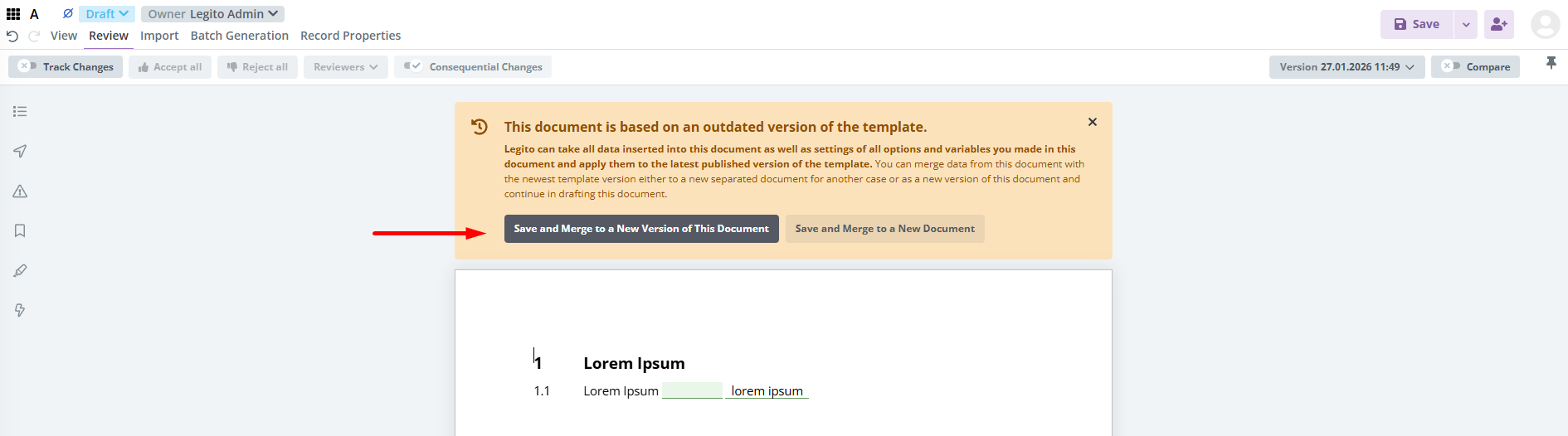
1) AI-powered Conversion of Word docs to Legito Templates
To significantly reduce manual work when converting Word documents to automated Legito Templates, we built an AI tool to identify where Input-type and Selection-type Elements are required, and it can even automatically build some logical dependencies into the template.
The AI analyzes the document, identifies which fields should be converted to elements, what conditions should be applied, and so on. After import, all of the elements are created as if the master Word document contained annotations.
The option to use AI-enhanced conversion is presented as a checkbox “Apply AI conversion” and can be found in the import modal under Import Settings.
This AI feature is native to the Legito application so it does not require any integration, it does not use your data for learning at all, and it does not share your data with any 3rd party tools (all your data remains on the Legito server).
While this is a really powerful feature that will save you a lot of time, it is important to keep in mind that, generally speaking, AI l is not 100% predictable.
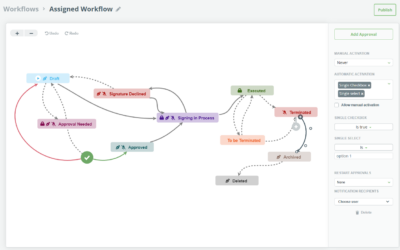
2) Custom Input Properties in Workflow Triggers
For some time, Legito users have enjoyed the option to use selected system properties for workflow triggers.
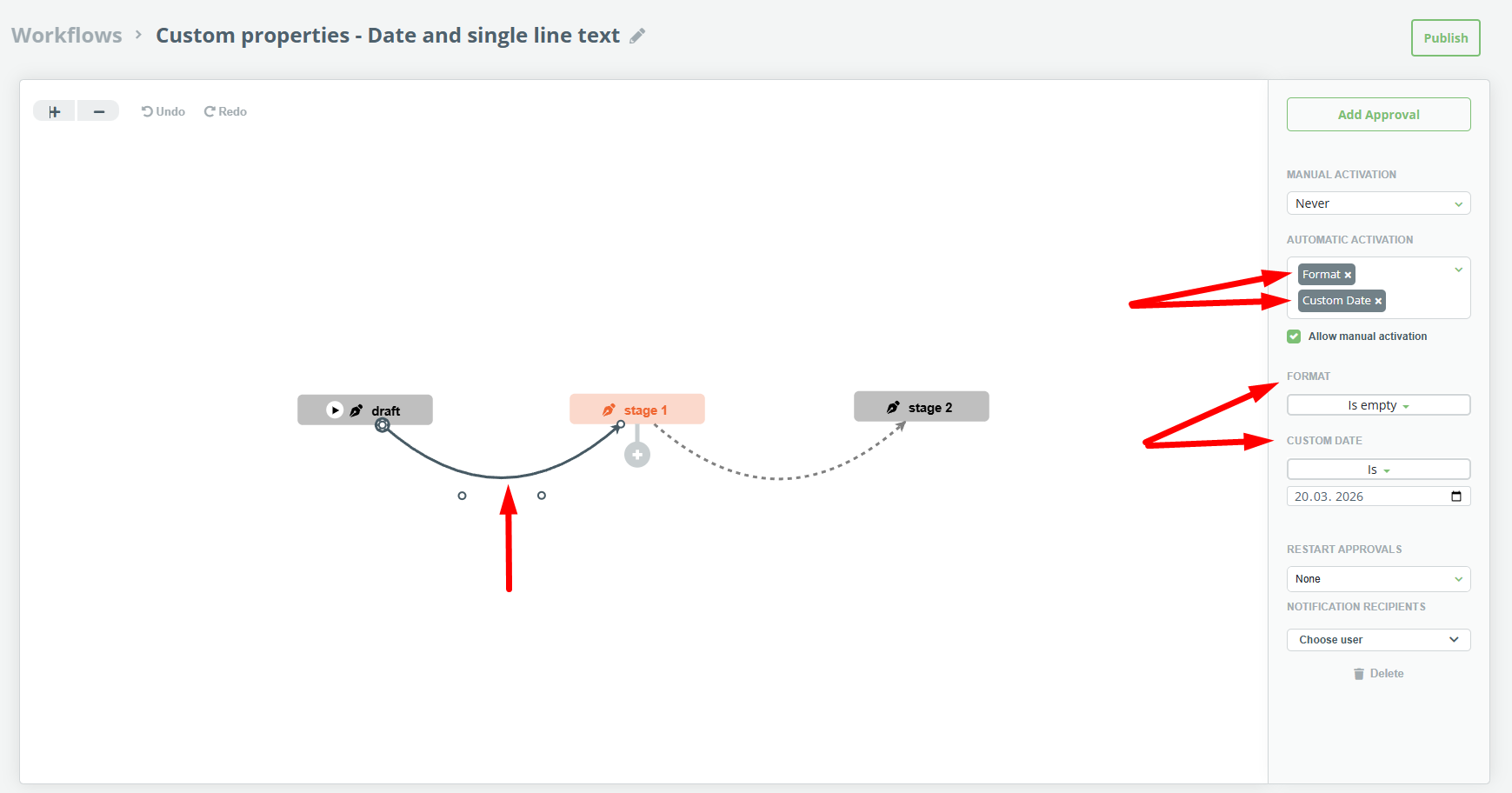
Now we have added the following Input-type Document Record properties to the automatic and manual Flow Triggers in Workflow:
Input properties:
- Single-line Text
- Multi-line Text
- Single Date
- Numerical Value
- Financial Value
Operators for numerical and financial values:
- greater than
- greater than or equal
- less than
- less than or equal
Operators for date values:
- is
- is not
- is before
- is after
- Plus
- Minus
- is empty
- is not empty
Operators for text values:
- is
- is not
- contains
- does not contain
- is empty
- is not empty
Several properties can be used for a single trigger, and these properties can be used for both manual and automatic activation. If multiple properties are being used, all conditions must be met to trigger successfully.
3) Custom Selection Properties in Workflow Triggers
We have added the following Selection-type Document Record properties to the automatic and manual Flow Triggers in Workflow:
Selection properties:
- Single Checkbox
- Single Choice Select
Operators for the Single Checkbox:
- is true (means checked)
- is false (means unchecked)
Operators for the Single-choice Selection:
- is
- is not
You can read more about workflows and triggers here.
4) Character-level formatting for the Text element
Legito now supports character level formatting, meaning it is possible to format different parts of the same element separately. Right now, character level formatting is available for the text element only. The option to set character level formatting can be found under the top option bar in the Template Editor when it appears upon selecting any text element. To make editing quicker, a new formatting bar appears directly above the text element after any text is selected. Formatting settings for clauses remain unchanged.
Currently supported character-level formatting settings are:
- Bold
- Italic
- Underline
- Strike
- Text color
- Highlight color
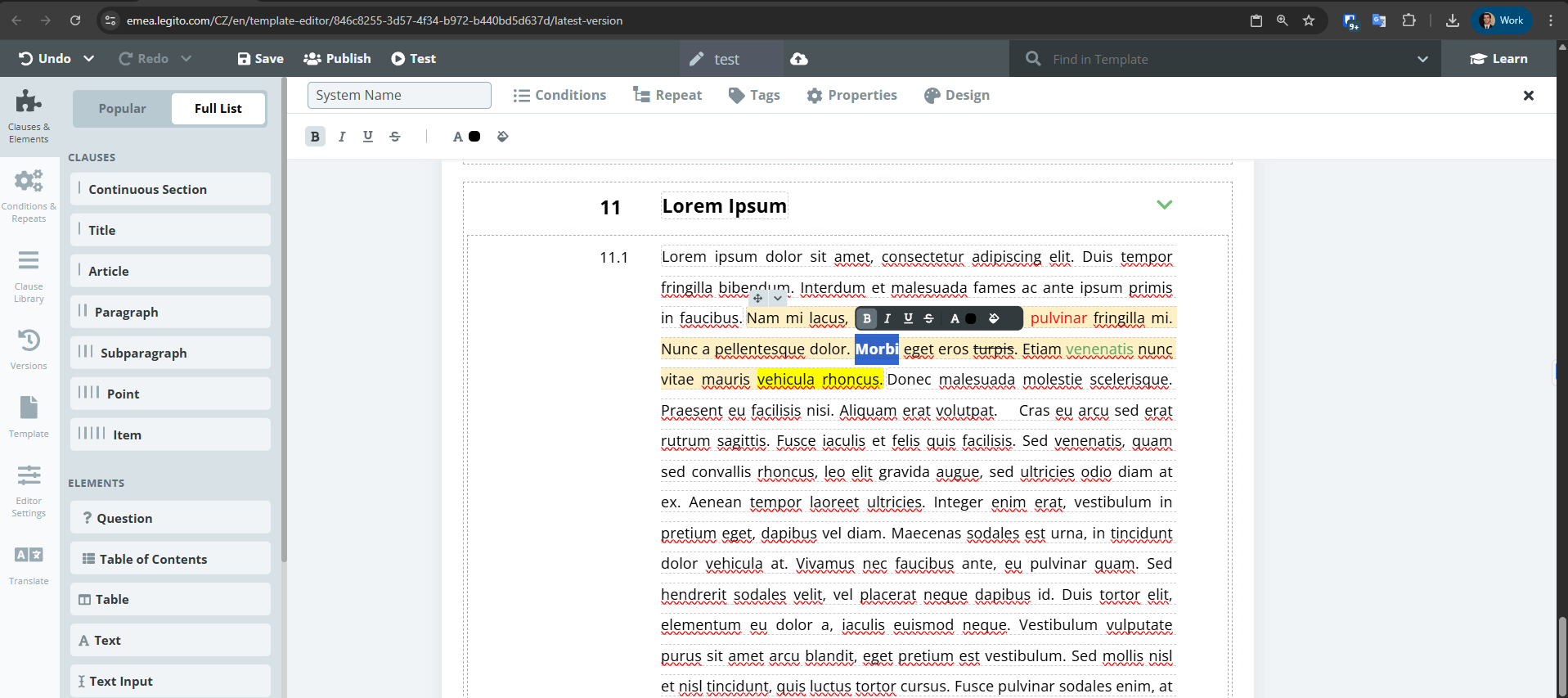
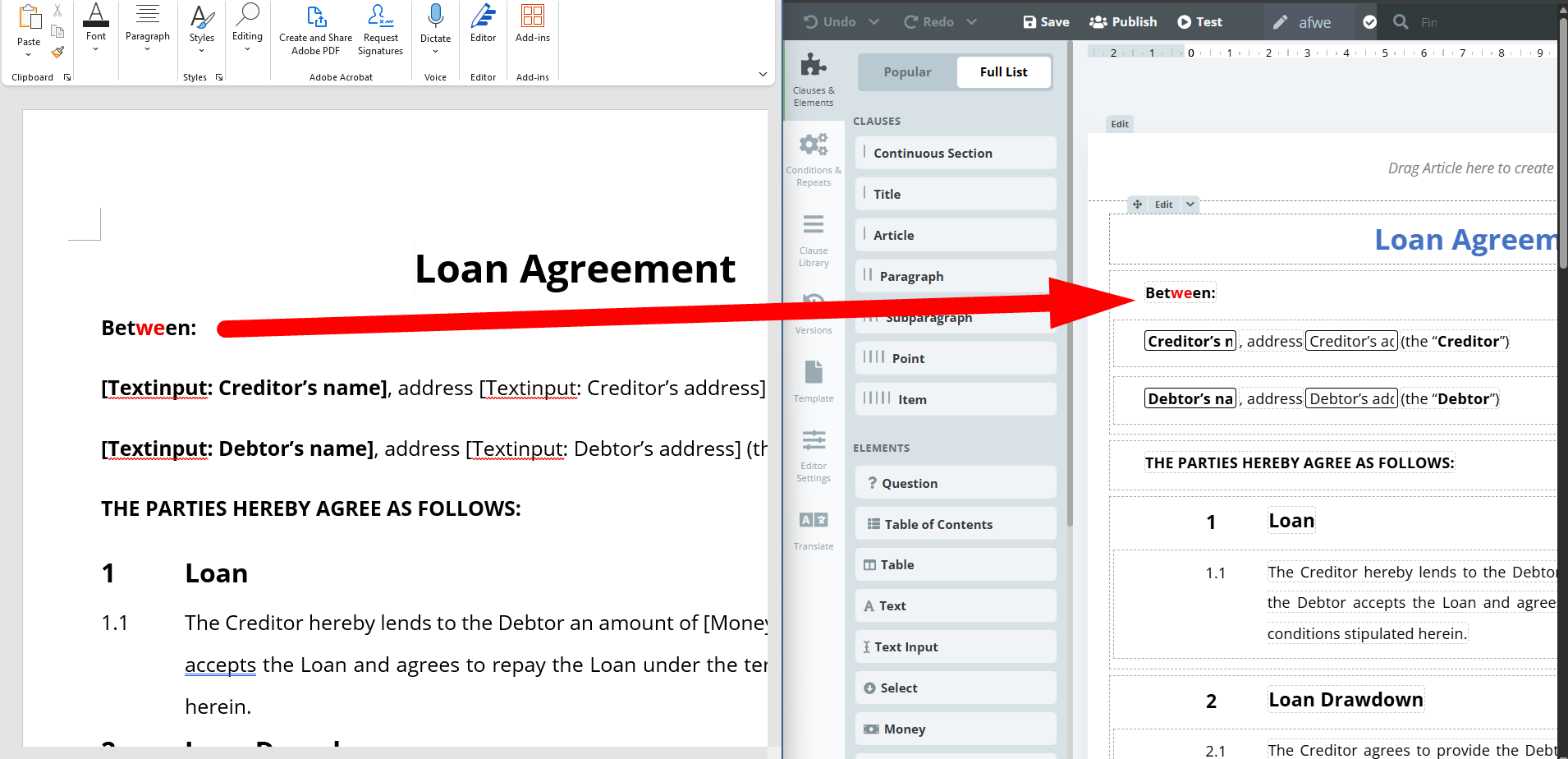
Formatting from MS Word import has also been improved. Importing a Word document that contains advanced formatting, even different formatting applied to a single word, will be formatted exactly the same way in Legito.
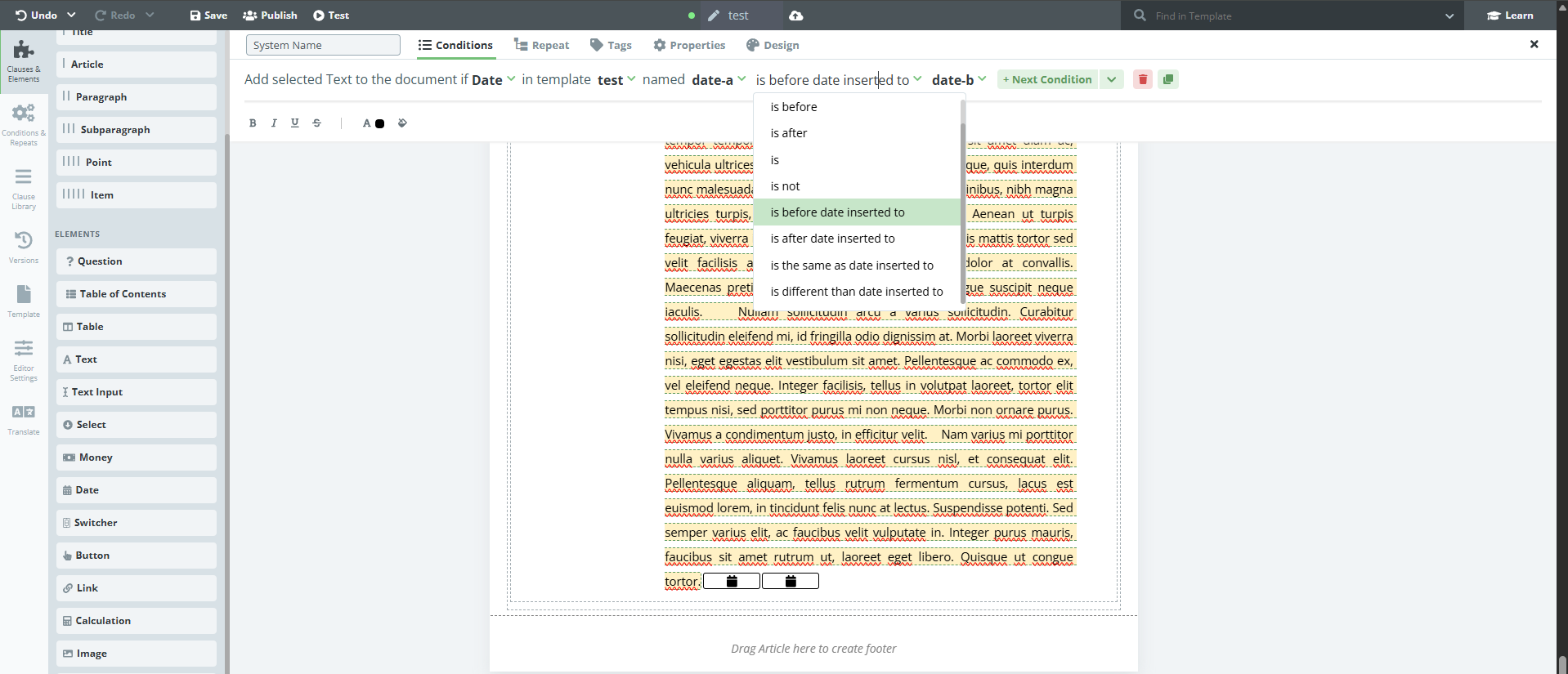
5) New Comparison Condition Operators for Dates
New conditions have been added that allow comparison between two date elements. These new conditions can be applied to any element.
Newly introduced conditions are:
- is before date inserted to
- is after date inserted to
- is the same as date inserted to
- is different than date inserted to
6) New Comparison Condition Operators for Text inputs
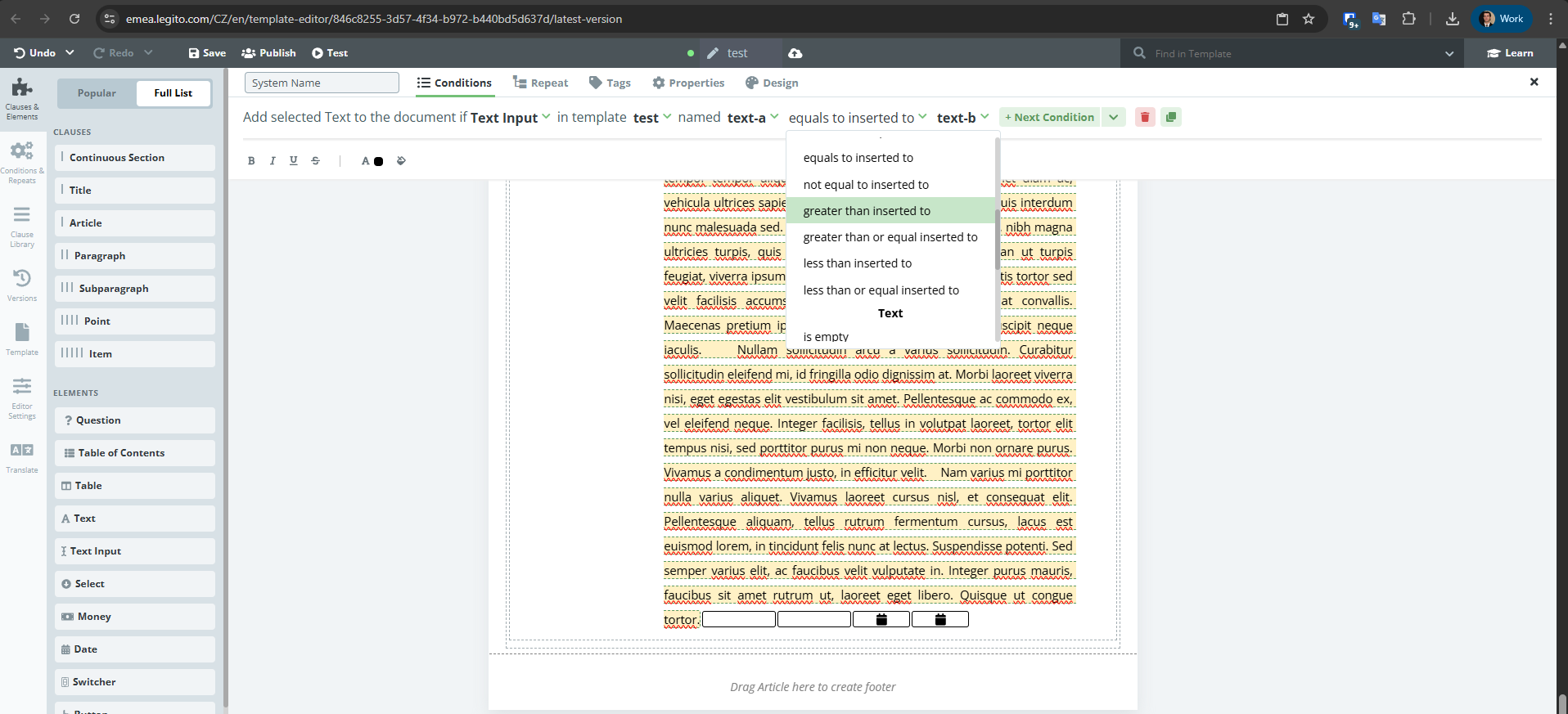
Several new conditions are available for comparing numeric values in 2 text input elements. The condition itself can be applied to any element. These are:
- equals to inserted to
- not equal to inserted to
- greater than inserted to
- greater than or equal inserted to
- less than inserted to
- less than or equal inserted to
7) Internal Setting for Clauses and Elements
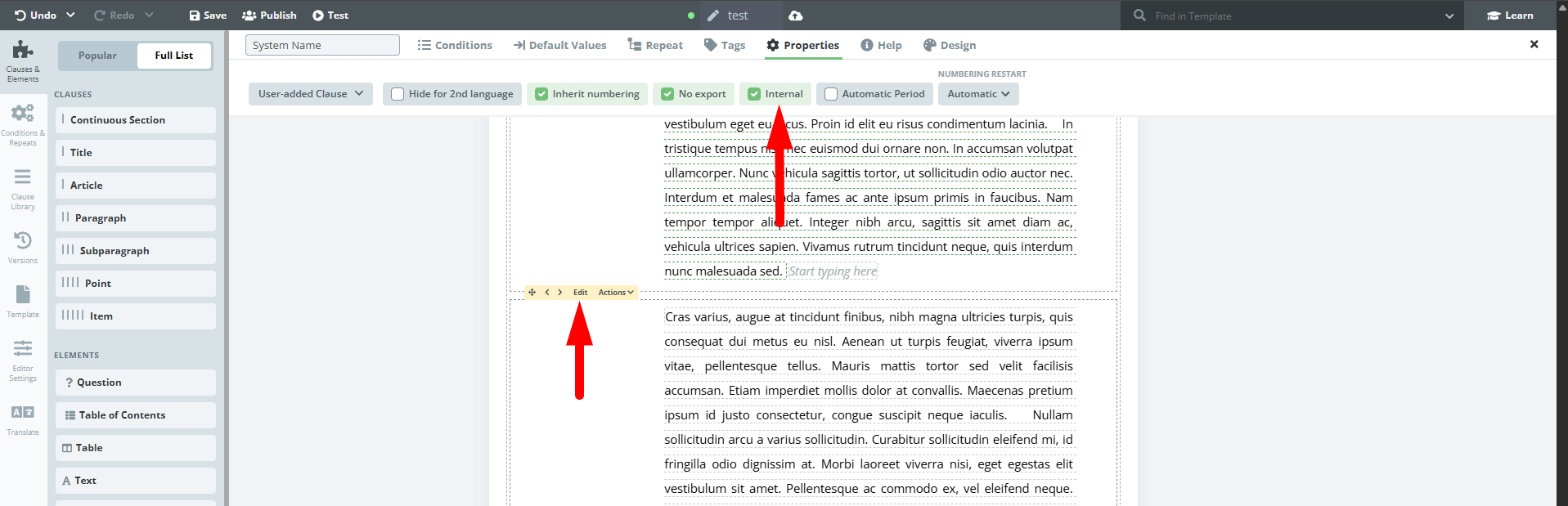
There is a new option to set non-exportable clauses and non-exportable elements (Question, Switcher, Button) as “internal” – similar to marking Templates as internal. The “View Internal Documents” permission has to be applied in this case. Elements that can be set as internal are Question, Switcher, and Button. Although a select element can have individual options marked as “no export”, the element itself can be exported, therefore it cannot be set as internal.
8) Internal Setting for Comments
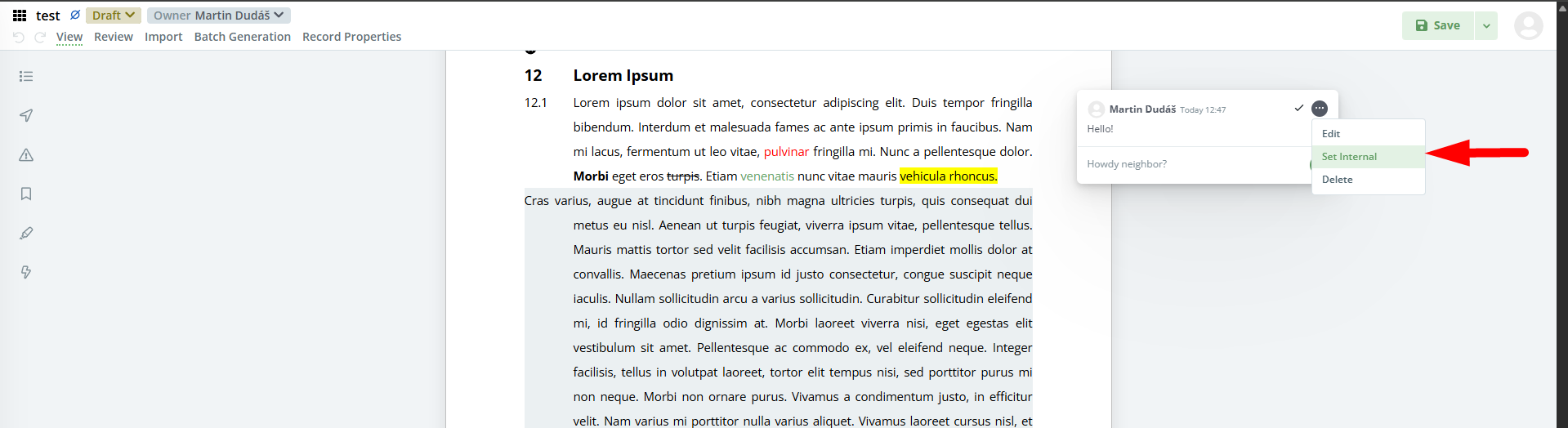
Comments can also be marked as internal and behave in the same way – only users with permission to “View Internal Documents” can see them. When the first comment is marked as internal, all the following comments in the thread are treated as internal as well.
9) Document Record Details in Document Editor
The option to quickly access document record details from Document Editor, without the need to leave the interface has now been added.
To access Document Record details from Document Editor, click on the Record properties tab in the top menu.
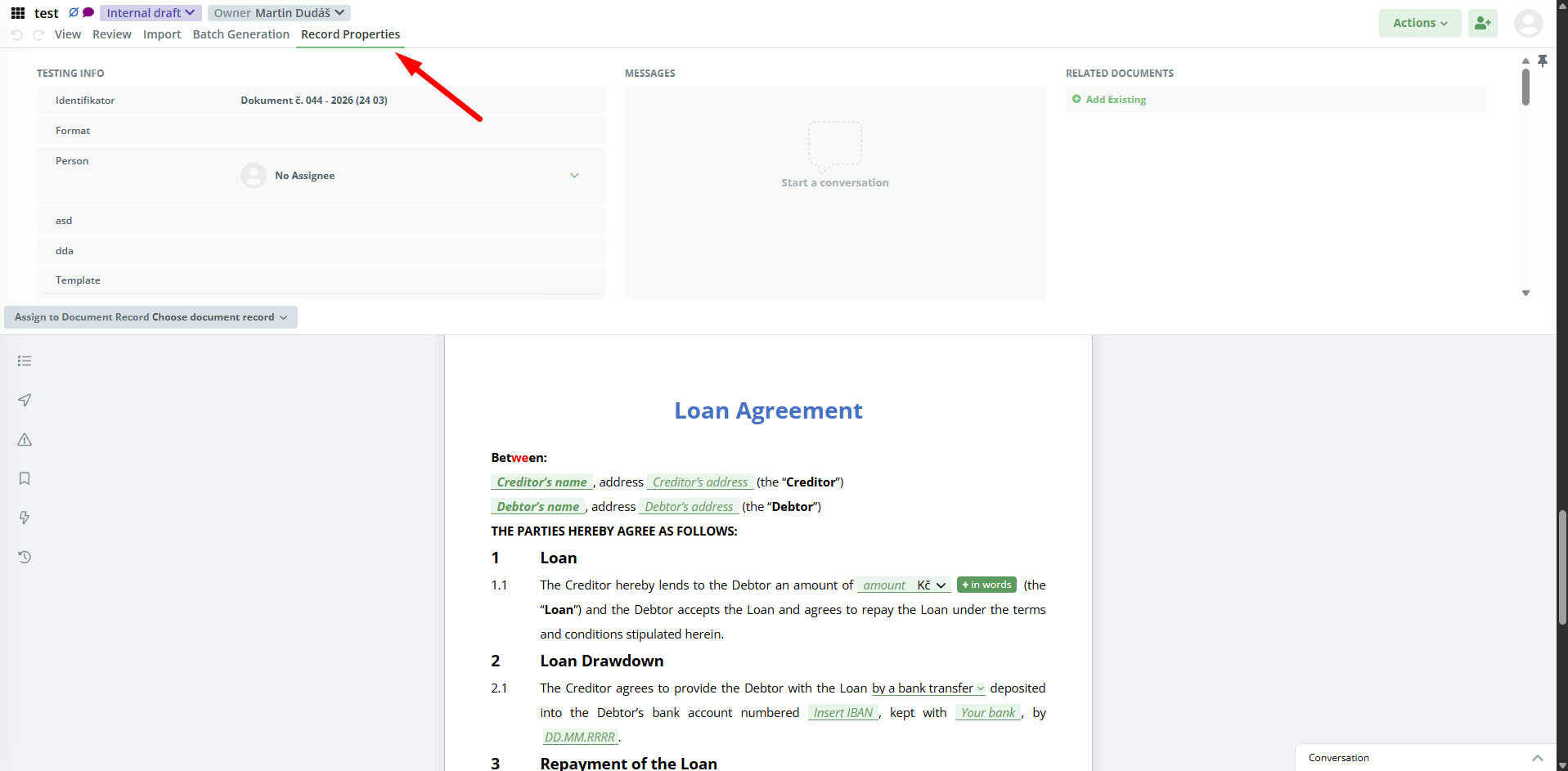
The tab becomes available after saving a first draft of the document from a template.
10) Timeline (Audit Trail) in Document Editor
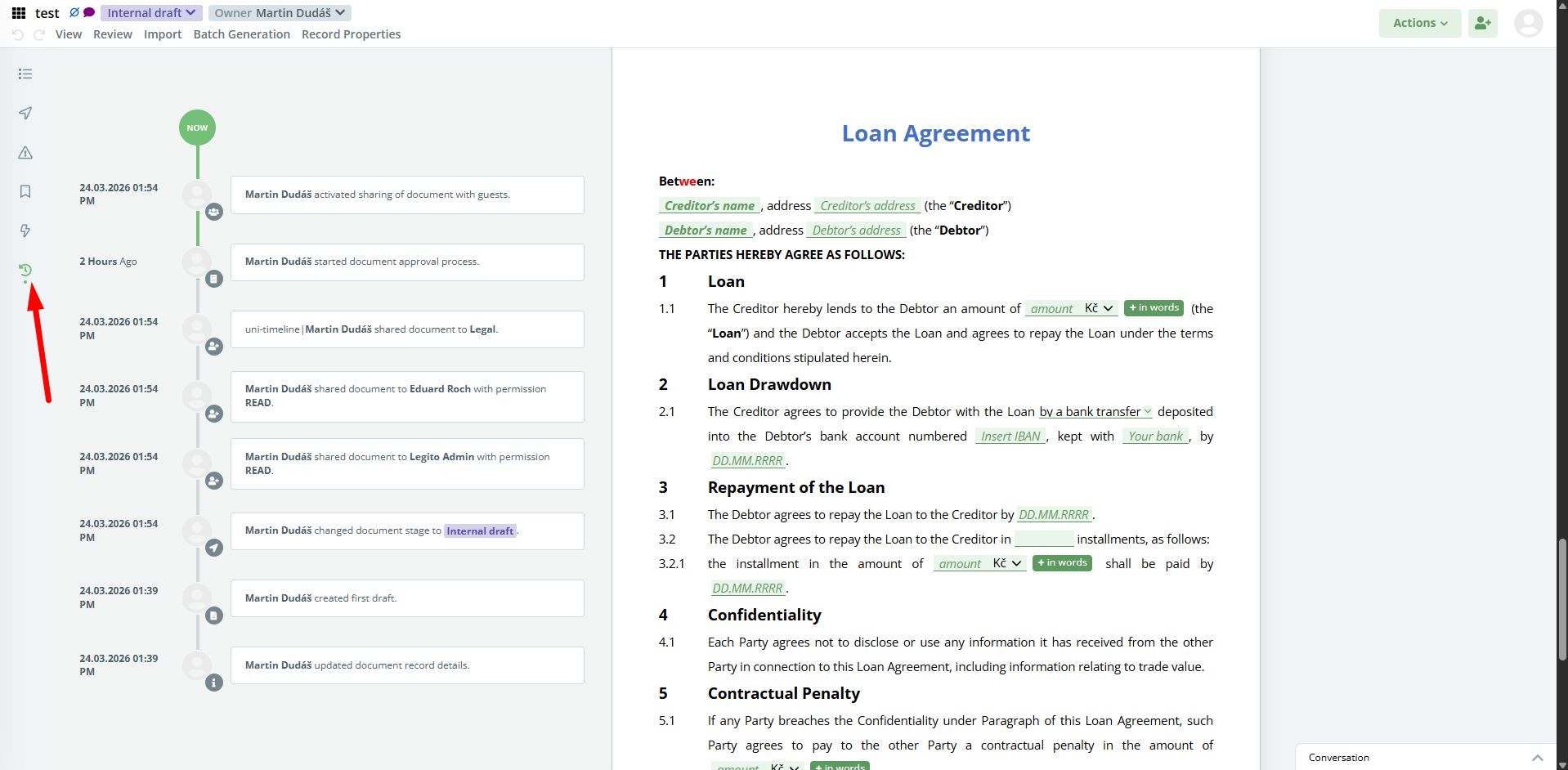
There is now an option to access the timeline of a document record directly from the Document Editor. To access Timeline, click on the newly added timeline icon that can be found at the bottom of the Outline menu on the left-hand side of the screen.
11) New Document Permission – Comment Only
User access to Legito Documents can now be restricted to the following actions only:
- add a new comment or a comment in a thread
- mark a comment as a resolved
- edit own comments
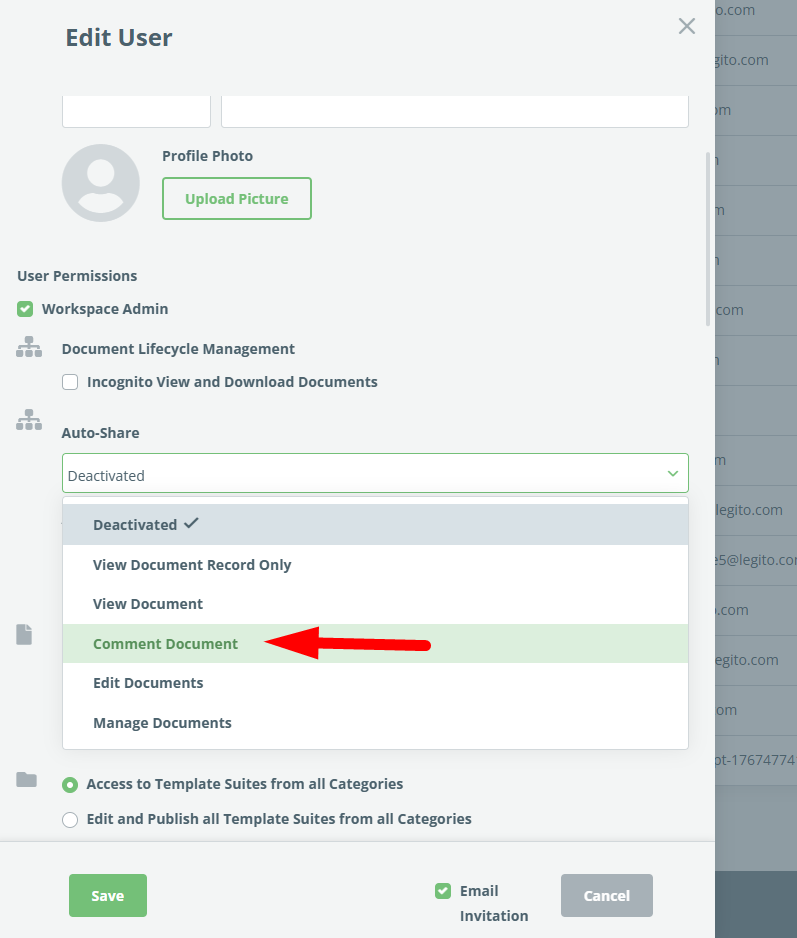
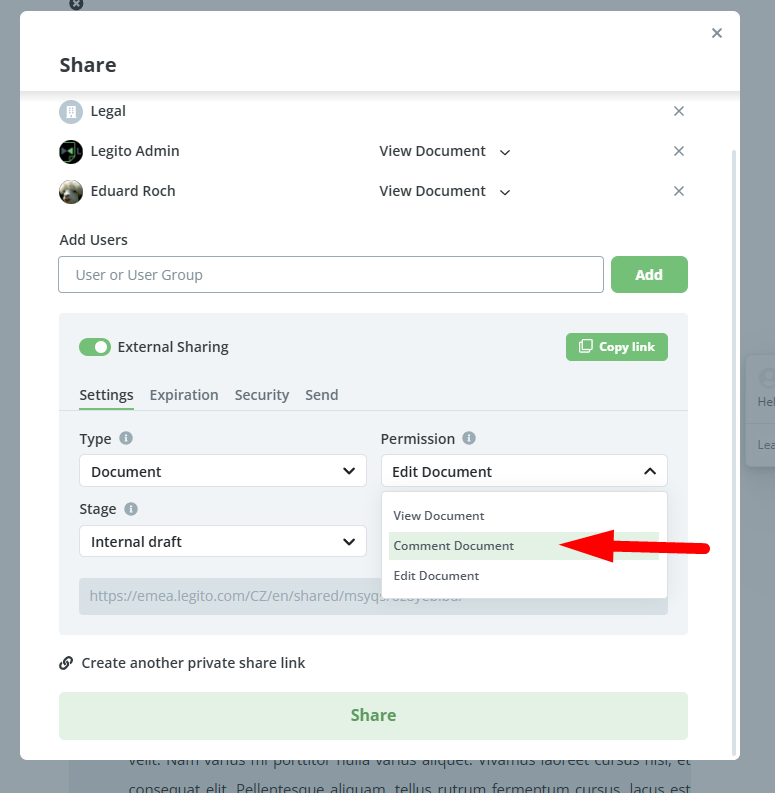
This option is available when sharing documents with users and user groups, auto-sharing permissions to users and user groups, external sharing to guests sharable links settings), and SSO user roles.
12) Follow-Up Instructions in Document Editor
Several changes have been made to Follow-up instructions. In addition to appearing in emails containing the links to generated documents, this special type of Template will now appear under the Documents in Document Editor, which appears differently than other Template types. Standard Legito Template publication principles will apply to the Follow-up instructions so that instructions are displayed to all users when published.
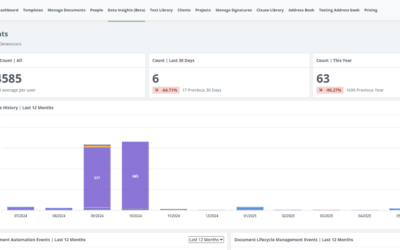
13) Document Record Categories in Data Insights
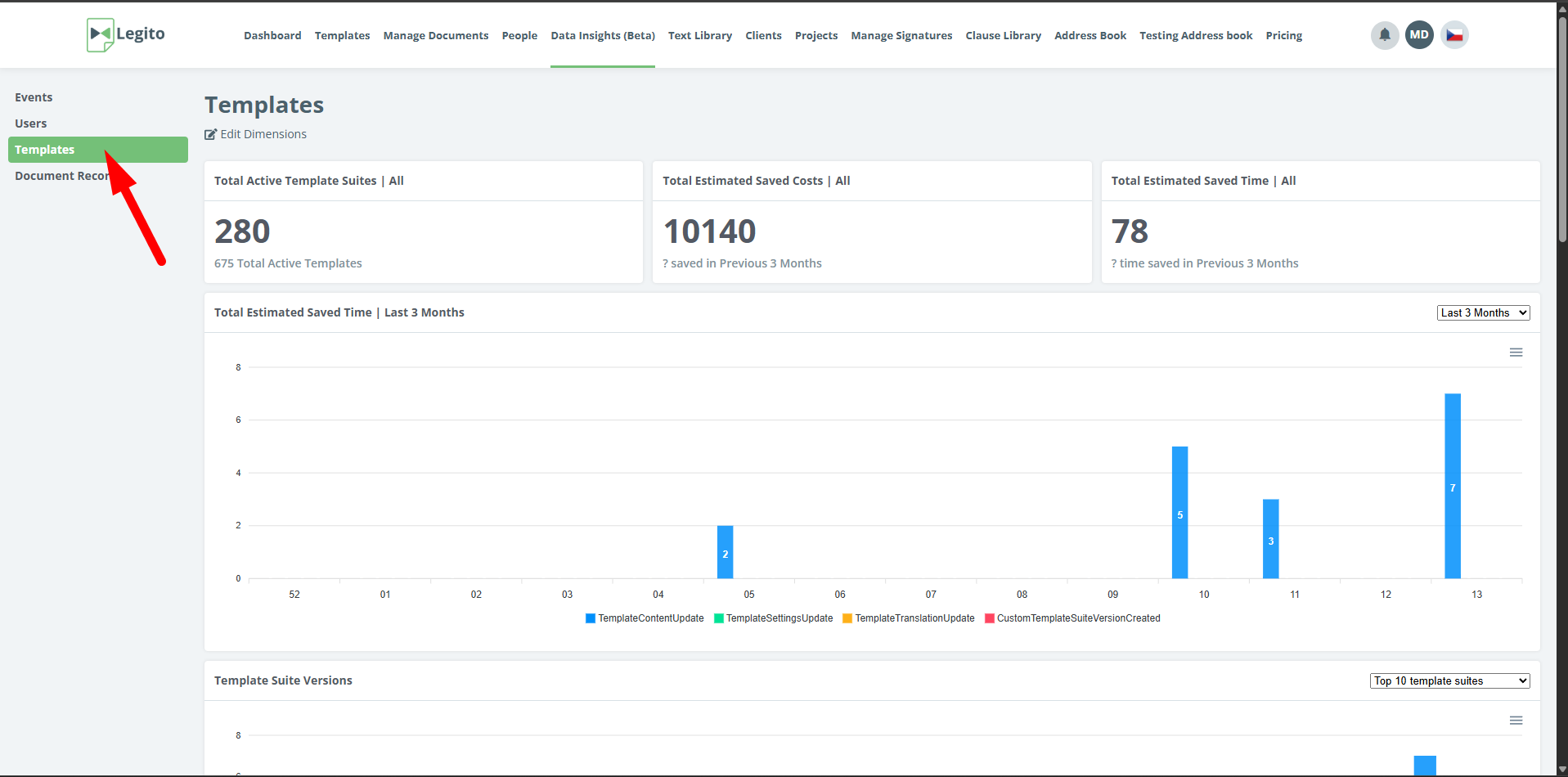
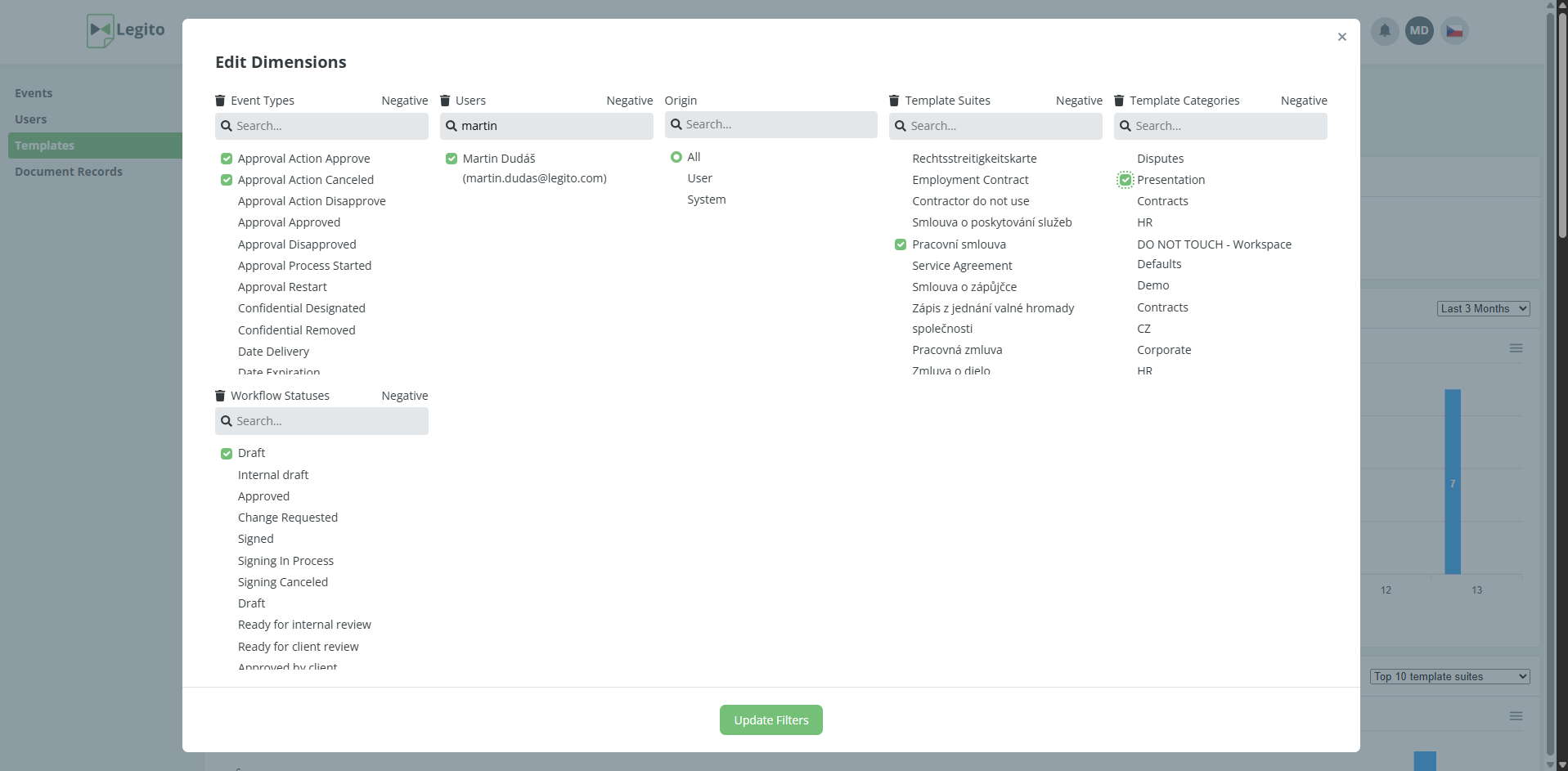
A new section to the data insights tab called Document Records has been introduced. Just like other already available sections, Document Records offers rich statistics and charts to help you unlock valuable insights. Chart dimensions can be filtered to display the data that is relevant to you.
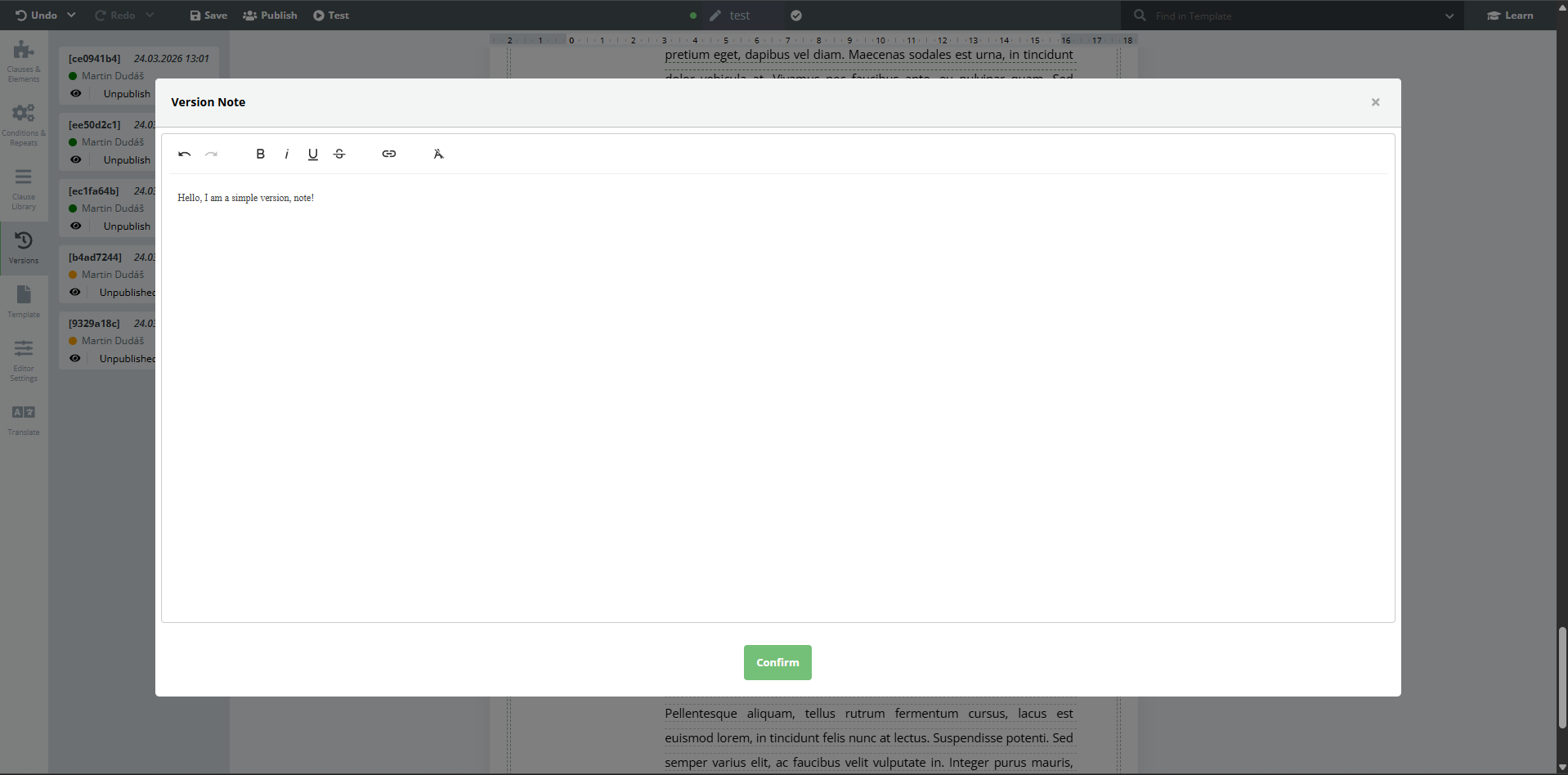
14) Template Version Note
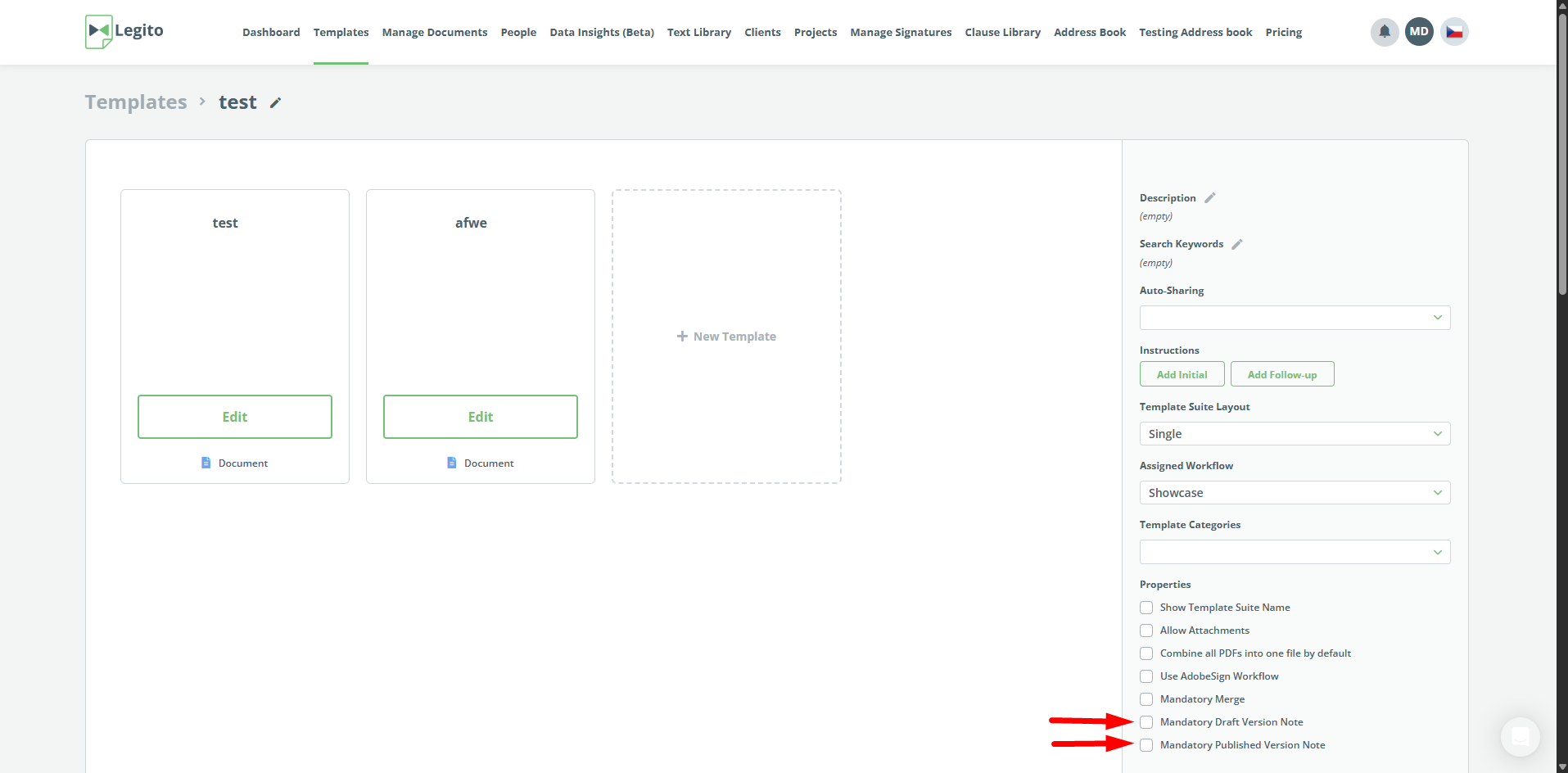
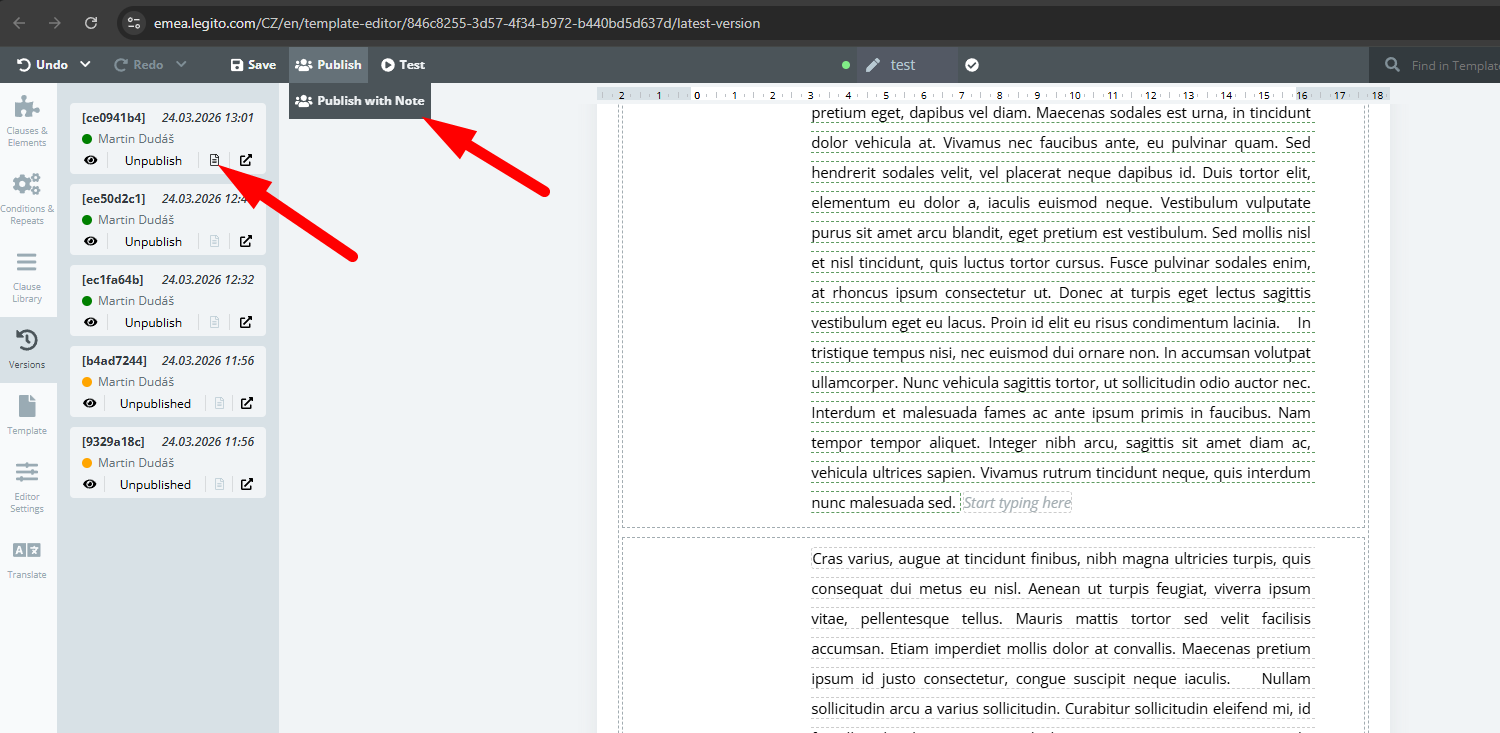
This is a new feature that enables the creation and attachment of a note to each version of a template that you publish or save in Template Editor. An option has also been added to make drafting or publishing a note (or both) mandatory. Checkboxes for making notes mandatory can be found in the Template Administration settings for each Template Suite. The notes can be found inside Template Editor in the Version tab, and can be accessed by clicking the new icon on any given template version.
15) New MS Word Conversion Annotations
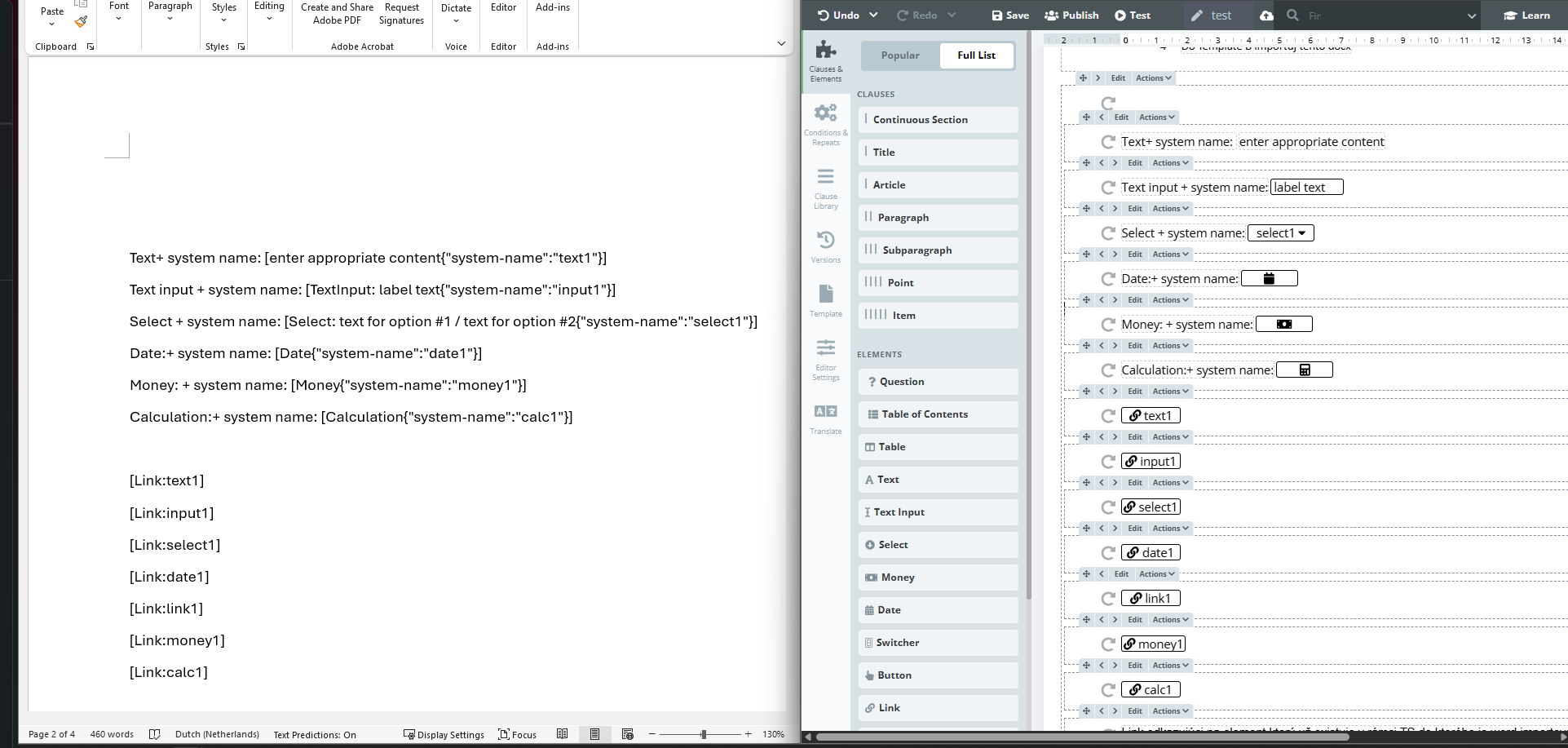
Import from MS Word with the use of annotations has been improved and enhanced. Several new import annotation types and elements are now supported. To summarize all the new annotation improvements:
a) Option to import new elements using annotations – question and switcher.
Annotations:
Question: [Question”Question text”:optionA/optionB/optionC]
Switcher: [Switcher:Label text]
b) Specify the system name of every element created from an annotated document using markup {“system-name”:”your_system_name”} at the end of an annotation.
Example of full annotation: [Date{“system-name”:”date1″}]
c) Element link enhancement: Specify the target of the link using the system name of the target.
Annotation:
[Link:target_element_system_name]
Read more about other supported annotations here.
16) New User Permissions
Additional User permissions have been added.
New permissions in the Workspace settings section:
- Customize Public Dashboard – this restricts all operations with public dashboards. It has no impact on private dashboards.
- Edit Columns- control who can edit columns in the Manage documents and the Manage section for Objects.
New permissions in the Workspace admin section:
- Import from Sheet – Favorite Settings – controls all operations- create, modify, delete. Impacts only public favorite settings, not private ones.
- Import from Legito – Favorite Settings – controls all operations- create, modify, delete. Impacts only public favorite settings, not private ones.
- Batch Generation – Favorite Settings – controls all operations- create, modify, delete. Impacts only public favorite settings, not private ones.
- Template favourite settings – Favorite Settings – controls all operations- create, modify, delete. Impacts only public favorite settings, not private ones.
17) Language in the User settings
The new user interface language setting in User settings can now be accessed by clicking the User icon and selecting the “Change Language” option in the dropdown.
18) Element and Clause Description
In the Template Editor, every element now has a new field associated with it called description. This field can be found under the new “AI” tab in the Item menu, and can be used to store any information about a given Element or Clause. As of now, information is only visible to template authors inside Template Editor. In future, this information will be accessible to AI integrations and serve as a guide for automatic field filling in documents.
19) Multiworkspace Management (beta)
A Multiworkspace Management section has been added to Legito. This section will facilitate efficient management of multiple workspaces, in particular, users, workspace settings, or templates. This feature is especially useful for international organizations where each country has its own workspace or holdings of multiple subsidiaries.
This feature is now available in a beta version. Please don’t hesitate to reach out to our team if you are interested in seeing this feature in action.
20) Template Editor UI Improvements
The Template Editor design has been refreshed in several areas and should feel more aligned with the rest of your Legito Workspace. Legito will now respond to your Workspace branding color scheme according to the colors inside Templates. Fields in the Item menu were redesigned and unified.
Q1 2026: Twenty New Features, AI Included
1) AI-powered Conversion of Word docs to Legito Templates
To significantly reduce manual work when converting Word documents to automated Legito Templates, we built an AI tool to identify where Input-type and Selection-type Elements are required, and it can even automatically build some logical dependencies into the template.
The AI analyzes the document, identifies which fields should be converted to elements, what conditions should be applied, and so on. After import, all of the elements are created as if the master Word document contained annotations.
The option to use AI-enhanced conversion is presented as a checkbox “Apply AI conversion” and can be found in the import modal under Import Settings.
This AI feature is native to the Legito application so it does not require any integration, it does not use your data for learning at all, and it does not share your data with any 3rd party tools (all your data remains on the Legito server).
While this is a really powerful feature that will save you a lot of time, it is important to keep in mind that, generally speaking, AI l is not 100% predictable.
2) Custom Input Properties in Workflow Triggers
For some time, Legito users have enjoyed the option to use selected system properties for workflow triggers.
Now we have added the following Input-type Document Record properties to the automatic and manual Flow Triggers in Workflow:
Input properties:
- Single-line Text
- Multi-line Text
- Single Date
- Numerical Value
- Financial Value
Operators for numerical and financial values:
- greater than
- greater than or equal
- less than
- less than or equal
Operators for date values:
- is
- is not
- is before
- is after
- Plus
- Minus
- is empty
- is not empty
Operators for text values:
- is
- is not
- contains
- does not contain
- is empty
- is not empty
Several properties can be used for a single trigger, and these properties can be used for both manual and automatic activation. If multiple properties are being used, all conditions must be met to trigger successfully.
3) Custom Selection Properties in Workflow Triggers
We have added the following Selection-type Document Record properties to the automatic and manual Flow Triggers in Workflow:
Selection properties:
- Single Checkbox
- Single Choice Select
Operators for the Single Checkbox:
- is true (means checked)
- is false (means unchecked)
Operators for the Single-choice Selection:
- is
- is not
You can read more about workflows and triggers here.
4) Character-level formatting for the Text element
Legito now supports character level formatting, meaning it is possible to format different parts of the same element separately. Right now, character level formatting is available for the text element only. The option to set character level formatting can be found under the top option bar in the Template Editor when it appears upon selecting any text element. To make editing quicker, a new formatting bar appears directly above the text element after any text is selected. Formatting settings for clauses remain unchanged.
Currently supported character-level formatting settings are:
- Bold
- Italic
- Underline
- Strike
- Text color
- Highlight color
Formatting from MS Word import has also been improved. Importing a Word document that contains advanced formatting, even different formatting applied to a single word, will be formatted exactly the same way in Legito.
5) New Comparison Condition Operators for Dates
New conditions have been added that allow comparison between two date elements. These new conditions can be applied to any element.
Newly introduced conditions are:
- is before date inserted to
- is after date inserted to
- is the same as date inserted to
- is different than date inserted to
6) New Comparison Condition Operators for Text inputs
Several new conditions are available for comparing numeric values in 2 text input elements. The condition itself can be applied to any element. These are:
- equals to inserted to
- not equal to inserted to
- greater than inserted to
- greater than or equal inserted to
- less than inserted to
- less than or equal inserted to
7) Internal Setting for Clauses and Elements
There is a new option to set non-exportable clauses and non-exportable elements (Question, Switcher, Button) as “internal” – similar to marking Templates as internal. The “View Internal Documents” permission has to be applied in this case. Elements that can be set as internal are Question, Switcher, and Button. Although a select element can have individual options marked as “no export”, the element itself can be exported, therefore it cannot be set as internal.
8) Internal Setting for Comments
Comments can also be marked as internal and behave in the same way – only users with permission to “View Internal Documents” can see them. When the first comment is marked as internal, all the following comments in the thread are treated as internal as well.
9) Document Record Details in Document Editor
The option to quickly access document record details from Document Editor, without the need to leave the interface has now been added.
To access Document Record details from Document Editor, click on the Record properties tab in the top menu.
The tab becomes available after saving a first draft of the document from a template.
10) Timeline (Audit Trail) in Document Editor
There is now an option to access the timeline of a document record directly from the Document Editor. To access Timeline, click on the newly added timeline icon that can be found at the bottom of the Outline menu on the left-hand side of the screen.
11) New Document Permission – Comment Only
User access to Legito Documents can now be restricted to the following actions only:
- add a new comment or a comment in a thread
- mark a comment as a resolved
- edit own comments
This option is available when sharing documents with users and user groups, auto-sharing permissions to users and user groups, external sharing to guests sharable links settings), and SSO user roles.
12) Follow-Up Instructions in Document Editor
Several changes have been made to Follow-up instructions. In addition to appearing in emails containing the links to generated documents, this special type of Template will now appear under the Documents in Document Editor, which appears differently than other Template types. Standard Legito Template publication principles will apply to the Follow-up instructions so that instructions are displayed to all users when published.
13) Document Record Categories in Data Insights
A new section to the data insights tab called Document Records has been introduced. Just like other already available sections, Document Records offers rich statistics and charts to help you unlock valuable insights. Chart dimensions can be filtered to display the data that is relevant to you.
14) Template Version Note
This is a new feature that enables the creation and attachment of a note to each version of a template that you publish or save in Template Editor. An option has also been added to make drafting or publishing a note (or both) mandatory. Checkboxes for making notes mandatory can be found in the Template Administration settings for each Template Suite. The notes can be found inside Template Editor in the Version tab, and can be accessed by clicking the new icon on any given template version.
15) New MS Word Conversion Annotations
Import from MS Word with the use of annotations has been improved and enhanced. Several new import annotation types and elements are now supported. To summarize all the new annotation improvements:
a) Option to import new elements using annotations – question and switcher.
Annotations:
Question: [Question”Question text”:optionA/optionB/optionC]
Switcher: [Switcher:Label text]
b) Specify the system name of every element created from an annotated document using markup {“system-name”:”your_system_name”} at the end of an annotation.
Example of full annotation: [Date{“system-name”:”date1″}]
c) Element link enhancement: Specify the target of the link using the system name of the target.
Annotation:
[Link:target_element_system_name]
Read more about other supported annotations here.
16) New User Permissions
Additional User permissions have been added.
New permissions in the Workspace settings section:
- Customize Public Dashboard – this restricts all operations with public dashboards. It has no impact on private dashboards.
- Edit Columns- control who can edit columns in the Manage documents and the Manage section for Objects.
New permissions in the Workspace admin section:
- Import from Sheet – Favorite Settings – controls all operations- create, modify, delete. Impacts only public favorite settings, not private ones.
- Import from Legito – Favorite Settings – controls all operations- create, modify, delete. Impacts only public favorite settings, not private ones.
- Batch Generation – Favorite Settings – controls all operations- create, modify, delete. Impacts only public favorite settings, not private ones.
- Template favourite settings – Favorite Settings – controls all operations- create, modify, delete. Impacts only public favorite settings, not private ones.
17) Language in the User settings
The new user interface language setting in User settings can now be accessed by clicking the User icon and selecting the “Change Language” option in the dropdown.
18) Element and Clause Description
In the Template Editor, every element now has a new field associated with it called description. This field can be found under the new “AI” tab in the Item menu, and can be used to store any information about a given Element or Clause. As of now, information is only visible to template authors inside Template Editor. In future, this information will be accessible to AI integrations and serve as a guide for automatic field filling in documents.
19) Multiworkspace Management (beta)
A Multiworkspace Management section has been added to Legito. This section will facilitate efficient management of multiple workspaces, in particular, users, workspace settings, or templates. This feature is especially useful for international organizations where each country has its own workspace or holdings of multiple subsidiaries.
This feature is now available in a beta version. Please don’t hesitate to reach out to our team if you are interested in seeing this feature in action.
20) Template Editor UI Improvements
The Template Editor design has been refreshed in several areas and should feel more aligned with the rest of your Legito Workspace. Legito will now respond to your Workspace branding color scheme according to the colors inside Templates. Fields in the Item menu were redesigned and unified.
More From New Releases
Q1 2026: Twenty New Features, AI Included
Discover 20 new Legito features, including AI-powered Word conversion and smarter workflows to boost document automation.
...
Q4 2025: New Permissions and Triggers
Q4 2025: Data Insights and other improvements to enhance automation, security, and document management in Legito.
...
Q2 2025: Data Insights and 11 other Improvements
Q2 2025: Data Insights and 11 other improvements to enhance automation, security and document management in Legito.
...
Q1 2025: AI for CLM and more
Discover what’s new in the Q1 2025: AI for CLM and other enhancements to make your document management faster and more efficient.
...
Q4 2024: Document Automation and Signatures
Discover new and improved Legito features in the Q4 2024 report: Document Automation and Signatures. More efficient automation and signatures!
...
Q3 2024: Next Generation Document Editor
Reflecting on a productive first quarter in 2024, we are delighted to announce the release of our latest features.
...
Q2 2024: Focus on CLM and Integrations
Reflecting on a productive first quarter in 2024, we are delighted to announce the release of our latest features.
...
Q1 2024: New Integrations, Search & Document Automation Features
Reflecting on a productive first quarter in 2024, we are delighted to announce the release of our latest features.
...
December 2023: Salesforce Integration And More
In our most recent release, our team launched a Legito app in Salesforce that supports all endpoints contained in Legito’s robust REST API. Addit...
November 2023: Zapier Integration & Dashboard Improvements
We redesigned the default Dashboard for newly created Workspaces. The new Dashboard design is based on your feedback and has been applied to the Wi...
October 2023 Release: Easier Forms Building And More
To allow our power users to quickly and easily build simple Form Templates in the Template Editor, we added a Quick Actions bar with pre-built bloc...
September 2023 Release: Localization & Template Editor Improvements
Discover new localization settings for workspace and other template editor improvements. Workspace admins can set formats of dates, numbers, and fi...
August 2023 Release: New Features for Power Users
Our latest release introduces Automatic Field Creation for Legito Sign and DocuSign within Legito Templates. And much more.
...
July 2023 Release: Enhanced Legito Sign & Free Workspace
As a Legito gesture to provide value to the Legito community, and to support new entrepreneurs, Legito offers a Free plan that provides access to s...
June 2023 Release: Processing PDF Forms
Legito can now process and automatically fill PDF documents using data inserted to your Legito Documents or Forms. To add a PDF Template to your Te...
May 2023 Release: Process Management Improvements
Now you can upload files to Object Records the same way as Document Records. We added a feature that allows the activation of Saved Files Property ...
April 2023 Release: UX & Integration Tools Improvements
We made several improvements in April, which led to a smoother and more enjoyable user experience. Keeping up with the latest advancements in UX an...
March 2023 Release: User Onboarding And More
In addition to Workspace Onboarding, we have released a simplified User Onboarding for non-Admin users. Workspace Onboarding will teach your power ...
February 2023 Release: Onboarding 2.0
We love our power users, so we built a brand new comprehensive onboarding for Workspace Administrators to help them understand each Legito componen...
January 2023 Release: QR Code Element & UX Improvements
The QR Code Element can generate QR codes based on the content of the Document created from a Template, including information (data) inserted by th...