
Search Knowledge Base by Keyword
Documentation
Last review: March 2024
Scripts
For advanced usage of Templates and Documents, Legito offers an integrated script engine that enables running a secure subset of TypeScript code as a reaction on one of the supported document events. Scripts can read the document, input values, modify them, and even use REST calls to obtain data from an external resource.
To see all available functionality, refer to this page https://emea.legito.com/ts-api/nde-definition/
Introduction
Tags in a document and calling the script
In the document editor, we have an option to tag elements. When you do so, you can bind the script to the tag and you can manipulate, change values, and get values via your script. So we will make a quick script that takes the input value from the text input element, does an operation with the data, and then shows the data in the output text field.
A change of value in the following element types can trigger a script:
- Question
- Text Input
- Select
- Money
- Date
- Switcher
- Button
- Rich Text
Create a document with these fields
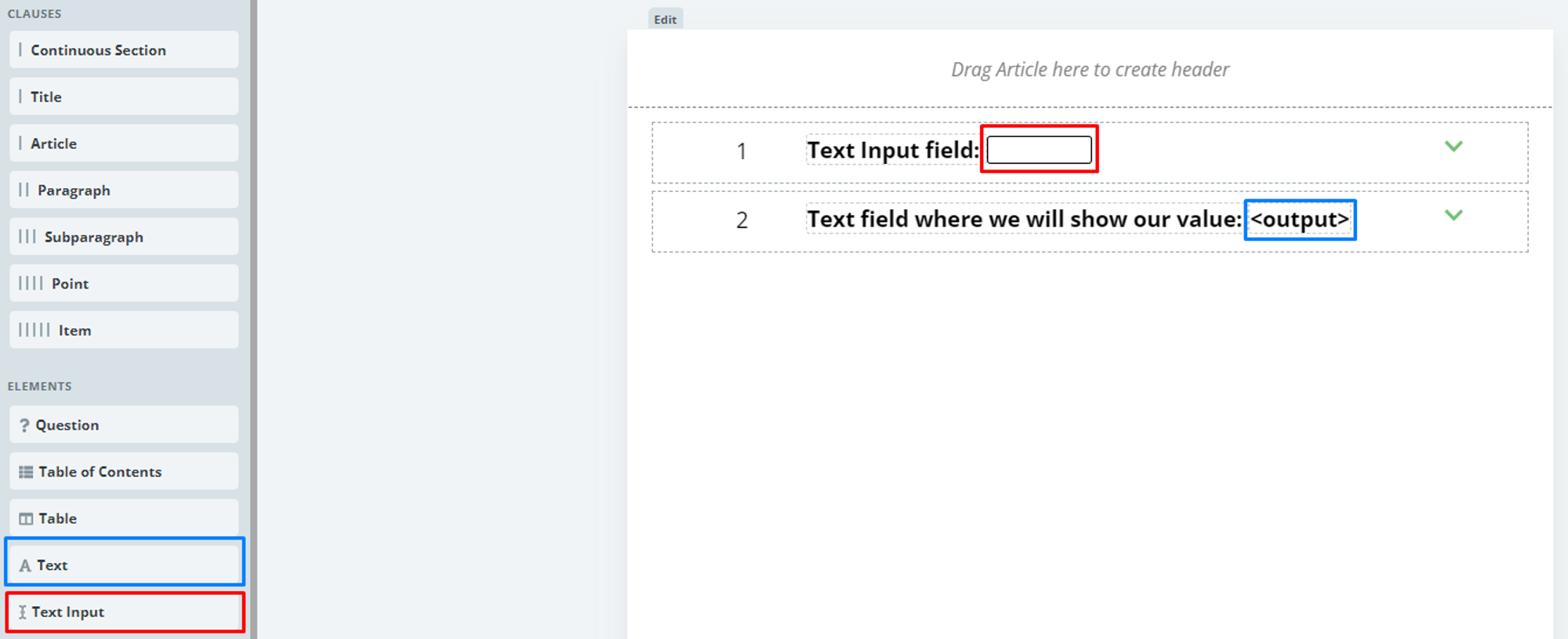
We will create one “Text Input” and one “Text” element.
Then, when you click on the element, you will see “Tags” in your top menu which, after you select, will allow you to set a custom tag for the selected element.
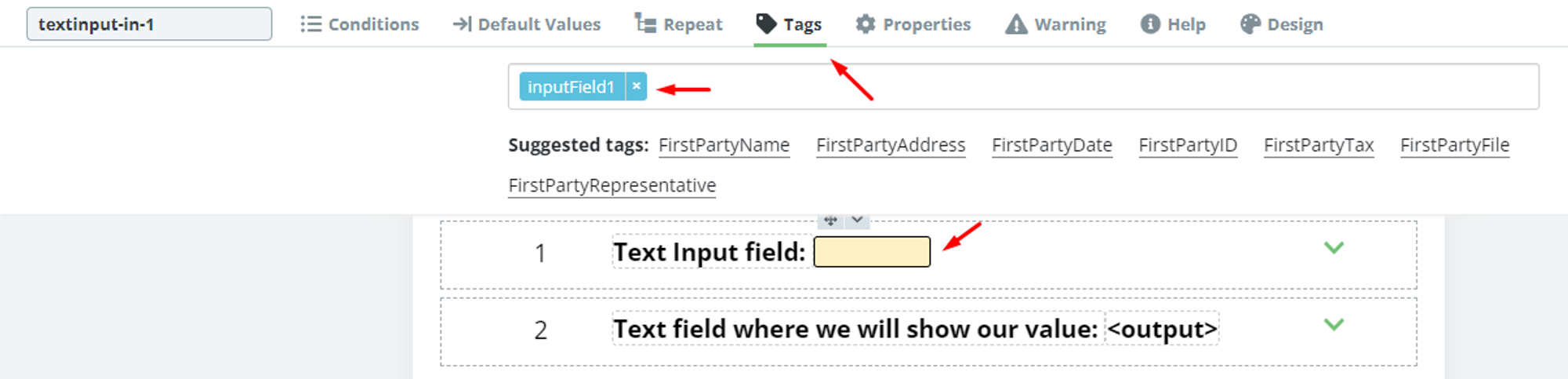
Now do the same for the output text field and name it “outputField1” etc.
Publish the template
Create and access the script
In your workspace, go to settings ⇒ Template Tags & Scripts.
If you have done everything in the first part, you will see these tags:

Now select the InputField1 and click “Edit scripts” ⇒ click on “Add” in the top right corner. Name your script as you like, I will go with “IOScriptTemplate”. IO means “Input/Output”.
Click on “Create Script”.
The Script is now bound to the inputField1 element. When we insert or edit the content of that element, it will automatically run the script.
Scripting environment (IDE) and usage
Before we can run anything we wrote, we always need to click on Publish at the right bottom of the IDE.
How to test the script:
We need to open the template in test mode. Do that by editing the template and then in the bottom right corner we can click the button “Test”. This will open the document in test mode and the debugger will be accessible.
Open debugger:
When we are in the script editor, click the Open Debugger button in the top left corner.
Writing the script
In the script, we can now refer to all elements that have tags in the document and also the document itself and the current user that started the script.
Now we can use the DE.Elements to locate the elements with tags in the document. First, we want to get the value from the input field which is also the element that is calling this script. We will get the element like this using its tag:
const element = DE.Elements.getFirstByTagName("inputField1");To access the value of the input we need to call the function getValue(). We can call it on the element we just got:
const value = element.getValue();Now we have a value user inputted in the input field stored in a variable called value. Next, we will want to return it to the document and show the value in outputField1.
So we will need to find the output element the same as before:
const outputElement = DE.Elements.getFirstByTagName("outputField1");And then set the value of the element via the function setValue().
outputElement.setValue(value);If you now click on the Test script and insert your value to the Text Input field it will instantly show it in the text below.

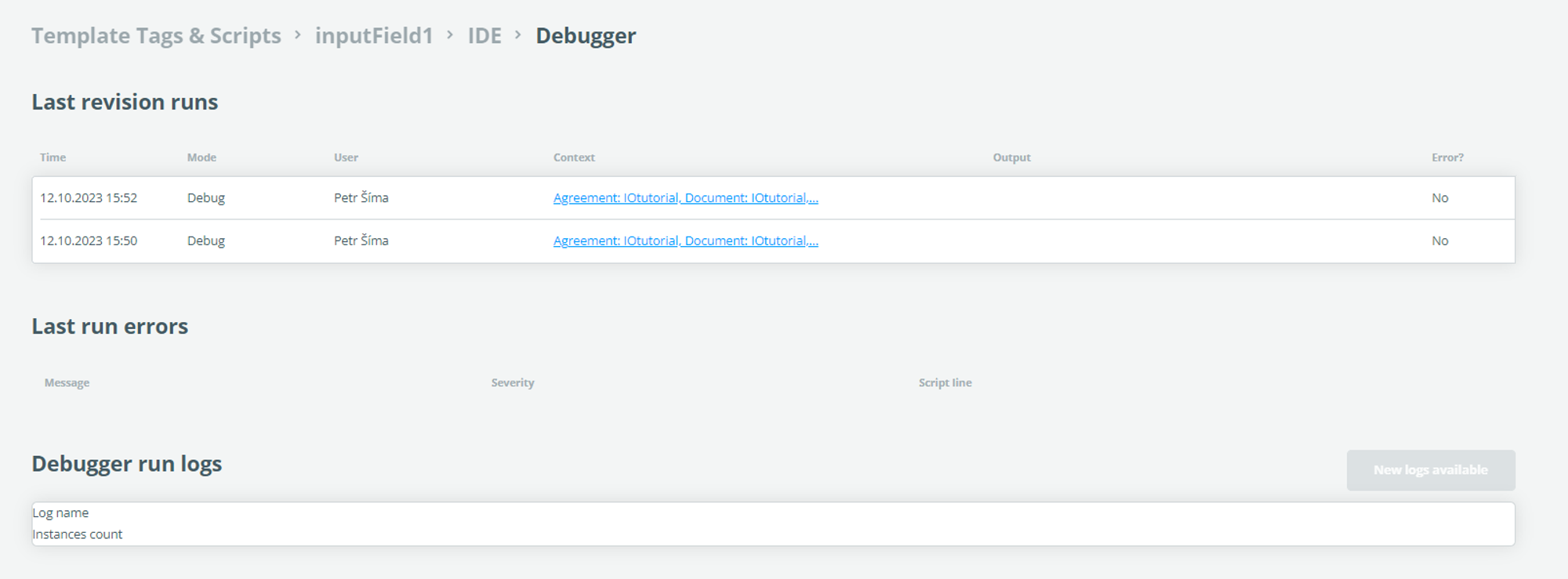
If it does not work, you can check the Debugger and look for errors. If it runs properly it should look like this:
Debugging
If you want to check values in the middle of your script you can use DE.Debug.log();
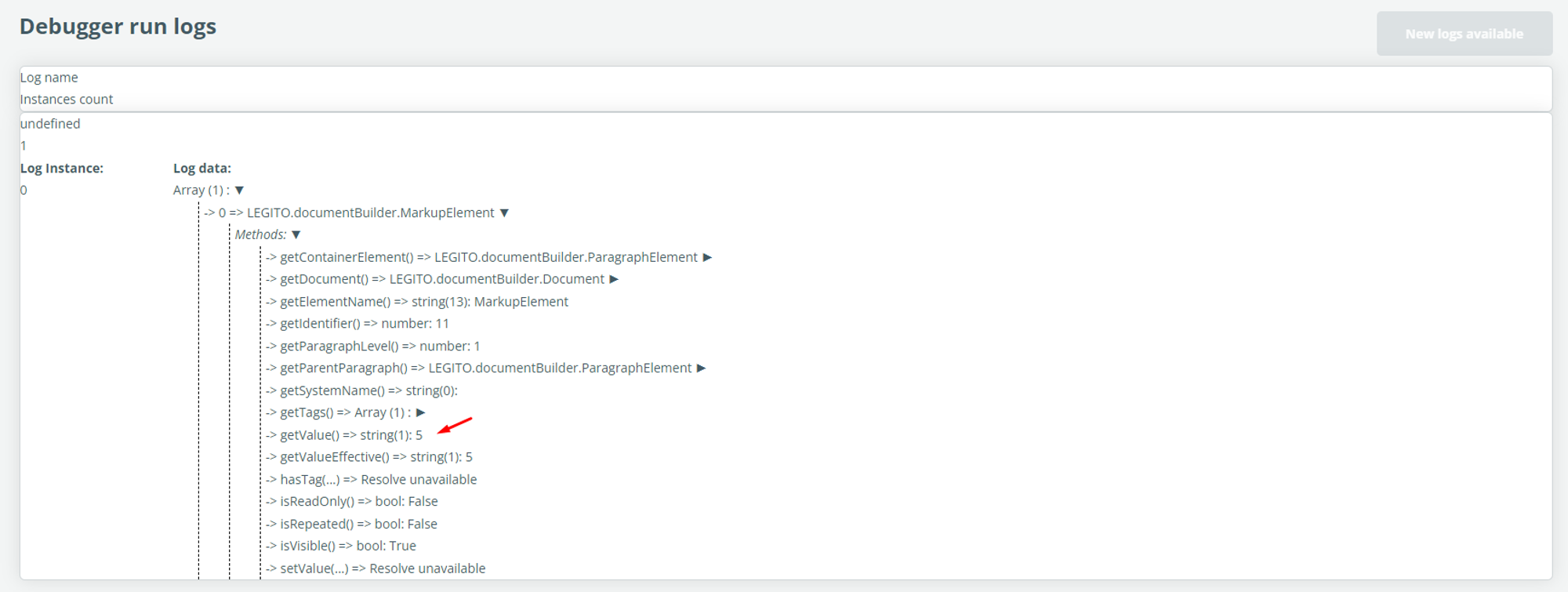
DE.Debug.log(outputElement);When you test your script, you can then go to “Open debugger” and inspect what you outputted to the debug log.
For instance, this is listOfOutputElements and you can check all its properties.
HTTP example
For advanced usage of Templates and Documents, Legito offers an integrated script engine that enables running a secure subset of TypeScript code as a reaction on one of the supported document events. Scripts can read the document, input values, modify them, and even use REST calls to obtain data from an external resource.
Script API documentation can be found here: https://emea.legito.com/ts-api/definition/
Example of a simple TagScript that fills a value into a TextInput from the Internet using REST API:
const response = DE.RestClient.get('https://mocki.io/v1/7558aae9-e7a1-4ec3-9ed3-5a3d4b78e3dc').data;
const outputElement = DE.Elements.getFirstByTagName('result');
DE.Debug.log(response);
outputElement.setValue("" + response['company']);
How to make API call
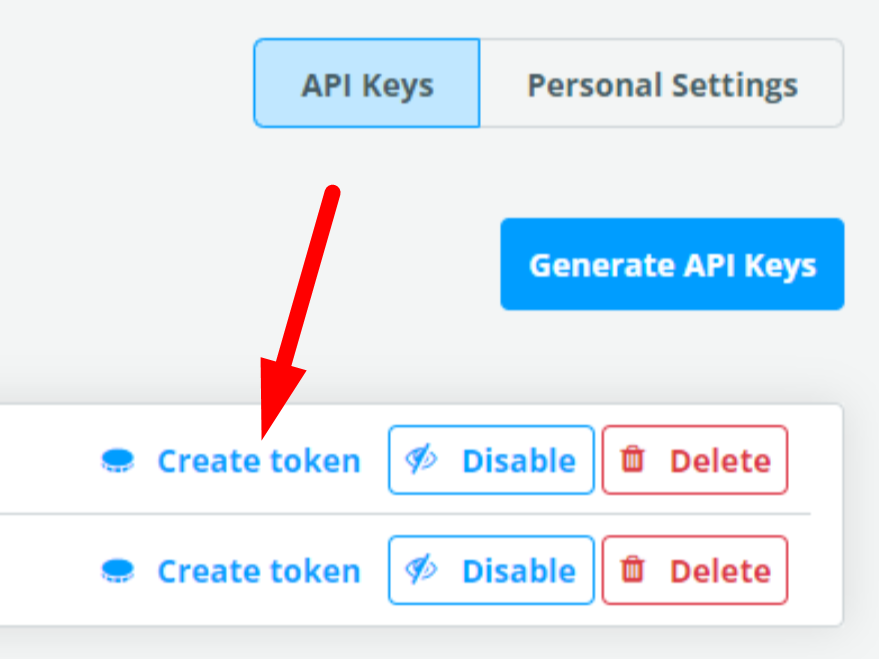
Create API key in Legito Web Application: go to Settings ⇒ API ⇒ Generate API Keys ⇒ Create Token
How to get API token automatically in the script
API URL where you will get JTW Token for API calls from script to Legito API: https://n8n.emea.legito.com/webhook/41baf2ac-cb33-4dc7-8e55-55ef17272ca7
const privateKey = "your_private_key";
const apiKey = "your_api_key";
const urlToGetToken = "<https://n8n.emea.legito.com/webhook/41baf2ac-cb33-4dc7-8e55-55ef17272ca7>"
var headers = {
"x-api-key": apiKey,
"x-private-key": privateKey
}
var parameters = {}
const token = DE.RestClient.get(urlToGetToken, parameters, headers).dataRaw;